
Short Sample Start
A short reference recording gives PictureMaker the tone, breathing detail, emotion, and pronunciation habits needed for ai voice cloning. Use the cleanest sample you have so background noise does not guide the output.

voice cloning app
When a source voice needs to carry a new script, PictureMaker lets you create a controlled voice cloning track from a reference recording, shape pacing and emotion, preview the voiceover, and export a high quality MP3 or WAV.
Start Now
Video Voiceover
If a source clip needs a steady voiceover for YouTube, TikTok, or a marketing cut, PictureMaker helps video creators keep narration consistent without booking another studio session.
A usable voice track starts with the source recording, the script, and the creative decisions you make before export.
A short reference recording gives PictureMaker the tone, breathing detail, emotion, and pronunciation habits needed for ai voice cloning. Use the cleanest sample you have so background noise does not guide the output.
Your text script becomes a synthetic voiceover in the target tone, so a missed podcast line or new video sentence can be produced without a full rerecord. The result depends on script clarity and the quality of the source voice.
The voice cloning AI lets you adjust speed, pitch, and emotional tension for the track. Keep changes tied to the scene or lesson so the voice stays natural in the final output.
PictureMaker prepares the generated track as a high quality audio file, typically MP3 or WAV, for use in your editor, podcast workflow, audiobook project, game dialogue, ad, or service script.
Shape the voice before export, then use the preview to catch anything that does not fit the script or scene.
PictureMaker builds a voice clone from your reference audio when you need the same tone across a new script. Upload or record the approved sample, then add the text you want spoken. The output keeps the familiar voice character, with cleaner results from clear speech and low background noise.
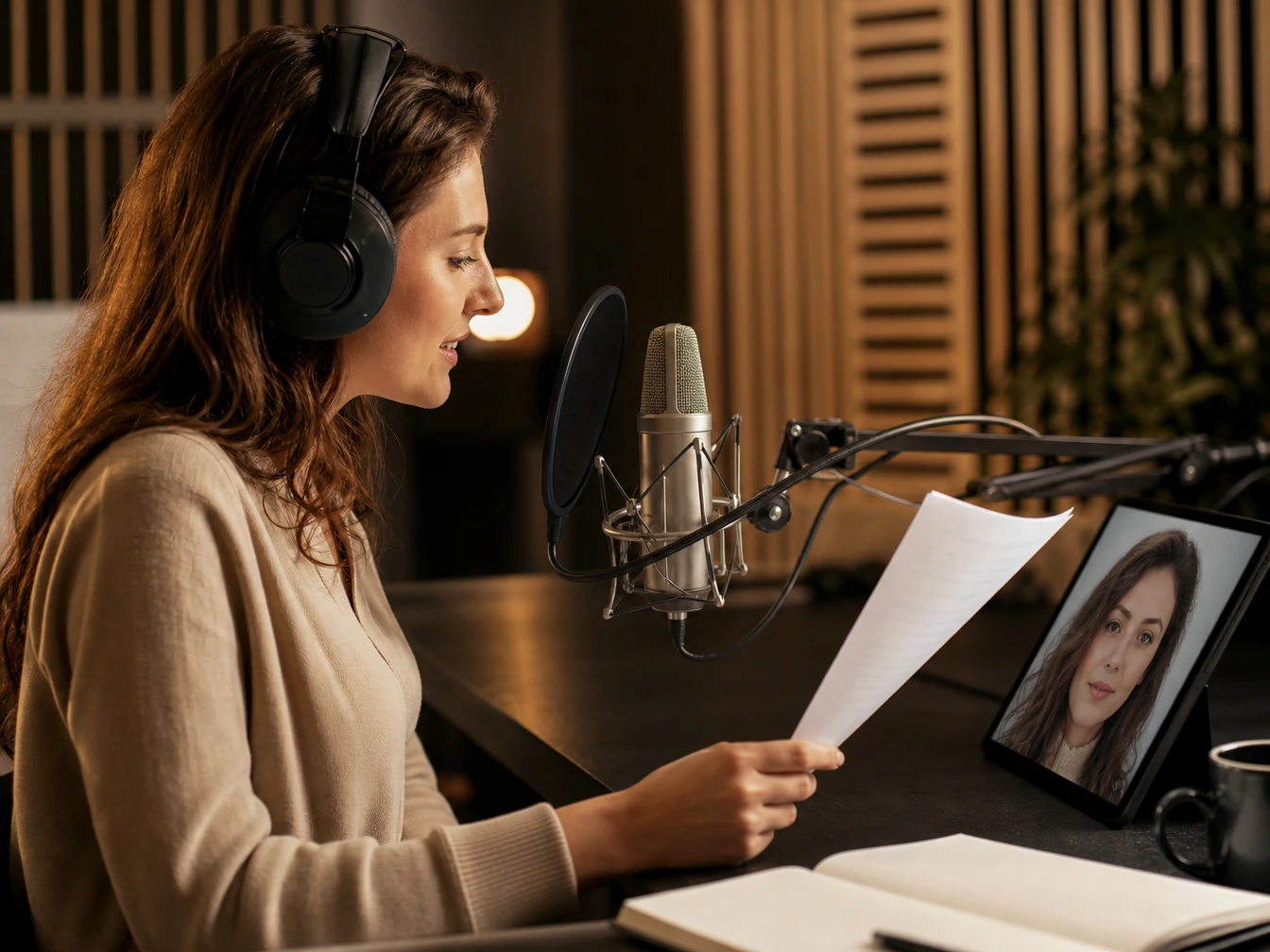
When a line needs a replacement, voice cloning can generate the missing phrase in the same target tone. You enter the corrected script and compare the preview with the surrounding track. The repair sounds most natural when the new wording matches the original pacing and delivery.
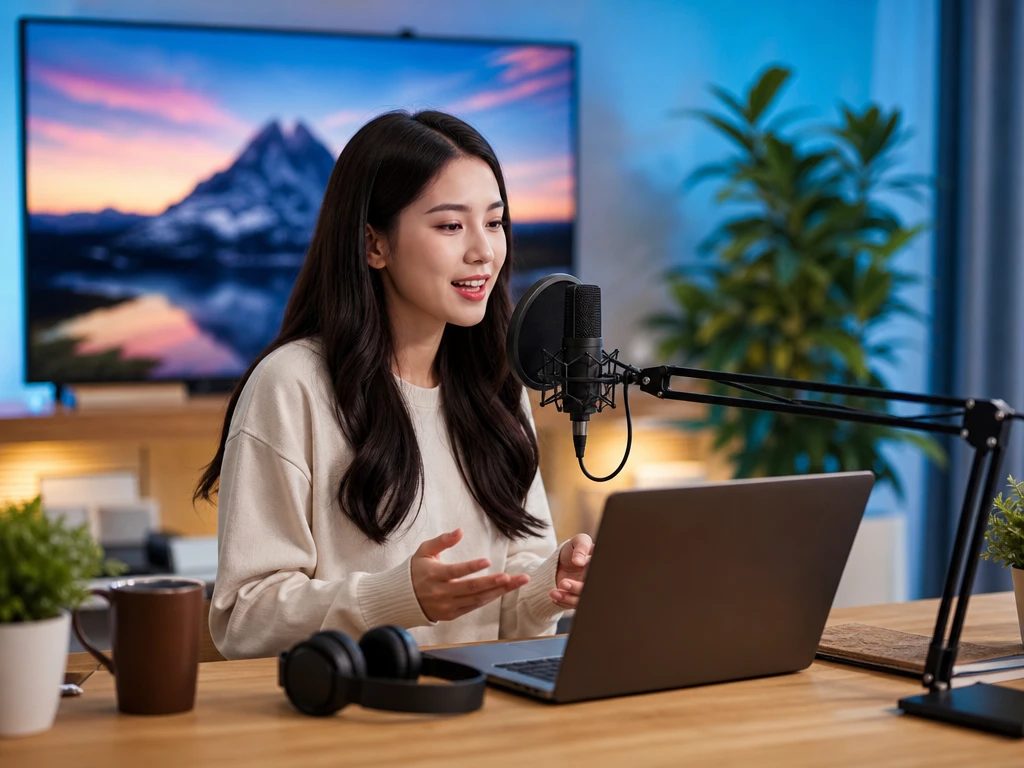
Cross language voice cloning creates a foreign language voiceover in your cloned voice when the script needs another market. You choose the translated script and review pronunciation before export. Works best when proper names and brand terms are checked in the preview.
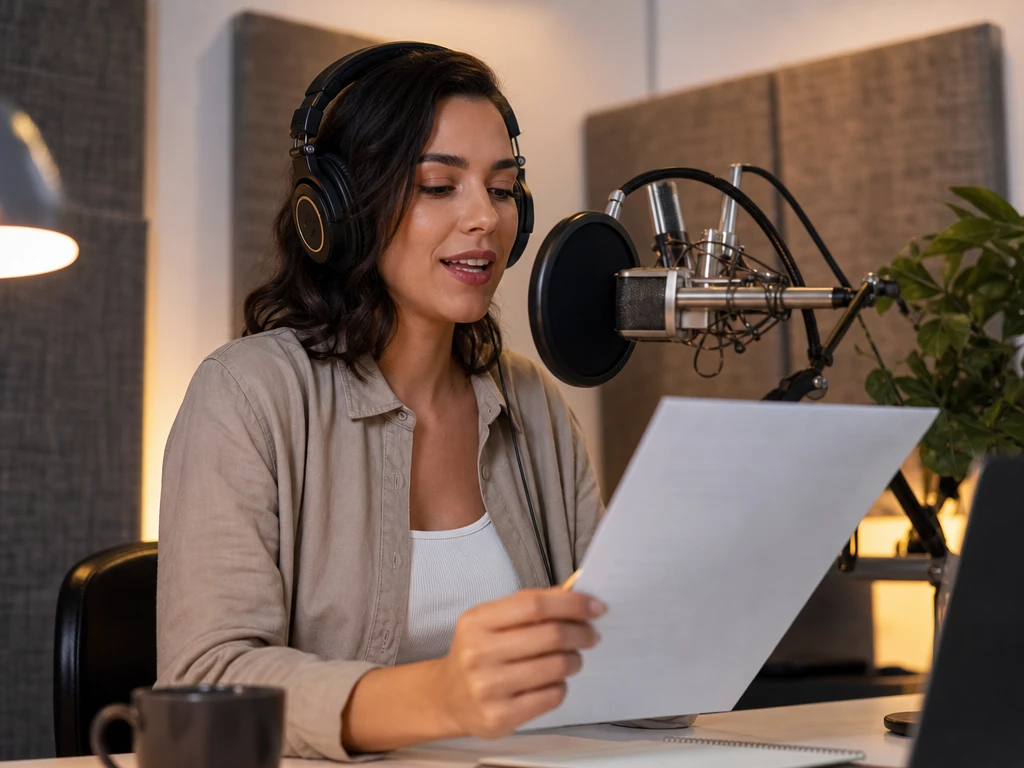
Privacy controls support authorized voice cloning when the source voice belongs to you or a person who has approved the use. Upload approved reference audio and keep the script tied to that intended use. The output reflects the approved source and text, and teams should keep consent clear before using any cloned voice.
Move from reference audio to a finished track with source, script, preview, and export decisions in one focused flow.
Upload a local file or record a short reference sample, then PictureMaker studies tone, breathing detail, emotion, and pronunciation habits so the voice cloning workspace has a source voice to follow.
Paste the words for the voiceover, choose the pacing and emotional direction, then generate a preview so the voice clone can be judged against the scene, lesson, ad, or dialogue.
Review pronunciation, speed, and tone in the preview, after that export the high quality audio file as MP3 or WAV for your timeline, podcast edit, audiobook chapter, game build, or support script.
See how PictureMaker handles a reference voice, script, preview, and export settings before you commit a track to your timeline.
Start NowPictureMaker voice cloning creates a synthetic voice track from a reference recording and a text script. The source audio guides tone, breathing detail, emotion, and pronunciation habits, which helps the new voiceover stay close to the approved voice.
A short reference recording can be enough to start, provided the speech is clear and approved for use. Cleaner audio gives PictureMaker better cues, so the final voiceover needs less correction in preview.
Yes, video creators can use it for narration on YouTube, TikTok, and marketing clips. Match the script to the clip length and review pacing so the track supports the edit instead of crowding it.
Cross language voice cloning can create foreign language voiceover in the cloned voice. Check pronunciation, names, and brand terms before export so localized ads or content keep the intended tone.
No, PictureMaker does not promise unlimited free voice cloning. Check the current plan details inside your account before production so you understand access, usage, and export options.
Emotion controls let you guide speed, pitch, and expressive tension in the spoken track. Subtle changes usually read better than extreme settings, especially for lessons, customer service, and long form narration.
Game teams can generate character dialogue from approved reference voices and written lines. Review each preview against the scene context so NPC speech keeps the right emotion and rhythm.
PictureMaker treats authorized voice data as protected material for the voice task you provide. Use voices you own or have permission to use, which keeps production aligned with consent and brand safety.
Review pronunciation, pacing, emotion, and file format before exporting. A final preview helps catch script issues early, so the MP3 or WAV is ready for your editor or publishing workflow.