PictureMaker
Upload a video to add soundClick or drag to upload / choose from

Audio For Your Clip

add sound to video with timing control

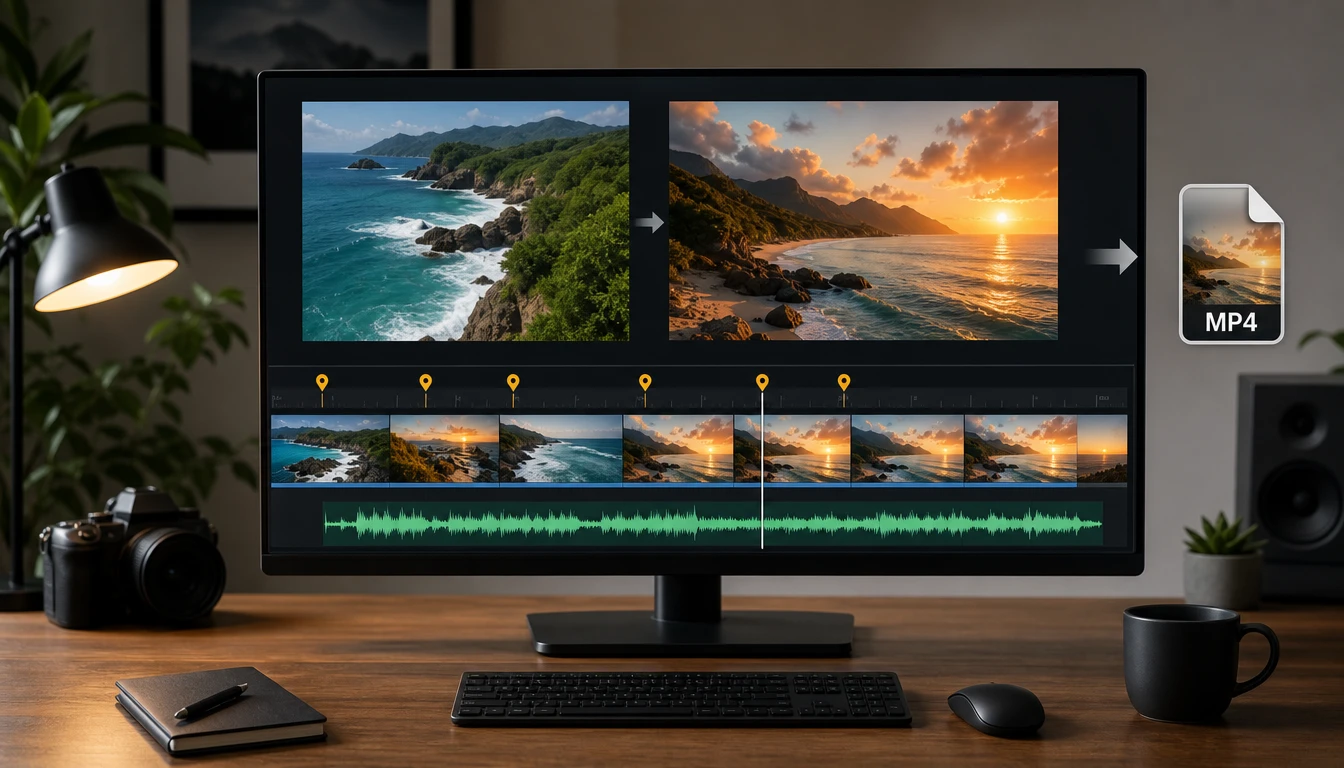
When a quiet clip needs music, voiceover, or a clear effect hit, PictureMaker helps you place the audio on the timeline, balance it against the original track, and preview the output before export.

Start Now
PictureMaker timeline with source clip, audio track, markers, and MP4 export preview

Creators Who add sound to video

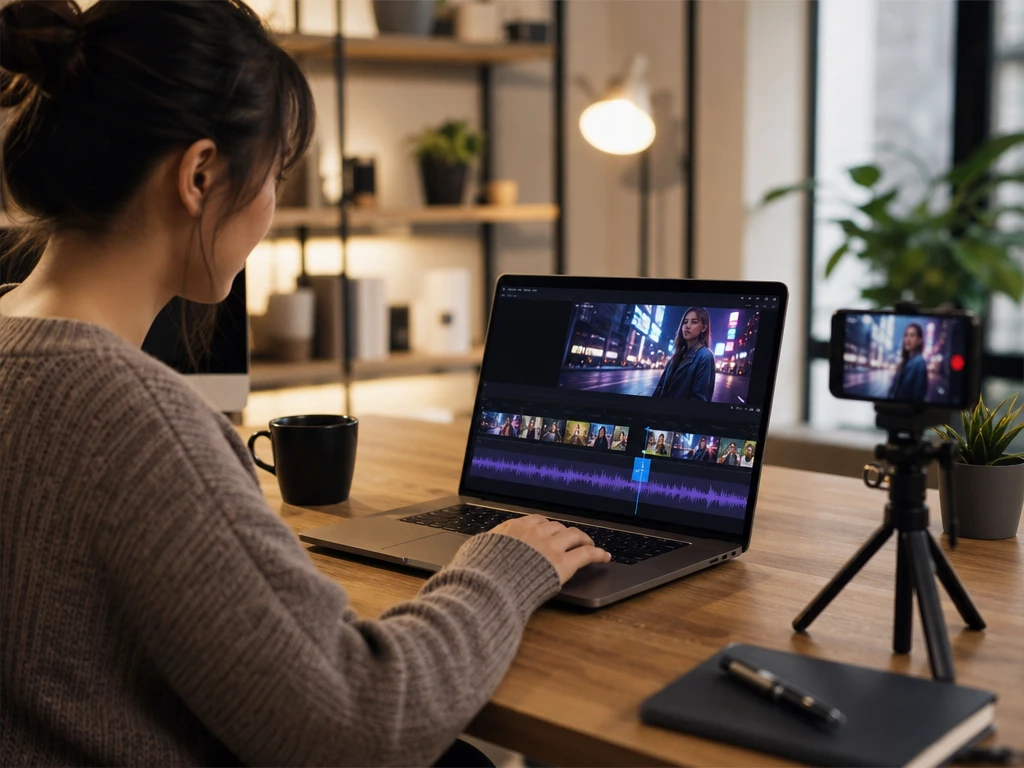
Short video timeline with music track, effect marker, and social clip preview

Social Clips

Creators Shaping Short Clips

Vloggers and short form creators can add sound to video by importing background music or effects, then lining each cue up with the cut that needs it. The result feels paced to the scene, provided the source clip has clear moments to match.

Clean Ways to add sound to video

Start with the clip, choose the audio role, then set timing and volume so the sound supports the scene instead of covering it.

01

Short Social Clips

Import a source clip and a music file, then place the track where the opening beat should land so PictureMaker can add sound to video with the right first impression. Preview the timing before export, especially for Reels, TikTok edits, and quick vlog moments.

02

Product Walkthroughs

Use background music at a lower level so product details, room tone, or recorded speech remain readable. PictureMaker lets you add sound to video while keeping the original clip present when it matters.

03

Lesson Recordings

If your screen recording needs a voiceover, import the narration track, set the start point, and preview the explanation against each visual step. The exported MP4 gives the viewer a clearer path through the lesson.

04

Effect Cues

Place short video sound effects on moments that need emphasis, such as a reveal, click, cut, or motion change. This works best when the effect has a clear cue point in the scene.

Controls That add sound to video

PictureMaker keeps the audio decisions visible, from mute choices to track length, so you can shape the final clip without guessing.

01

Original Audio Control

PictureMaker lets you mute, remove, or keep the original video audio when you add sound to video. Choose the setting that fits the source clip before placing the new track. The output keeps the intended audio focus, as long as the source recording has usable sound to preserve.

02

Separate Volume Levels

PictureMaker provides separate volume control for the video audio and the added track when both need to play together. Set the balance by lowering music under speech or raising an effect around a visual cue. The mix reads clearly when each track has a defined role.

03

Trim And Loop

When the audio file is longer or shorter than the clip, PictureMaker gives you trim and loop controls for the track. Cut extra length or loop a short bed to cover the full video. The result stays consistent when the loop point does not interrupt a spoken line or obvious beat.

04

Drag Timing Markers

PictureMaker lets you set custom start and end times for music, voiceover, and sound effects for videos. Drag the audio into position on the timeline, then preview the moment before export. The timing lands cleaner when the visual cut or action is easy to identify.


See how PictureMaker handles your source clip, imported track, timing choice, and MP4 export in one browser workspace.

Try add sound to video

See how PictureMaker handles your source clip, imported track, timing choice, and MP4 export in one browser workspace.

Get Started

Questions Before You add sound to video

Can I add sound to video with my own music?

Yes, PictureMaker lets you add sound to video by importing an audio file such as MP3, WAV, AAC, or OGG. Use music you have the right to use, then preview the timing before export.

Can I add sound to video without muting the original clip?

Yes, you can keep the original video audio and mix it with the new track. This helps when speech, room tone, or product sound should remain part of the final clip.

Which formats work when I add sound to video?

PictureMaker supports common video inputs such as MP4, MOV, AVI, and MKV, along with common audio inputs such as MP3, WAV, AAC, and OGG. Export is designed for compatible MP4 style video output.

Is this an ai sound effect generator? Is it sound effects ai?

This page covers adding imported music, voiceover, and effects to a source clip. Do not assume ai sound effects are included unless PictureMaker confirms them in the product. Do not assume a sound effect maker or built in library is included unless PictureMaker confirms it in the product.

Can I use it for video sound effects?

PictureMaker can place imported video sound effects on the timeline and sync them to visual moments. It works best when the cue has a clear action, cut, or marker in the clip.

How do I sync sound effects for videos?

Start with the source clip, import the effect, then drag the audio start point to the moment where the action happens. Preview the scene before export so the sound effects for videos land with the picture.

What export do I get after I add sound to video?

After you add sound to video, PictureMaker exports a compatible MP4 style video file. Check the preview first so the music, voiceover, and video audio effects match the clip length.

Will PictureMaker protect files I upload to add sound to video?

The browser workspace processes the files you upload to add sound to video. Review the current privacy terms before using private footage, especially when working with personal voiceover or sensitive source clips.