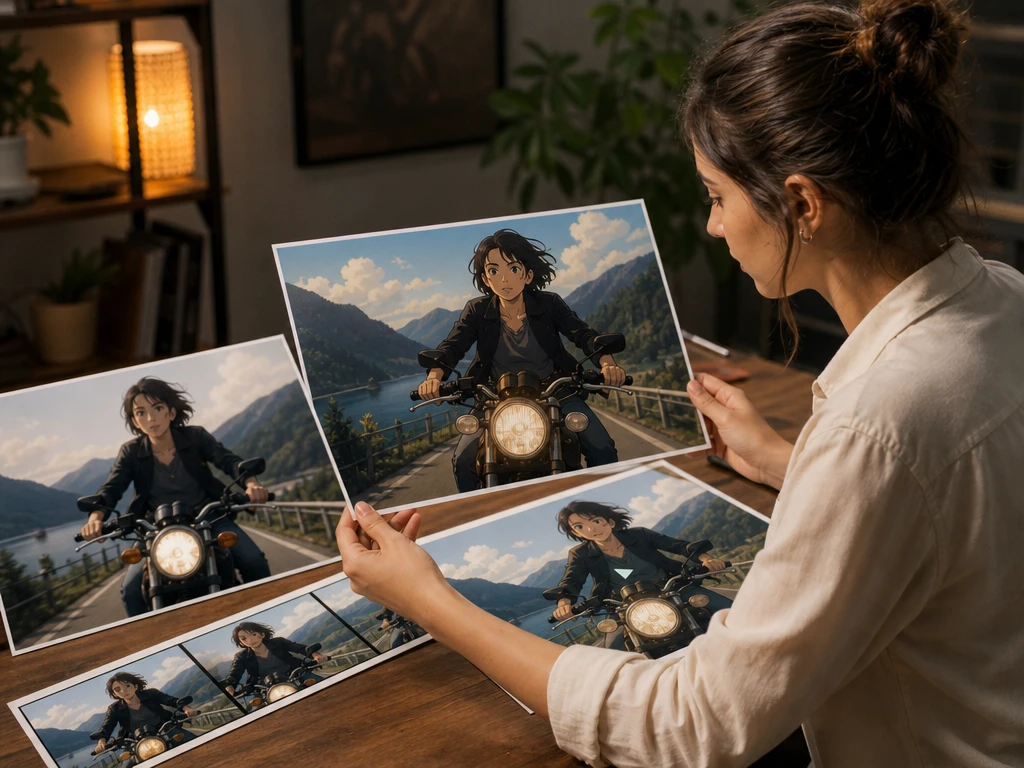
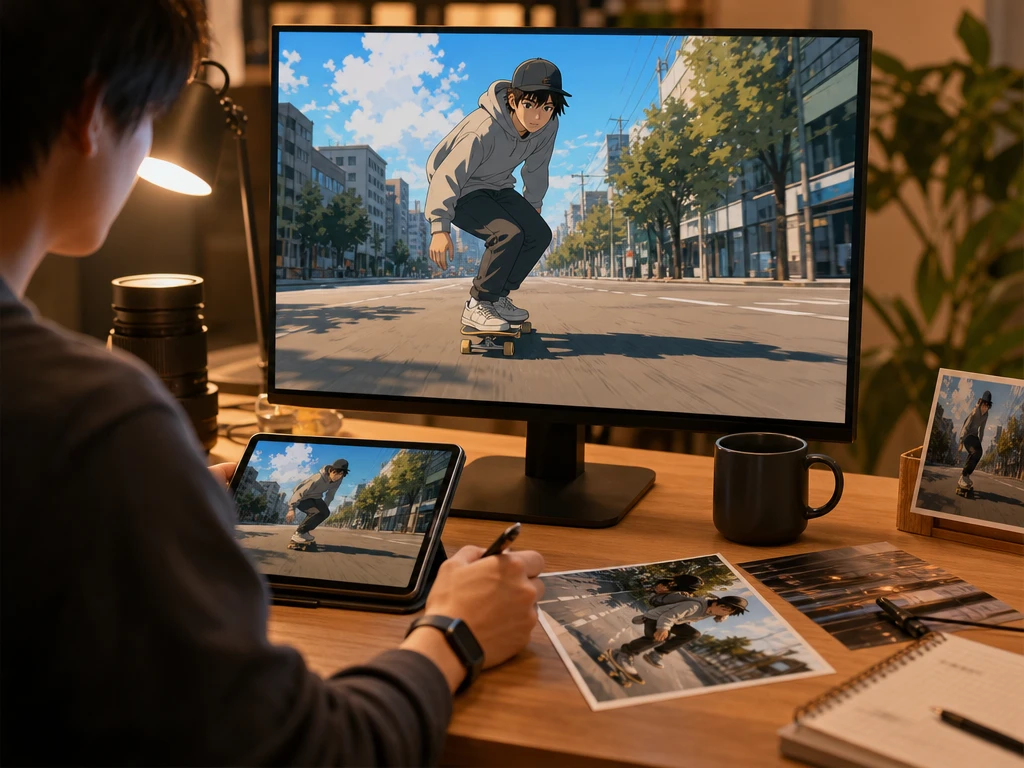
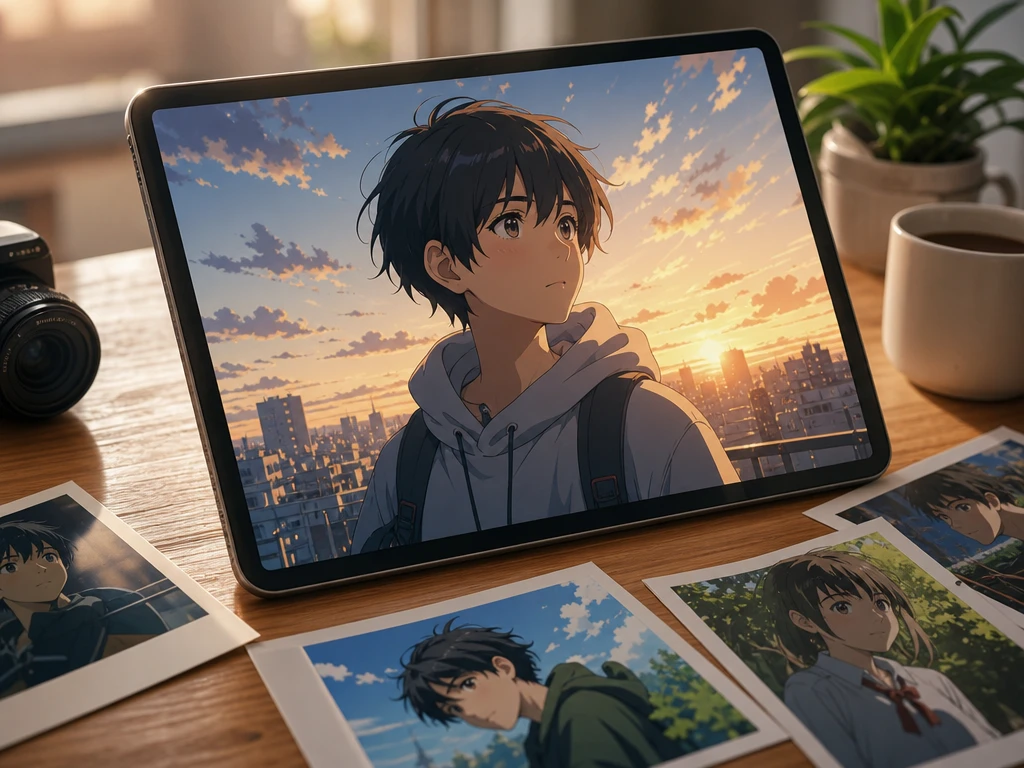
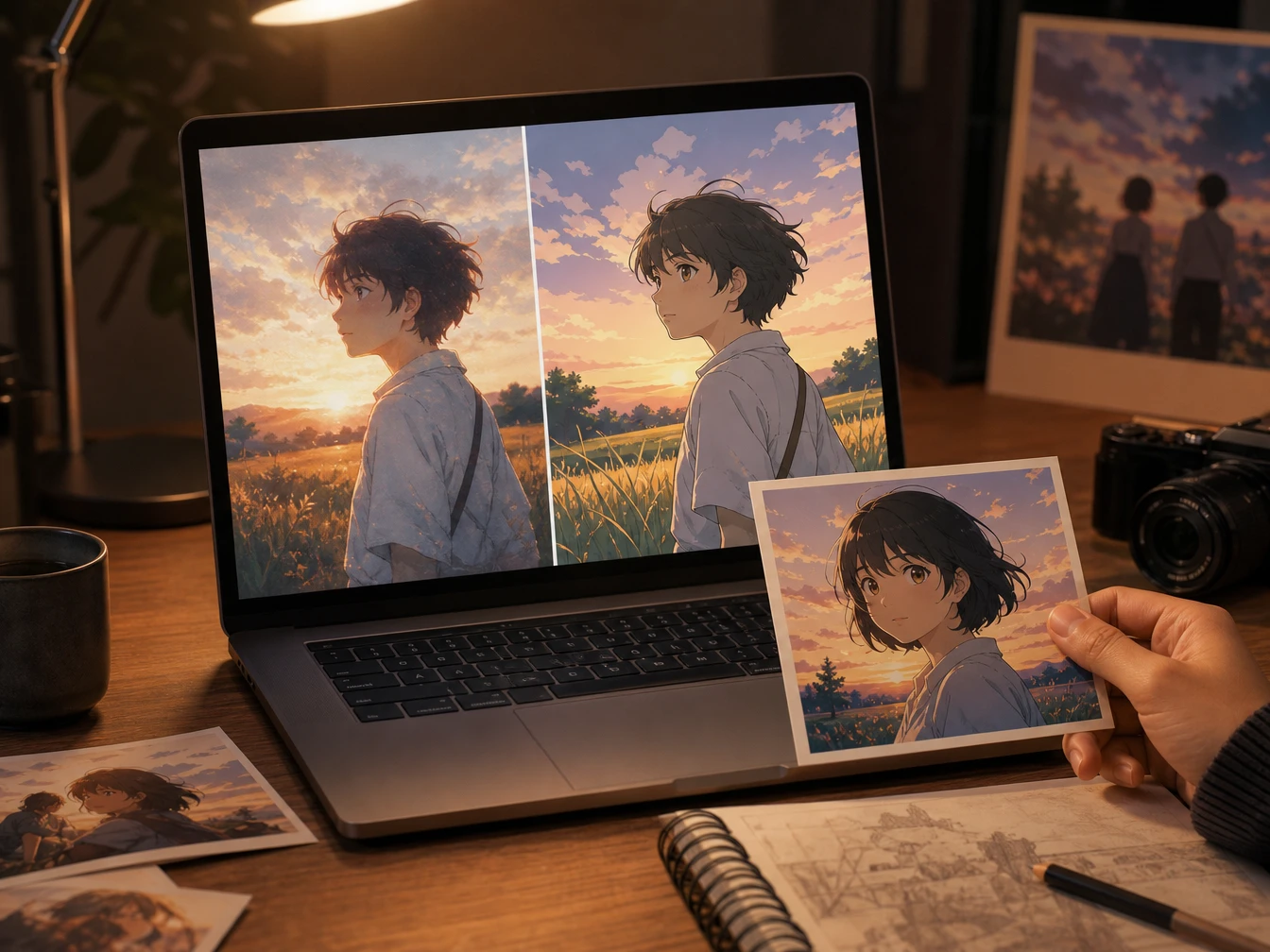
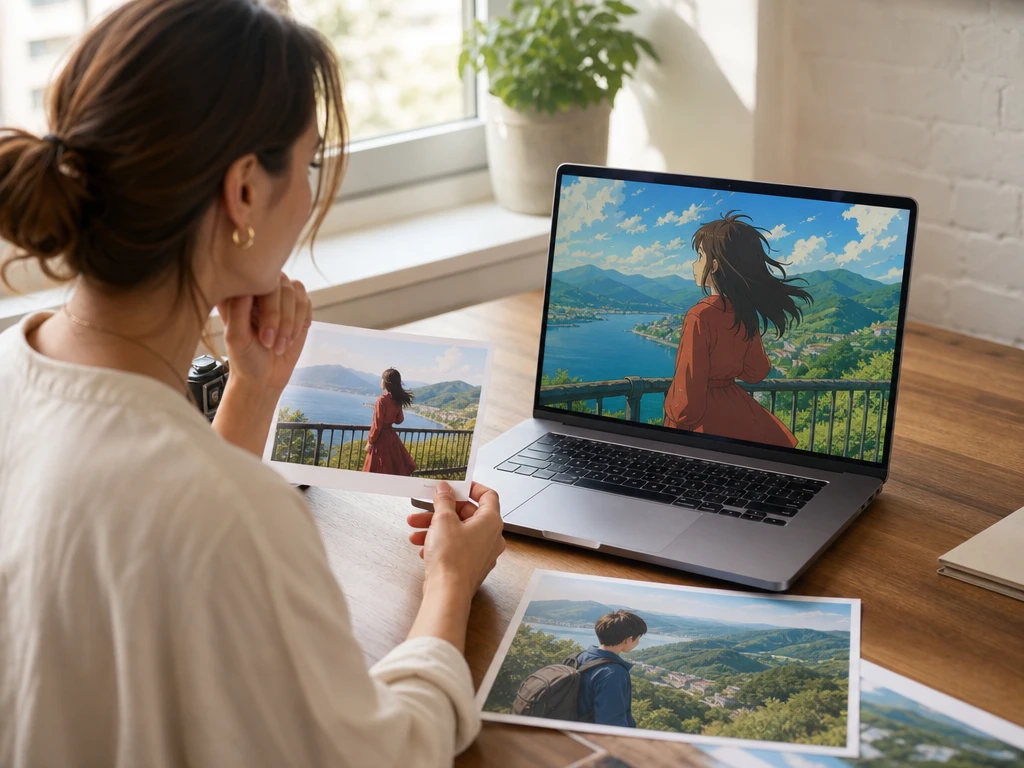
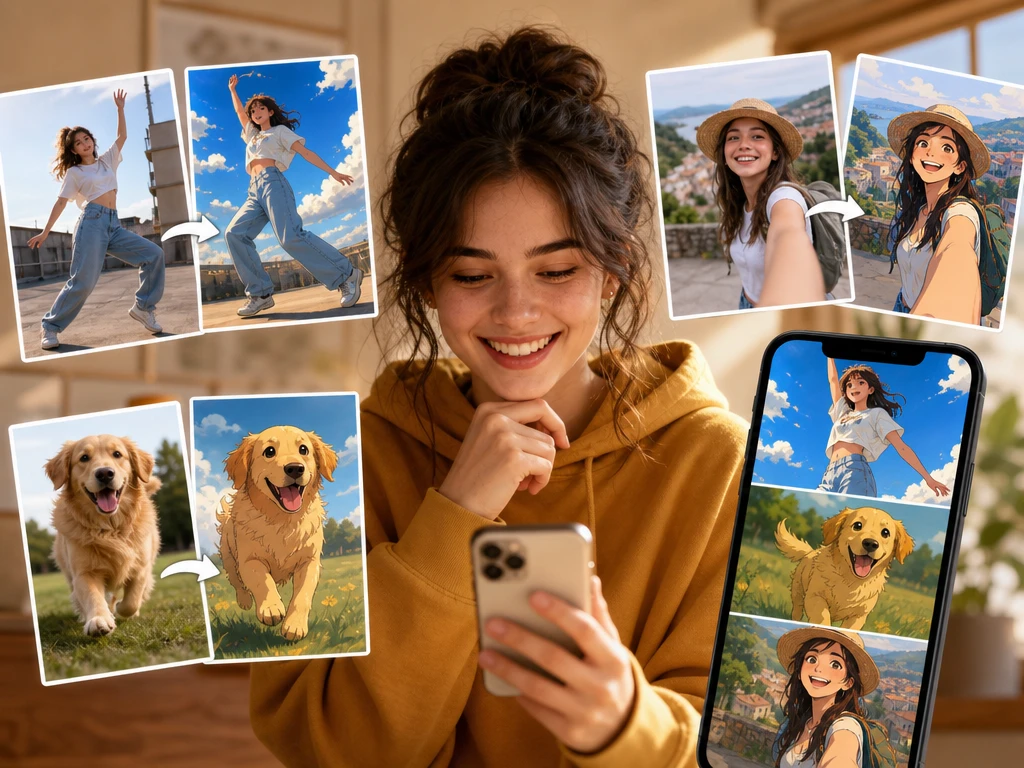
Transform footage into anime, painting, or any artistic style.
Source
Style
video to anime studio
video to anime with motion you still control
When a source clip needs an anime universe without losing its original pacing, PictureMaker helps you guide the style, preview the redraw, and export a video to anime result that keeps the action readable.
PictureMaker keeps the creative decision close to the source clip: choose a live action video, point the ai anime video generator toward a style, and preview a coherent video to anime result before export.
01
Source Clip Reading
PictureMaker reads motion, subjects, and scene rhythm when your live footage enters the video to anime flow. You choose the clip and the style direction, then review how the timeline responds. The output keeps the original action logic, and works best when the source has visible movement and stable framing.
02
Anime Style Choice
Style presets and reference images guide the look when you want more than a flat ai video filter. Pick a direction such as energetic anime, soft Japanese inspired color, or a reference image. The video to anime result follows that visual intent, with cleaner matches when the reference has clear faces, lighting, or line style.
03
Frame Consistency
Low flicker redrawing supports dance clips, vlog shots, pet videos, and travel scenes as video style transfer changes the surface of each video to anime frame. If your source clip has fast motion, preview the timeline before export and adjust the style prompt if the look drifts. The output should feel connected across movement, while difficult blur or harsh cuts may need another pass.
04
Reference Guided Look
PictureMaker uses your style prompt or reference image when the target anime world needs a specific mood. Add one clear prompt, a reference, or both, then compare the preview against your original clip. Your video to anime output gains a recognizable cartoon direction, and noisy references can create less stable detail.
Control the anime look
The tool is built for video to anime decisions that affect the final clip: motion continuity, style strength, subject clarity, and export review all stay visible while you work with ai video style transfer.
Motion Retention
PictureMaker redraws each frame around the motion in your source clip when you turn video into anime through a video to anime pass for dance footage, travel movement, or handheld vlog scenes. Keep the original clip intact, choose the anime direction, then inspect movement in preview before you export. The clip reads as an ai cartoon video with the same action path, and very blurred frames may reduce edge clarity.
Anime Style Presets
Style presets set the visual language when you want an ai art video that feels closer to bold shonen color, softer daily life anime, or a cleaner character look. Choose the preset that matches the scene goal, then refine the prompt only where the preview needs more direction. The final video to anime clip keeps the chosen style more consistently when the source lighting does not swing hard between shots.
Reference Image Input
A reference image gives PictureMaker a concrete style target when your video to anime idea depends on line weight, color mood, or character treatment. Upload a reference alongside the source clip, then let the preview show how closely the look follows it. Results stay cleaner when the reference is simple and relevant, while crowded artwork can pull attention away from the subject.
Clip Preview
The video to anime preview gives you a practical checkpoint when a cartoon video maker ai needs to preserve timing across the full source clip. Review the anime version against the original motion, then adjust prompt wording, style choice, or source clip selection. The export is easier to trust after this pass, especially for clips with clear scene changes and readable subjects.
Where video to anime helps
Social Clips
Anime Challenge Clips
Creators use video to anime to turn dance footage, pet moments, and short vlog scenes into anime style posts for TikTok or Instagram Reels. The practical decision is style intensity: keep the motion recognizable while making the visual shift clear enough for a scroll feed.
Shape video to anime clips
Start with a source clip, choose the visual reference, then export a connected video to anime version after the preview shows the motion and style together.
1
Add a live action video with people, animals, scenery, or product movement, then PictureMaker reads the scene rhythm and motion path. The output at this point is a prepared timeline preview, so your video to anime setup starts from the real movement instead of a blank animation board.
2
Select an anime preset or upload a reference image, then PictureMaker applies that direction across the source clip for ai video style transfer. You see how the video to anime style changes faces, backgrounds, and edges in preview, so the next output choice is based on the clip rather than guesswork.
3
Review the anime version beside the creative goal, adjust the prompt or style choice after that, and export once the motion reads cleanly. The final video to anime output keeps the original action logic with the anime look you approved in preview.
Try video to anime now
See how PictureMaker handles your video to anime source clip, reference image, and style prompt before you commit to the export settings.
The video to anime flow turns live action footage into an anime style clip while preserving the motion logic of the source. Clean movement, clear subjects, and readable scene changes give the tool better material, so the output feels connected instead of jumpy.
Can I use phone footage?
Yes, phone clips can work as long as the subject and movement are visible. Stable framing gives PictureMaker more consistent visual information, which helps the anime version keep faces, pets, or scenery readable.
Will video to anime preserve motion?
Motion preservation is part of the tool goal for video to anime, especially for dance, vlog, travel, and pet clips. Extreme blur or abrupt lighting shifts can still affect frame detail, so previewing before export helps you catch drift early.
Is this just an ai video filter?
No, PictureMaker is positioned as video to video AI redrawing rather than a flat overlay. The condition is still your source quality, because clear motion and lighting help the anime result stay steadier across frames.
Can I use a reference image?
A reference image can guide line style, color mood, or character treatment. Use a focused reference that matches the scene you are converting, and PictureMaker can shape the anime look closer to that target.
Which clips work best?
Clips with visible people, animals, scenery, or product movement are the best starting point. Strong subject separation and stable light make style transfer easier to judge, which saves time during preview.
Can brands use video to anime?
Brands can use video to anime for product demos, interviews, and social campaign clips aimed at a younger visual language. The content still needs a clear message, and the anime treatment works best when it supports that message instead of covering it.
Does it replace animation teams?
It can shorten the path from source footage to anime style output, but it does not replace every part of professional animation direction. Teams still make creative calls on style, pacing, and review, which keeps the final clip aligned with the project.
What should I check before export?
Check motion continuity, face clarity, background stability, and whether the chosen style fits the scene. A careful preview helps you catch flicker, overdrawn edges, or prompt drift before committing to export settings.