Enhance resolution and sharpen details frame by frame.
BeforeAfter
AI Video Enhancer
video quality enhancer for clearer clips
When your source clip looks soft, noisy, or compressed, PictureMaker helps you enhance video quality, restore visible detail, and export a clearer MP4 while you keep the final look under review.
If a vlog, concert clip, or phone recording looks too soft for TikTok, Reels, or Shorts, the video quality enhancer gives you a video enhancer workflow for cleaner faces, steadier color, and clearer playback before you post.
Cleaner Clips With video quality enhancer
Use the video quality enhancer as an ai video enhancer for source clips that need sharper playback, steadier color, and fewer compression marks before export.
Upscale to 4K
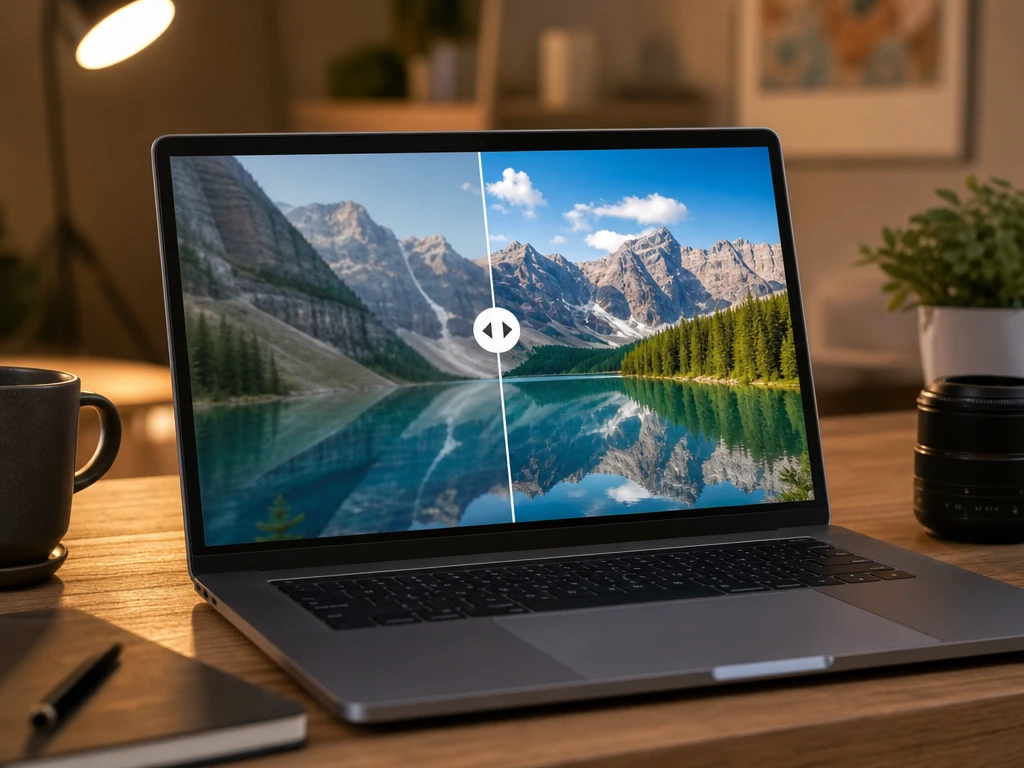
Sharper playback size appears when the video upscaler reads a low resolution source clip and prepares it for 1080P or 4K output. Choose the target quality, review the preview, and keep any frame that still feels too soft out of the final export. The result looks cleaner on large screens, and it works best when the original clip still has visible shapes and edges.
Noise and Blur
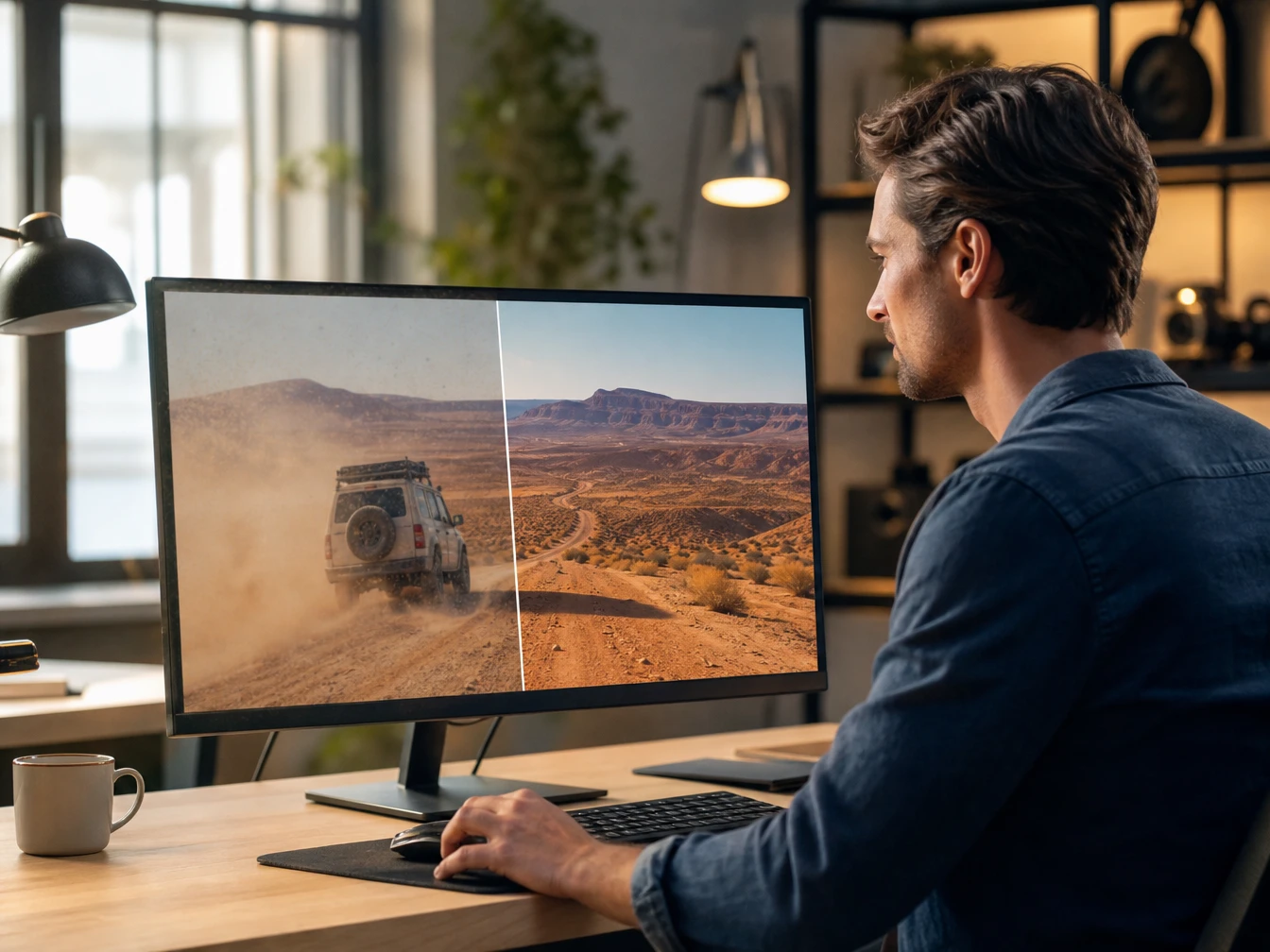
Noise and Blur reduces grain, compression blocks, and soft focus when a clip carries phone noise or heavy platform compression. Upload the MP4 or MOV file, then let the video quality enhancer suggest a cleanup pass before you approve it. The output reads calmer and clearer, though very damaged frames may still need a careful preview.
Texture Detail
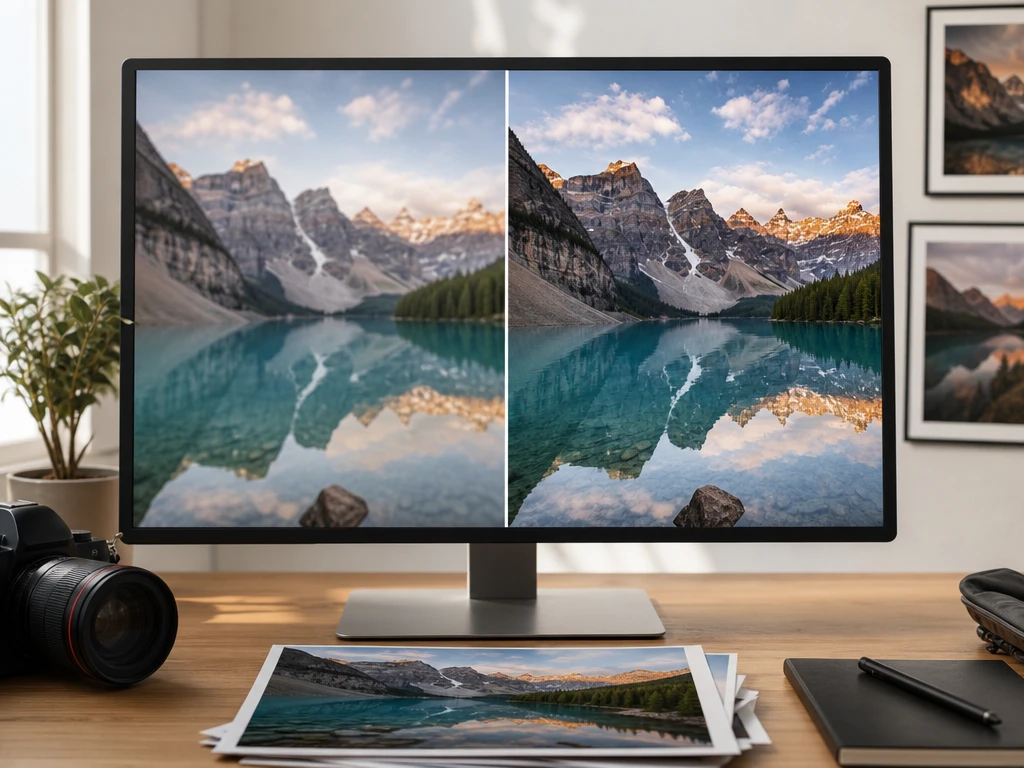
Texture Detail restores skin texture, hair strands, and product surfaces when the video quality enhancer improves clarity without flattening the image. Use the preview to check faces, fabric, metal, or packaging before export. The clip keeps more natural detail, and it works best when the source image is not completely washed out.
AI Cleanup
When an AI generated clip looks too smooth or uneven in light, the video quality enhancer reviews the frames and balances the image before export. You preview the cleanup, then decide whether the ai video upscale feels natural enough for the scene. The final clip can show more grounded light and texture, provided the source video already contains usable motion and detail.
Run the video quality enhancer
Start with the source clip, choose the visible change you want, preview the result, then export the MP4 that fits your posting workflow.
1
After you sign in, add an MP4, MOV, or another common video file, then choose the clip length and quality target that fit the post. PictureMaker reads the source clip so the video quality enhancer can prepare a first preview.
2
Pick 1080P or 4K upscaling, noise cleanup, blur repair, color correction, or detail restoration, then let the video quality enhancer analyze each frame based on the source quality. The preview shows the visible change so you can judge faces, edges, and motion before export.
3
Approve the preview, adjust the quality choice if the image looks too sharp or too smooth, and after that export a high definition MP4 for your posting workflow. The video quality enhancer keeps the final decision in your hands.
Sharper Outputs From video quality enhancer
The video quality enhancer focuses on the changes viewers actually see: cleaner faces, clearer objects, steadier color, and an MP4 ready for multi platform publishing.
01
Format Support
PictureMaker supports common video inputs such as MP4 and MOV when you need an ai video upscaler in the browser. Add the file, choose the quality target, and preview before export. The output is a high definition MP4, with final clarity tied to the usable detail in the source clip.
02
Face and Skin
Face and Skin improves visible facial detail and brightens dull skin tones when portrait clips, vlogs, or concert videos need a cleaner look. Review the frame preview so you can stop the image from looking too smooth. The output keeps faces more readable, and it works best with clips where eyes, hair, and skin texture are still visible.
03
Edge Sharpening
Edge Sharpening helps anime, game footage, and product clips look more defined when outlines or material borders have softened. Use it to upscale video while watching color and line strength in the preview. The result can read crisper, though heavy motion blur may still limit how much edge detail returns.
04
MP4 Export
MP4 Export turns your approved preview into a high definition file for posting across platforms. Check export settings against clip length and quality so the file fits your publishing plan. The video quality improver gives you a cleaner final clip, with the source quality still shaping the result.
See Your Cleaner Clip
Try your first source clip in PictureMaker and see how the video quality enhancer handles blur, noise, and detail before you export.
What does a video quality enhancer change in a clip?
A video quality enhancer improves visible clarity by reducing noise, repairing soft focus, correcting dull color, and restoring detail where the source clip gives PictureMaker enough image information to work with.
Can this video quality enhancer upscale video to 4K?
Yes, PictureMaker can upscale video to 1080P or 4K output. The final result depends on source quality, because clips with recognizable edges, faces, and motion give the ai video enhancer more usable detail.
Is PictureMaker an ai video enhancer or a video upscaler?
PictureMaker covers both needs on this page. Use it as a video upscaler for larger playback size, or as an ai video enhancer for noise cleanup, blur repair, color correction, and detail restoration.
Will a video quality enhancer fix old family footage?
Old footage can look cleaner after enhancement, especially when the clip has blur, grain, or dull color. Very damaged frames may not recover every missing detail, but the video quality enhancer can make preserved memories easier to watch.
Does the video quality enhancer remove noise and blur?
PictureMaker can reduce video noise, soften compression blocks, and improve blur from focus or low quality capture. Preview the result before export so faces, text, and motion still look natural.
How should I read video enhancer free or video upscaler free results?
Those search terms usually point to starter tests or plan comparisons. PictureMaker still requires sign in, and checking the preview helps you decide whether the cleanup and export quality fit the clip.
What input formats can I use?
The video quality enhancer supports common video formats such as MP4 and MOV. Use a source file with visible edges, faces, or product texture to give the video quality improver more material to restore.
Is this video quality enhancer useful for AI generated clips?
AI generated clips can benefit when they look overly smooth, uneven in lighting, or unnatural in texture. PictureMaker helps balance light and restore visible detail, then you judge the preview before the MP4 export.
What should I check before export?
Check faces, text, product edges, color, and motion in the preview. A quick review helps you catch oversharpened frames or overly smooth detail before the final MP4 leaves the video quality enhancer.