PictureMaker
1/4
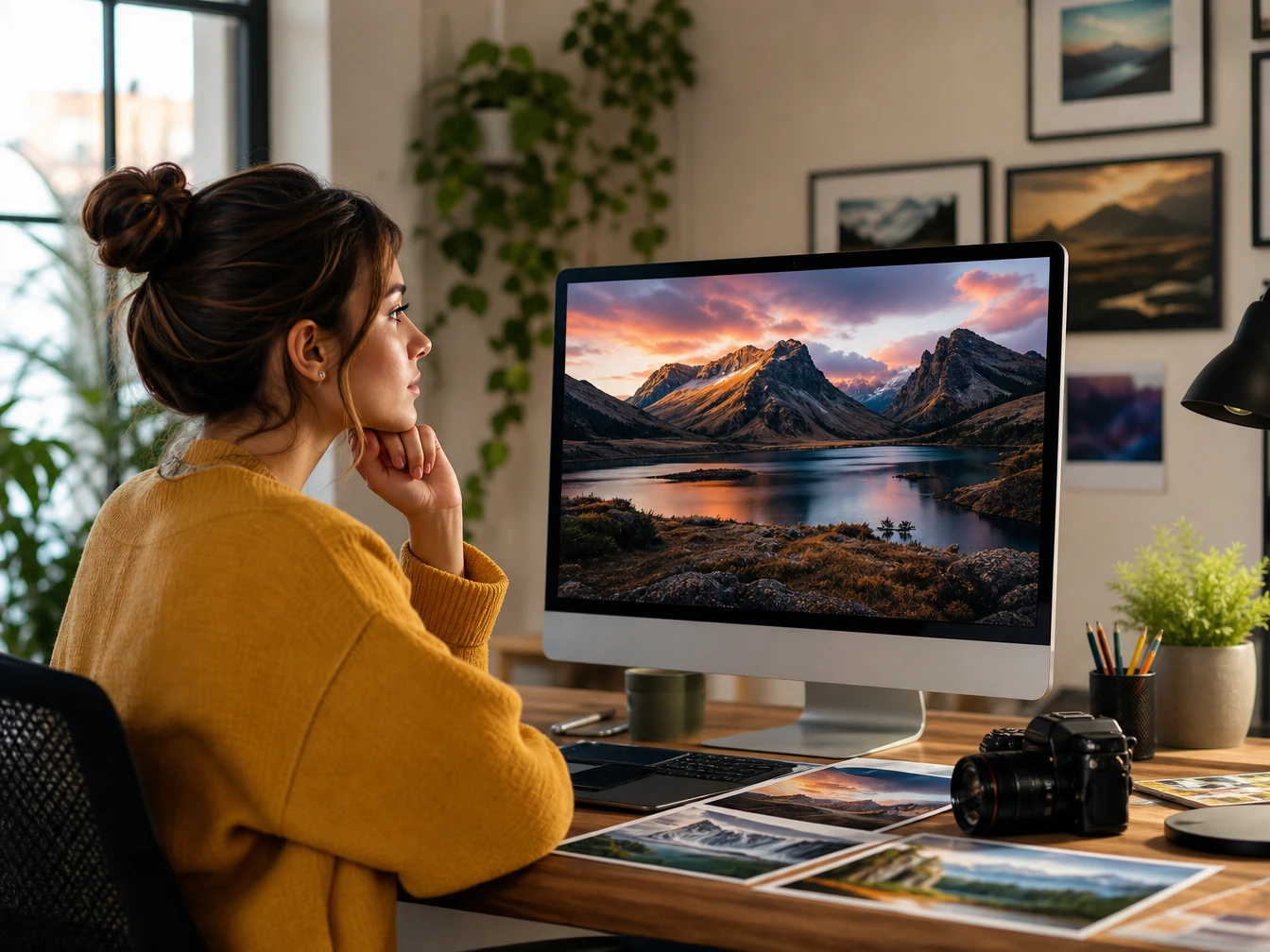
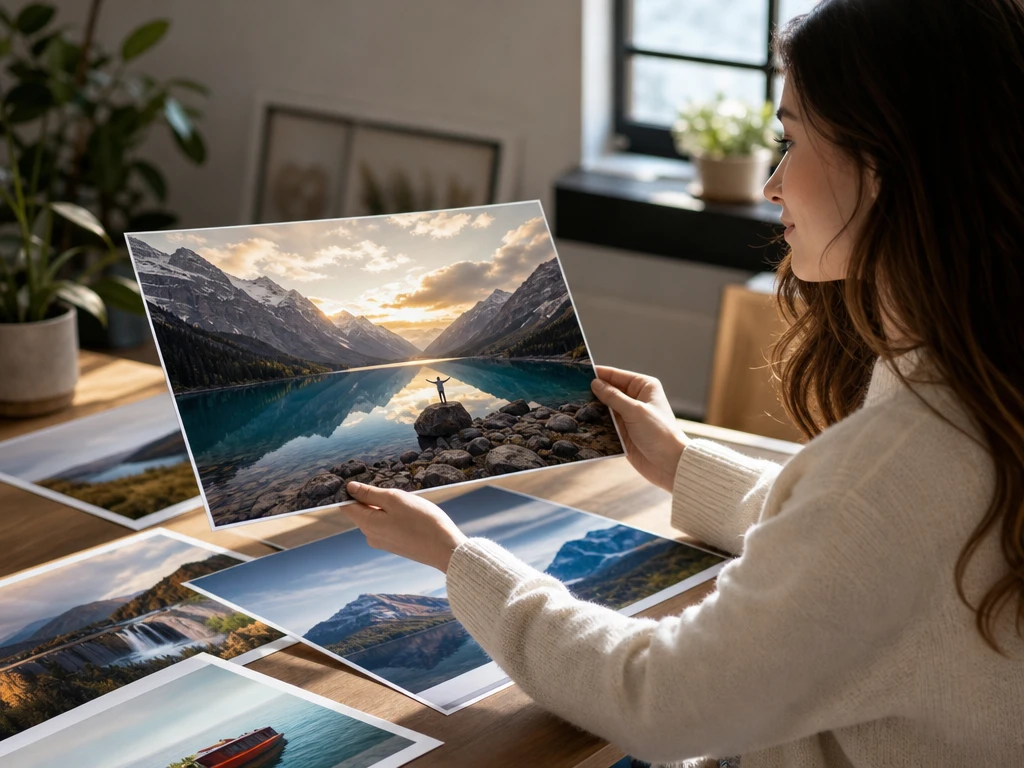
Creator reviewing text to image prompts and generated poster visuals in PictureMaker

Text to image in PictureMaker

ai image generator for Controlled Visual Drafts

Describe the photo, poster idea, or art direction you need, then the ai image generator turns the prompt into a JPG or PNG visual you can review before using.

Start Now

ai image generator for Real Work

Social creator preparing cover art, avatar ideas, and post images in PictureMaker

For Posts

Social Creators

When a channel needs a cover, avatar, or post image, PictureMaker works as an ai photo generator for quick visual drafts from a text prompt. Choose the subject, style, and mood, then review the output before it goes live.

ai image generator for Daily Channels

Use the ai image generator to move from a rough idea to a usable visual without building a full design file first.

01

Post Visuals

When a post needs a specific mood, write the subject, setting, and style, then PictureMaker creates ai generated images for covers, thumbnails, or social updates. Works best when the prompt names one main subject and one visual direction.

02

Blog Illustrations

A draft article can become easier to scan with a supporting visual near the headline or section break. Use the ai image generator to describe the topic in plain language, then choose an output that fits the page tone.

03

Marketing Drafts

Small teams can sketch poster ideas, promo visuals, and campaign references before committing design time. PictureMaker gives the prompt a visual direction, so each ai picture generator result can guide the next creative decision.

04

Creative References

Artists and designers can test color, composition, and style ideas as image drafts. The ai image creator helps shape a reference, while final polish still depends on your review and editing choices.

Shape Each ai image generator Output

The ai image generator workflow keeps the source prompt, style choice, preview, and export settings visible as separate decisions.

01

Write Prompt

Start with a text prompt that names the subject, setting, and use case, then PictureMaker reads it as the source for text to image creation, so the first preview has a clear direction.

02

Choose Style

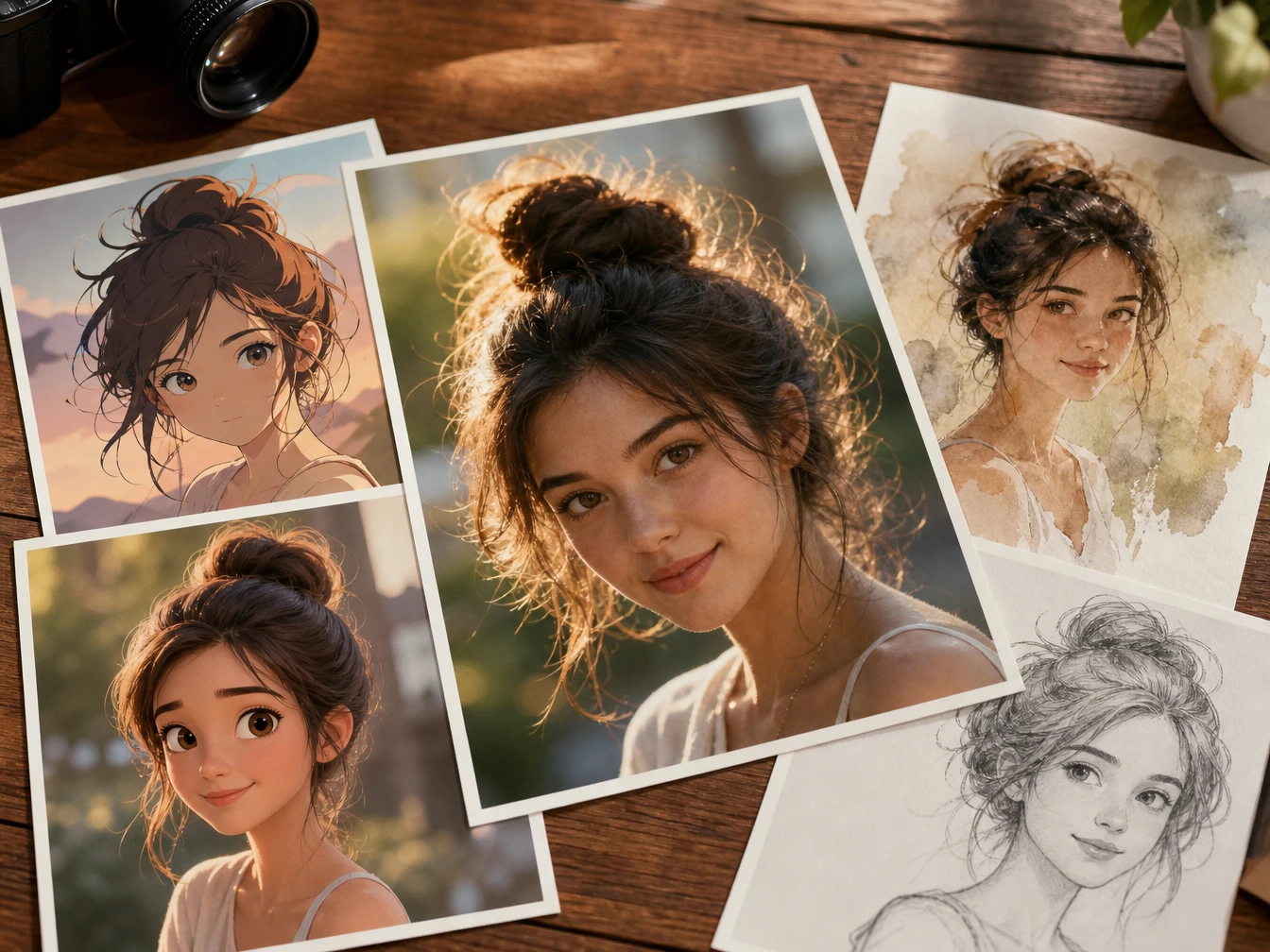
Pick a visual style such as realistic photography, anime illustration, 3D render, or watercolor, then PictureMaker applies that direction to the prompt, so the ai image generation result matches the intended look more closely.

03

Check Preview

Review the preview for subject clarity, mood, and composition, then revise the prompt or style choice, so the next ai image generator output reflects the decision you just made.

04

Export File

After the image fits the channel, export it as a common JPG or PNG file, so the output is ready for a post, blog draft, concept board, or marketing reference.


Practical ai image generator Controls

Each control changes what you see in the image, from subject clarity to style and file format.

Text prompt panel creating image drafts with subject, setting, and style notes

Text Prompt

PictureMaker turns a written prompt into an image draft when you need a visual from a subject, setting, or creative direction. You write the prompt in natural language and can adjust it after the preview. The ai image generator output is clearer when the prompt names the main subject, style, and intended use.

Style selector showing realistic photo, anime, 3D render, and watercolor options

Style Choices

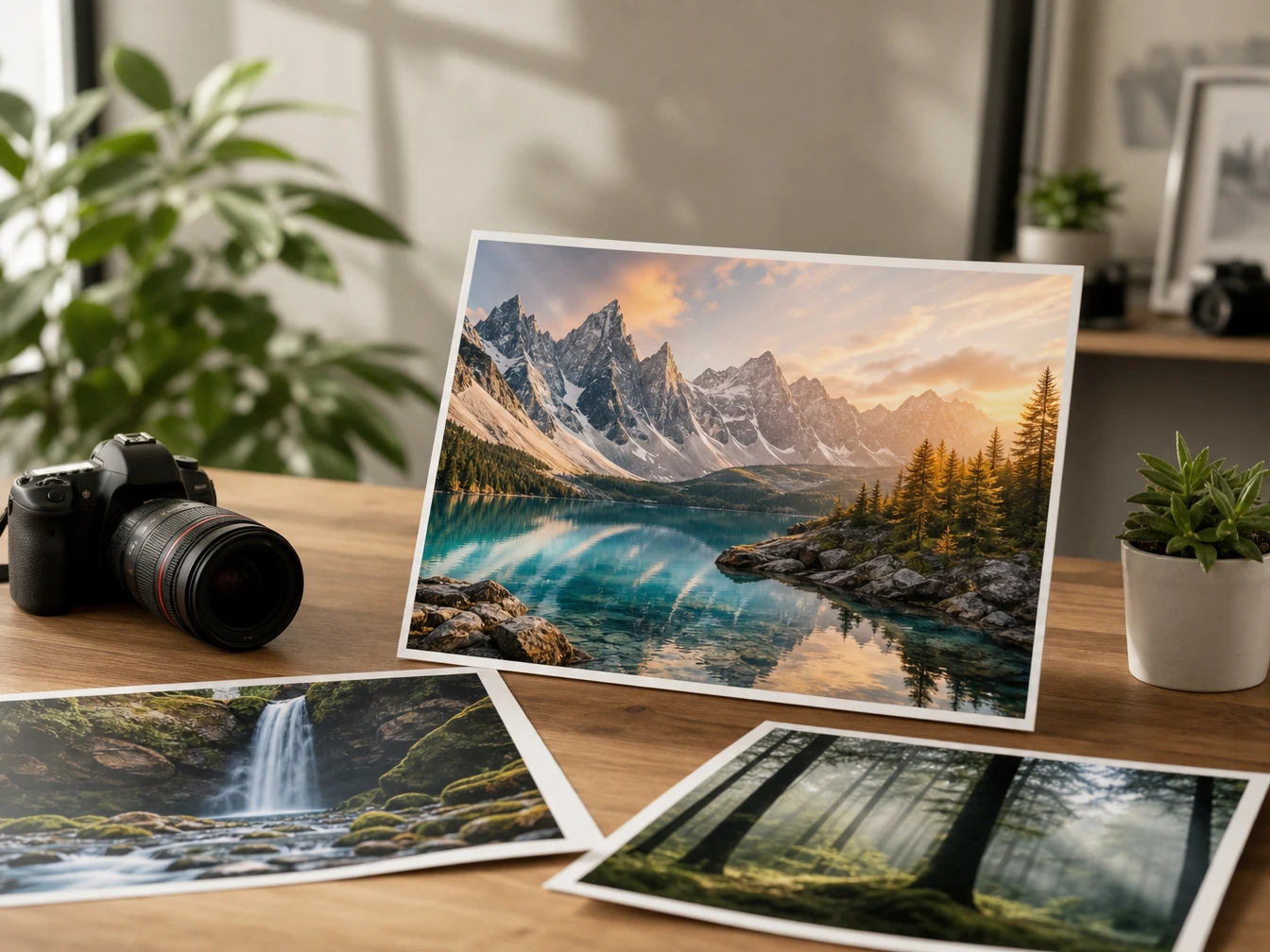
PictureMaker supports style changes for realistic photos, anime illustrations, 3D renders, watercolor looks, and other visual directions when the same idea needs different treatments. You choose the style before generation or revise the prompt after seeing the preview. The visual looks more consistent when the style choice matches the subject and channel.

Preview grid comparing generated image drafts for review and prompt revision

Fast Preview

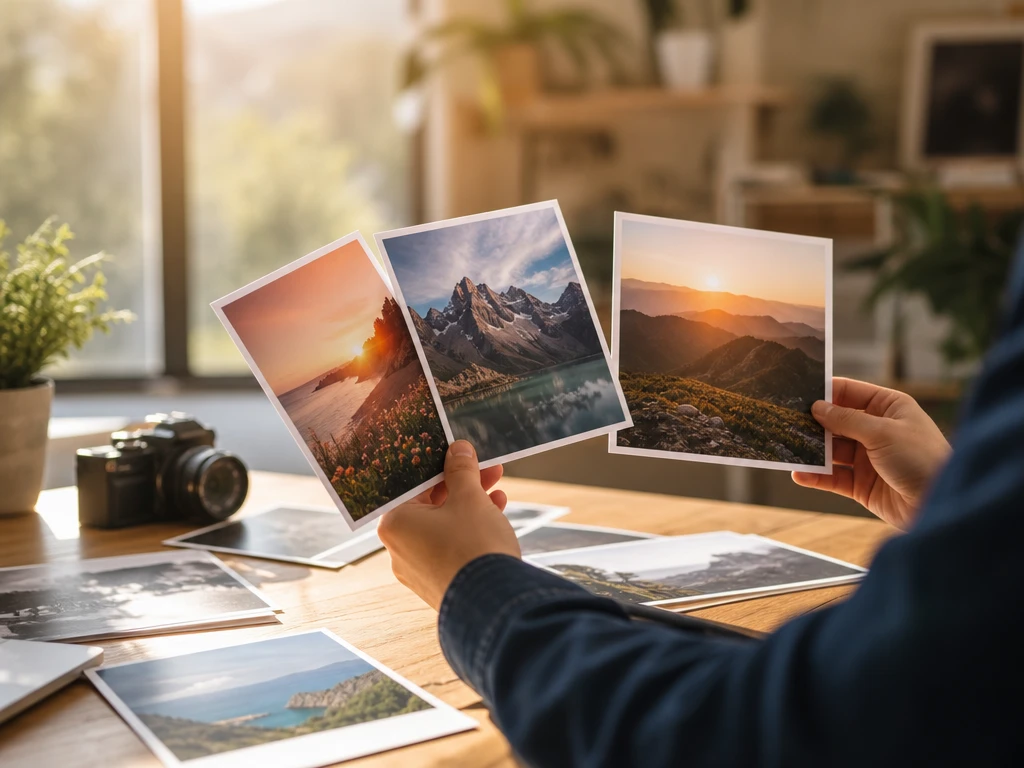
PictureMaker creates visual previews within a short generation flow when you need to compare ideas without rebuilding the asset from scratch. You review the preview, then keep, revise, or regenerate from a clearer prompt. The result works best as a creative draft when small details and text inside visuals still get a final human check.

Export settings showing JPG and PNG image files for posts and blog visuals

JPG PNG Export

PictureMaker exports common visual files when the visual is ready for a post, blog page, concept board, or marketing draft. You choose the output you want after reviewing the generated visual. The exported file is practical for everyday channels, while final placement and brand approval stay in your workflow.

See how PictureMaker handles your first text to image prompt, then decide whether the style, subject, and output file fit the asset you need.

Try ai image generator First

See how PictureMaker handles your first text to image prompt, then decide whether the style, subject, and output file fit the asset you need.

Create

Clear ai image generator Answers

What does the ai image generator create?

PictureMaker creates image files from text prompts, including visuals for posts, blog illustrations, concept art, and marketing draft ideas. The ai image generator works from the words you provide, so a clearer subject and style usually produce a more useful preview.

Can I use PictureMaker as a text to image ai tool?

Yes, PictureMaker supports text prompts as the input for this page. Describe the source idea, style, and intended channel, then the ai image generator returns an image you can review and export.

Is PictureMaker a free ai image generator?

Plan details can vary by account and are not defined in this brief. A PictureMaker login is required to use the ai image generator, and the benefit is that your prompt, preview, and export flow stay in the same workspace.

Does this ai image generator support image to image ai?

This page covers text prompts as the confirmed input. Image to image ai is not listed in the brief for this feature, so use the ai image generator here for text to image creation only.

Will the ai image generator spell text inside images correctly?

Generated image text can need review because perfect lettering is not promised here. Use PictureMaker for visual direction, composition, and style first, then check any labels or written details before publishing.

Can I export ai generated images as JPG or PNG?

PictureMaker supports common image file output such as JPG or PNG for this ai image generator. That makes the result easier to place into posts, blog drafts, concept boards, and marketing references after review.