PictureMaker
Choose an image to change the angle
Upload or choose an imageClick or drag to upload / choose from
Edit instructions
Add visual referencesOptional
image/video/audio (choose from )
0/12
Describe scene transitions, camera movement tranectories, or character actions with text to precisely control the entire video from beginning to end.

Prompt Based Photo Editing

ai photo editor for controlled image edits

A product photo needs a cleaner background, a portrait needs natural color, or an old family image needs repair. PictureMaker gives you an ai photo editor where your prompt, source image, and preview stay in the same browser workspace, so each edit keeps the result tied to your goal.

Start Now
PictureMaker ai photo editor workspace with source image, prompt field, preview, and export settings

Shape edits with ai photo editor

Use the ai photo editor as an ai image editor when you want the visible result first, then the editing choice behind it. Your prompt describes the change, the preview shows how the image responds, and export settings keep final output ready for the channel.

  1. 1

    Upload a JPG, PNG, or WEBP source image, then decide whether the ai photo editor should clean the background, remove an object, repair detail, or adjust the frame so the first preview starts from the right creative intent.

  2. 2

    When a photo needs a specific change, write a prompt such as replace the backdrop, remove the passerby, or restore the damaged corner, then PictureMaker reads the instruction and prepares a preview for ai photo editing.

  3. 3

    Review the image editor ai preview, adjust the prompt or tool choice after that, and export the version that fits your planned placement, with common image formats and mainstream aspect ratios supported where available.

Where ai photo editor fits

PictureMaker serves creators who need practical image edits without moving the file through a full production stack. The ai photo editor keeps prompt, preview, and ai photo editor output close together, which helps when time matters and the image still needs taste.

01

Product Sellers

Clean product edges, quieter backgrounds, and seasonal scene options help sellers prepare catalog images and campaign visuals. Use the ai background changer to test a brand toned setting, then keep the version that makes the product easier to inspect.

02

Social Creators

Travel photos, selfies, and cover images often need fast cleanup before posting. The ai picture editor can remove distracting objects, refine portrait color, or extend a frame for vertical and square placements.

03

Explainer Makers

Clearer screenshots, restored reference photos, and cleaner illustrations help educators keep attention on the lesson. Use edit image with text prompts to name the change directly, then check that the final visual supports the explanation.

04

Small Teams

Small teams can prepare simple marketing visuals without sending every photo to a specialist. If a campaign needs consistent product images, the ai photo editor helps repeat background, color, and framing decisions across related assets.


ai photo editor controls that matter

The best edits show up as cleaner edges, calmer color, and fewer distractions before anyone thinks about the tool. PictureMaker keeps ai image editing practical by pairing natural language prompts with focused photo controls.

01

Prompt Editing

PictureMaker lets you edit image with ai prompts for local changes, background swaps, and creative style directions. Describe the change you want, then review the preview before exporting. Output reads best when the prompt names one clear edit instead of several competing changes.

02

Object Removal

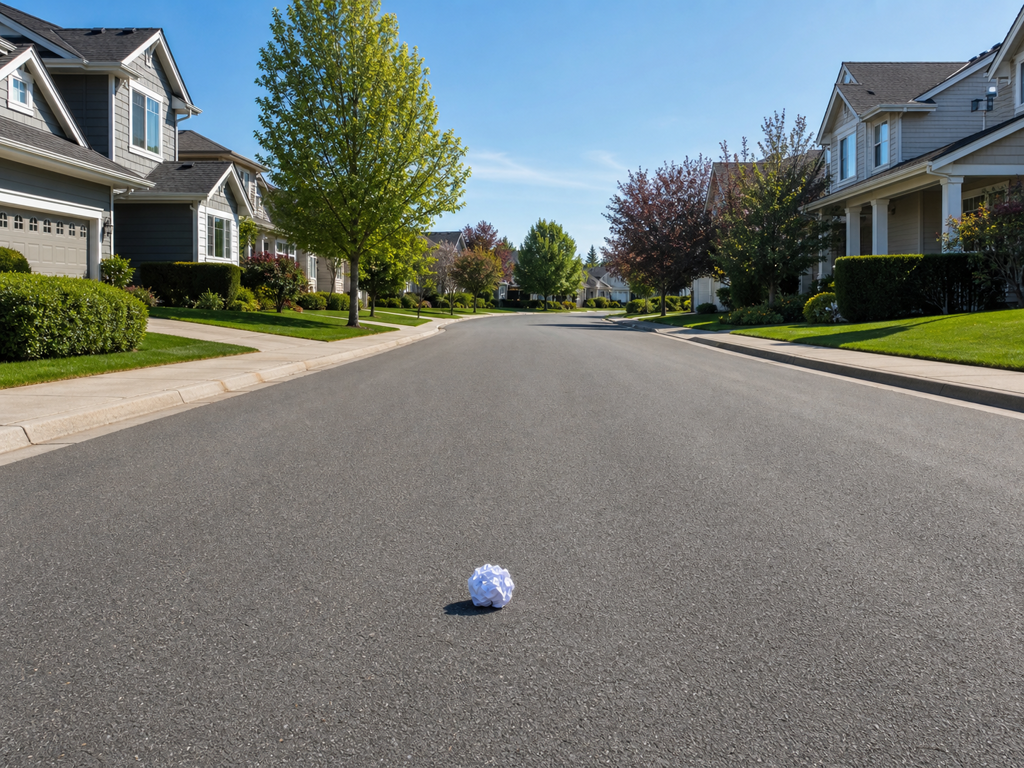
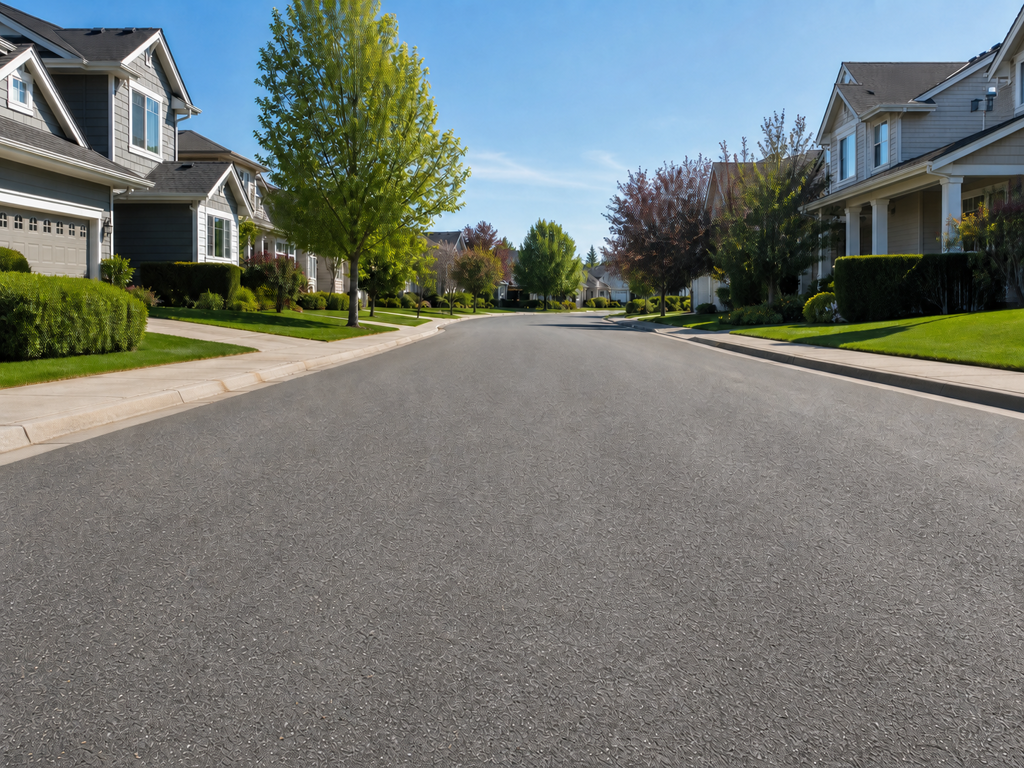
The ai object remover clears passersby, clutter, or unwanted marks in photos where the surrounding texture gives PictureMaker enough context. Mark or describe the area you want changed. The result looks cleaner when nearby patterns, shadows, and edges are not too complex.

03

Background Change

PictureMaker separates the subject from the background for product shots, portraits, and social images that need a new setting. Choose ai photo editor removal, transparency, or a replacement prompt. Works best when the subject edge is visible, while hair and glass may still need careful preview review.

04

Photo Enhancement

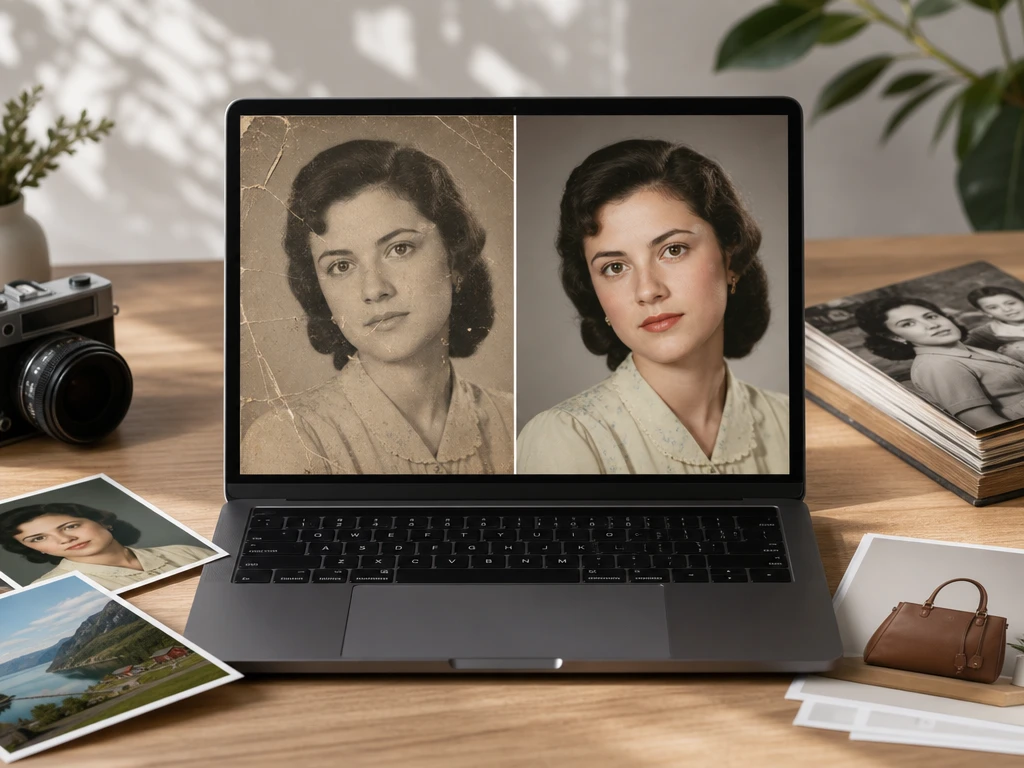
Sharper faces, repaired scratches, and more balanced color come from enhancement and restoration tools for blurred images, old photos, and portraits. Select the image, choose the fix, and compare the preview. For best results, start with the clearest source file you have.

See how PictureMaker handles your first source image: remove a distraction, change the background, repair a worn photo, or edit pictures with ai prompts while keeping the preview close to the final export.

Try ai photo editor online

See how PictureMaker handles your first source image: remove a distraction, change the background, repair a worn photo, or edit pictures with ai prompts while keeping the preview close to the final export.

Explore It

ai photo editor questions

What can I change with the ai photo editor?

PictureMaker can support background removal and replacement, object cleanup, prompt based edits, photo enhancement, restoration, portrait color work, frame expansion, and creative filters. The ai photo editor works from your source image and the edit you choose, so the benefit is a more usable final photo without leaving the browser workspace.

Can I use it as an ai image editor for product photos?

Yes, product sellers can use PictureMaker for cleaner cutouts, transparent backgrounds, replacement scenes, and watermark or clutter removal where the source image allows it. The ai photo editor helps make product visuals easier to inspect and more consistent for listings or campaigns.

Does the ai photo editor support text prompts?

Text prompts are part of the expected workflow for guiding image changes such as replacing an object, changing a setting, or describing a style. Use one clear instruction at a time, because the ai photo editor gives cleaner previews when the creative decision is specific.

Which image formats can I upload?

PictureMaker is expected to support common web image formats such as JPG, PNG, and WEBP for ai image editing. RAW support is not claimed here, so use a standard exported image when you want a predictable ai photo editor upload and preview path.

Will object removal always look natural?

No, object removal depends on the source photo, the object size, and the surrounding texture. The ai photo editor can rebuild nearby areas for cleaner results, but complex reflections, crowded backgrounds, or overlapping subjects may need another prompt or a tighter selection.

Is this the right tool for quick social edits?

For quick social photos, PictureMaker can help crop or extend frames, remove distractions, refine portraits, and test creative styles. When you need to edit photo with ai for a post, the ai photo editor keeps the source image, preview, and export choice in one focused flow.