
PictureMaker
Edit instructions
Add visual referencesOptional
JPEG/PNG/WEBP, 10 MB max
0/1
Describe the video you want to create...
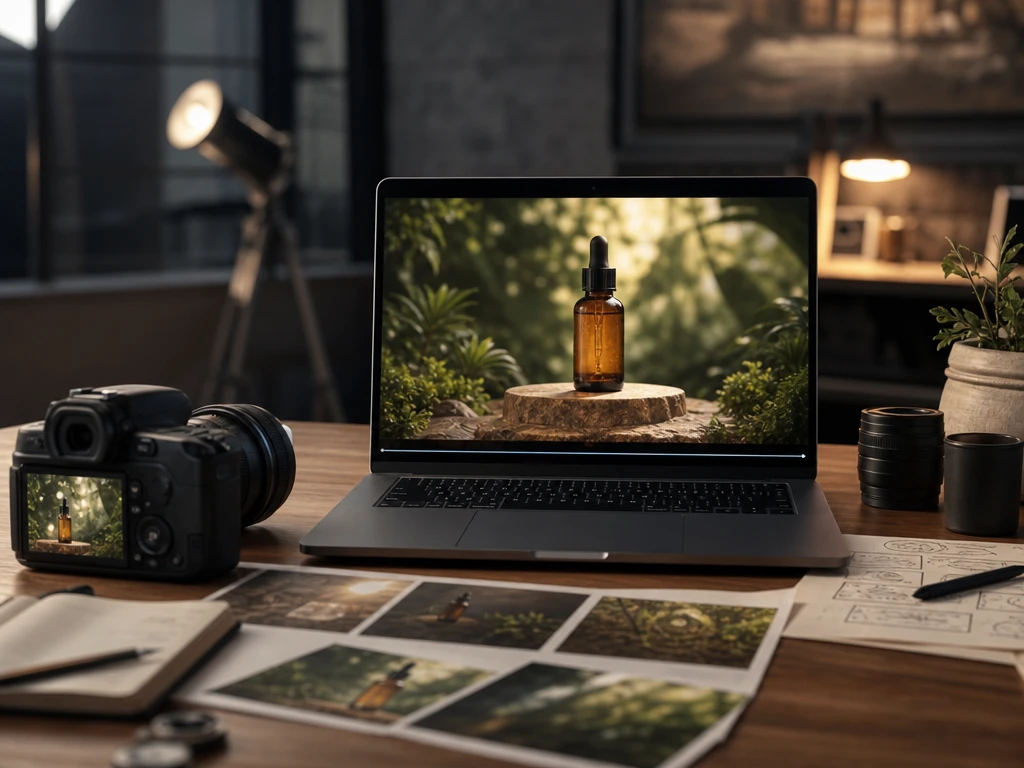
Creator previewing a prompt, product photo, timeline, and video export settings

Prompt to video workspace

ai video generator for Controlled Video Clips

When a product photo, script, or prompt needs motion, PictureMaker helps you choose the source, guide the scene, preview the output, and export the format that fits the channel.

Start Now

Shape Every ai video generator Scene

Start with a prompt or reference image, then use the ai video generator to shape motion, camera feel, clip length, and export settings in one browser workspace.

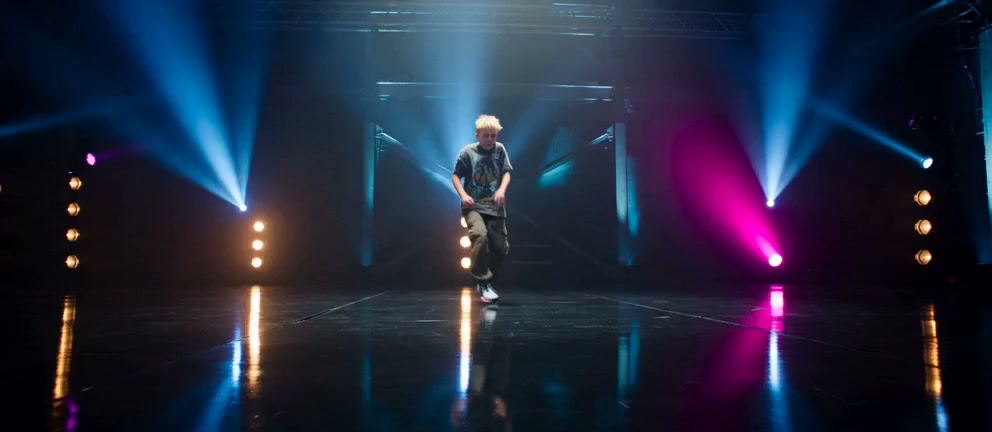
Text prompt panel creating a short scene with subject, motion, style, and preview

Prompt to Clip

PictureMaker turns a text prompt into a short scene when you need an ai generated video before planning a shoot. Write the subject, action, style, and clip length, then review the preview before export. The output gives you a usable first cut, with the best match coming from clear prompts that name the scene and motion.
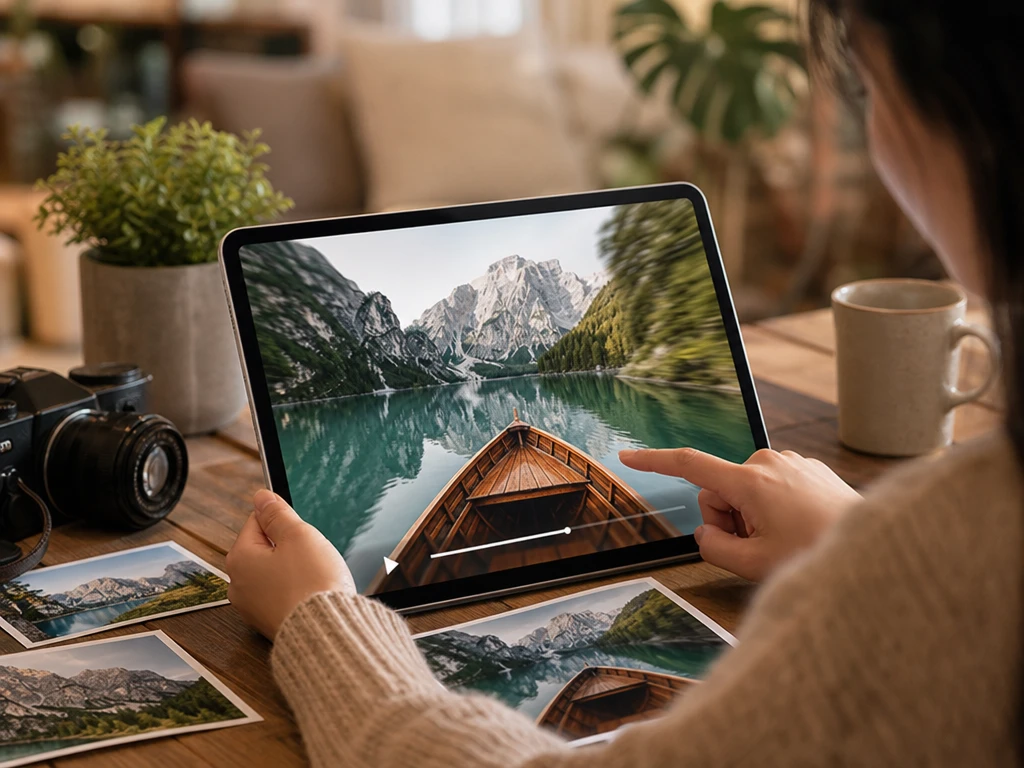
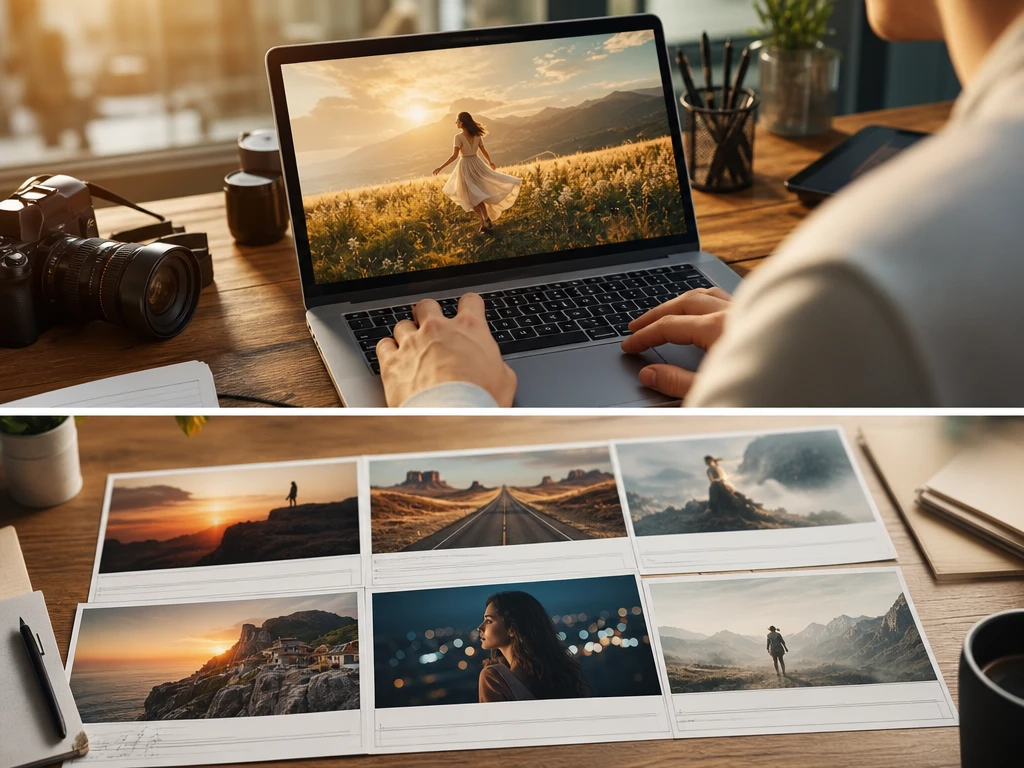
Product photo moving into a short video scene with reference image controls

Image Motion

Sharper product angles and cleaner motion come from the image to video ai flow when a source photo already defines the subject. Upload the image, choose the movement you want, and let PictureMaker keep the reference visible while the ai video generator builds the clip. The result reads like an image to video piece rather than a random scene, although busy backgrounds may need a tighter prompt.

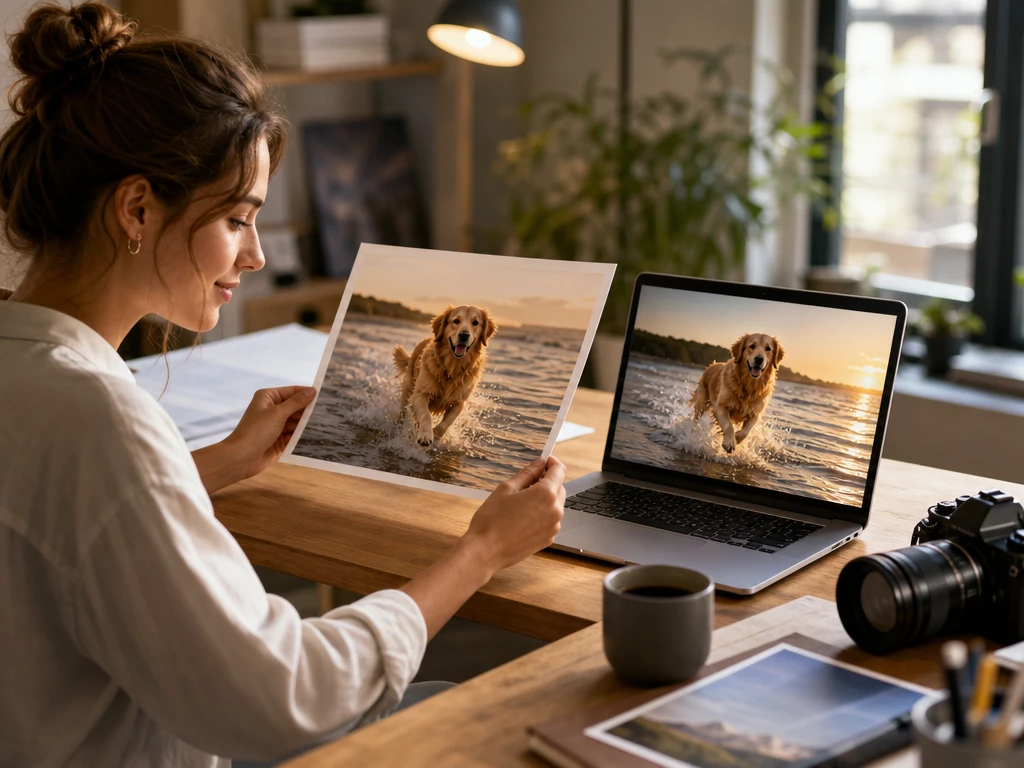
Reference frame selected beside preview controls for faces, products, and scene motion

Reference Frames

If your source clip or static frame sets the look, PictureMaker uses it as a reference so the ai video generator keeps faces, products, and scene direction aligned. You select the frame, add the motion note, then preview the cut before saving export settings. The clip stays closer to your reference, with best results when the frame has clear lighting and one main subject.

Script notes becoming ordered video scenes with pacing preview and export controls

Script Packaging

PictureMaker turns a document or script into a video maker workflow when the story needs structure before generation. Paste the script, choose the visual direction, then check the preview for pacing and scene order. The output is a complete draft clip sequence, and longer scripts may need shorter sections for cleaner control.

Your ai video generator Workflow

A prompt, source image, or script becomes a generation pass with visible choices before the final export.

  1. 1

    Start with a prompt, product photo, reference video, or script, then tell the ai video generator what subject, action, and style should drive the scene.

  2. 2

    PictureMaker reads the source and matches it to generation options, so you can choose camera feel, clip length, aspect ratio, and preview timing before it builds the draft.

  3. 3

    Review the preview, adjust the prompt or reference marker, after that export a short video clip in the ratio that fits your platform.

Control the ai video generator Output

The ai video generator gives first time creators, sellers, educators, and small teams enough control to test ideas without running a full shoot.

01

Text Prompts

PictureMaker turns written scene notes into video when you need a fast concept pass for an ad, lesson, or social post. Describe the subject, camera movement, style, and output ratio, then review the preview. The ai video generator produces a short draft with cleaner intent when the prompt names one main action.

02

Photo Starts

A product photo can become motion through photo to video ai when the image already carries the angle, color, and subject detail. Upload the photo and add the motion note, so PictureMaker has a stable reference for the scene. The ai video generator from image output works best with clear product edges and simple backgrounds.

03

Aspect Ratios

PictureMaker prepares multiple platform ratios when the same clip needs to fit short video placements. Choose the export setting before final output instead of rebuilding the scene from scratch. The ai video generator keeps the same creative direction across ratios, while tight crops may need a preview check.

04

Text Edits

Instruction edits help when a creator wants to change pacing, style, or a scene detail without rebuilding every choice. Type the change, review the new preview, and keep the version that matches the brief. The output stays tied to the last approved direction, although major story changes work better as a new prompt.

When a test clip shows the right motion, use the ai video generator to refine the prompt, confirm export settings, and keep the version that fits your channel.

Try an ai video generator

When a test clip shows the right motion, use the ai video generator to refine the prompt, confirm export settings, and keep the version that fits your channel.

Start Now

Clear ai video generator Answers

What can I make with this ai video generator?

PictureMaker creates short video clips from prompts, images, reference videos, documents, or scripts. Clear source material gives the ai video generator a stronger scene direction, so the preview is easier to judge before export.

Can I use image to video generator inputs?

Start with a product image, campaign visual, or still frame, then add a motion note. This supports picture to video ai work where the subject needs to stay recognizable while the scene gains movement.

Does PictureMaker require login to use the ai video generator?

Yes, PictureMaker requires login before you create or export. That keeps your prompts, previews, and output settings tied to your workspace.

How does the ai video generator handle product photos?

Product photos work best with clear edges, visible details, and a simple background. PictureMaker can use that image as the source for product motion, which helps sellers test a photo to video ai concept before a larger shoot.

Can I control camera style and pacing?

You can guide camera feel, clip length, aspect ratio, pacing, and style through the prompt and preview choices. The ai video generator follows clearer direction when the prompt names one subject, one action, and one visual style.

Is this ai video generator useful for training clips?

Educators and explainers can turn scripts or lesson notes into short visual clips. A focused source helps keep the scene clear, so the video supports the point instead of distracting from it.