PictureMaker
Choose an image to remove background
Upload or choose an imageClick or drag to upload / choose from
1/4
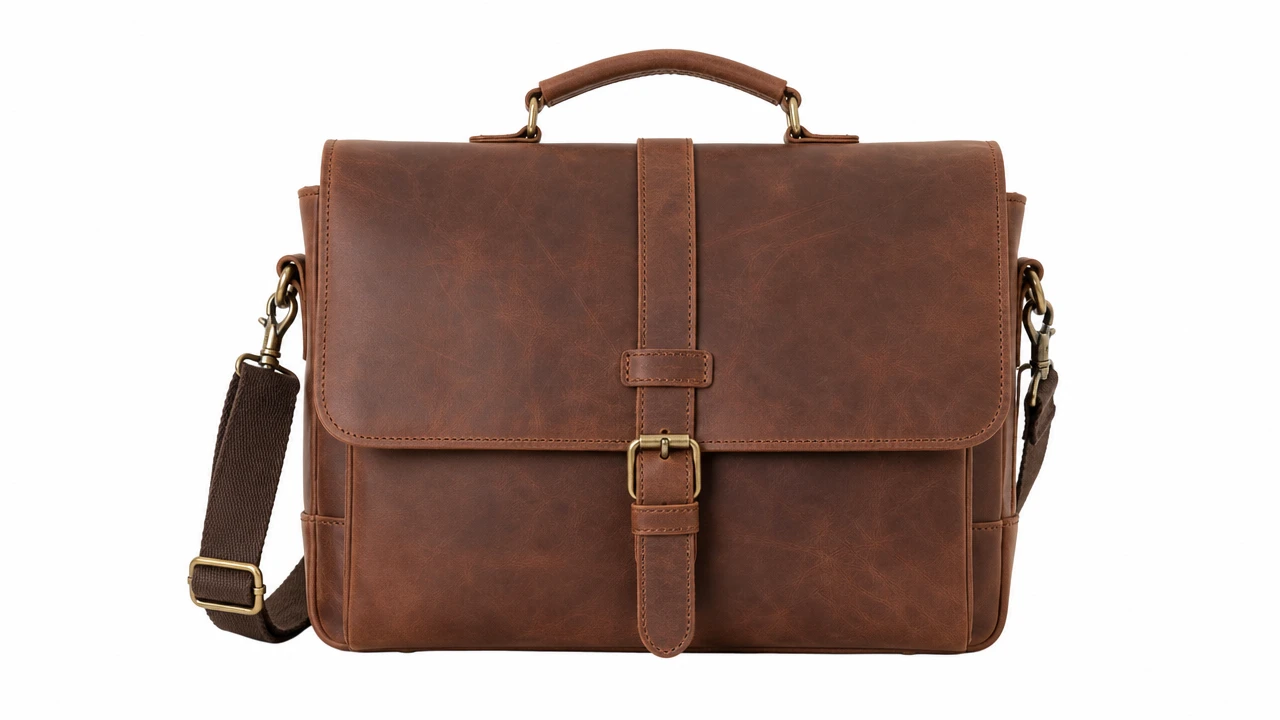
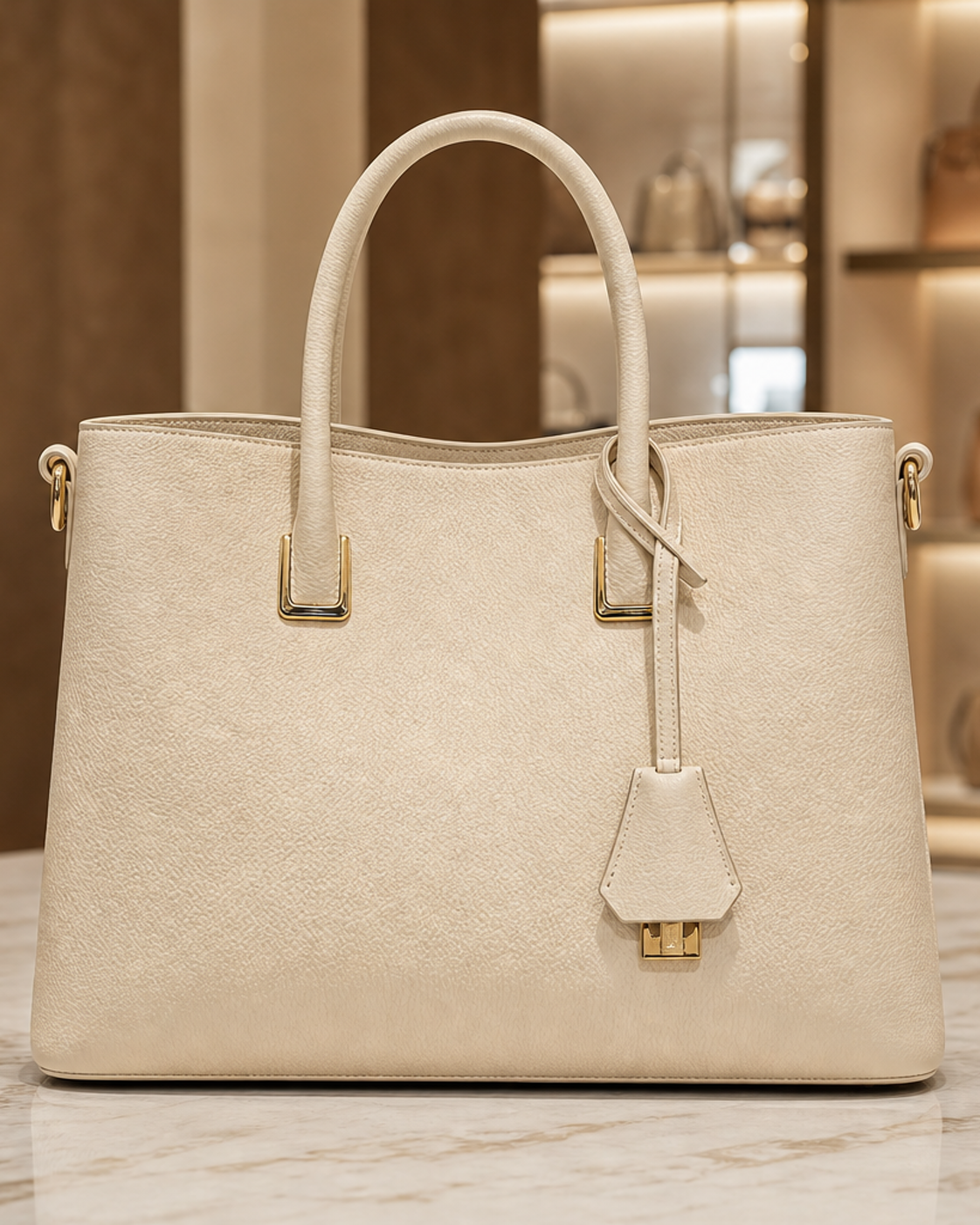
Product photo with clean cutout edges and transparent background preview

Image background control

background remover for clean product photos and creator assets

A product shot needs a white background, a portrait needs cleaner edges, or a logo needs transparent space for the next design. PictureMaker gives you a background remover that identifies the subject, erases the original backdrop, and keeps the output ready for editing, posting, or export.

Start Now

Cleaner Cuts With background remover

Keep the subject visible first, then choose the background treatment that fits the final channel. This image background remover supports common photo inputs and gives you export choices for transparent or solid color output.

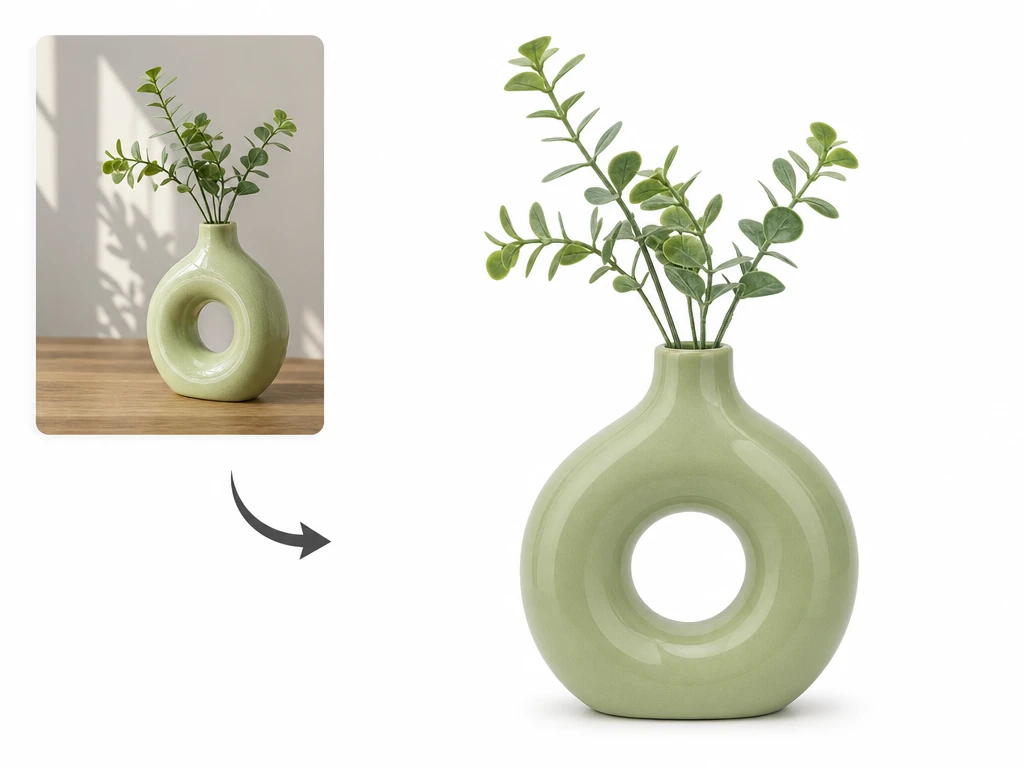
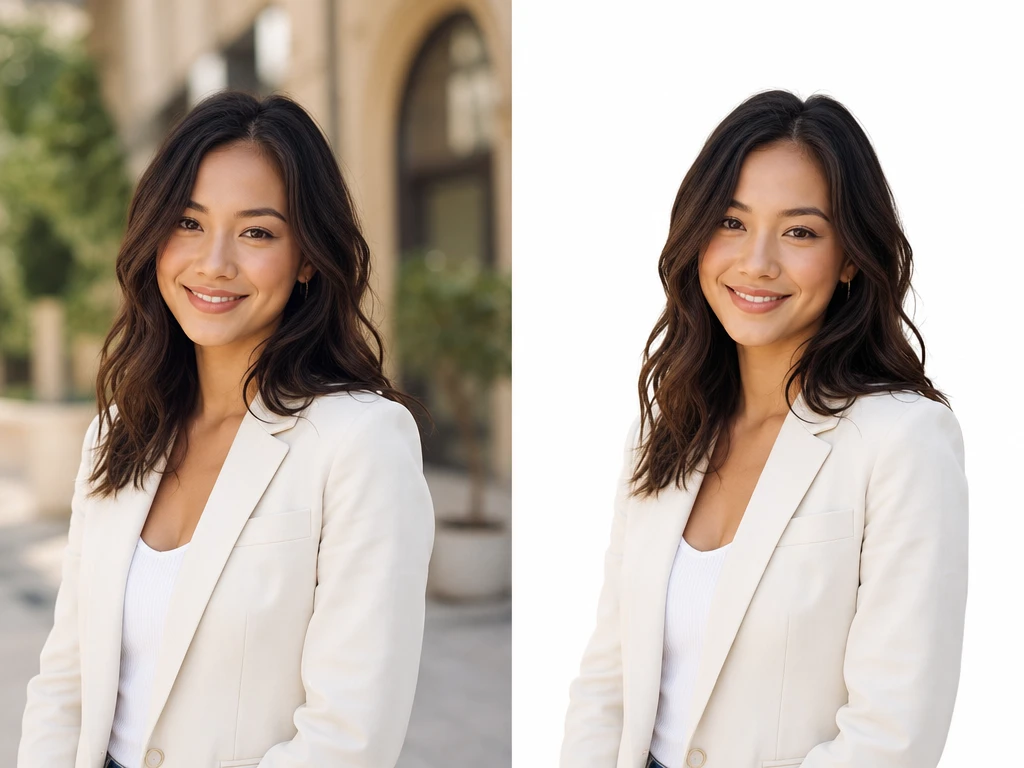
Subject cutout preview from a product photo with background removed

Subject Cutout

When the main subject is clear, PictureMaker uses the background remover to separate it from the surrounding image and prepare a clean cutout. Upload a JPG, JPEG, or PNG, then review the preview before export. The output works best when the photo has enough contrast between the subject and the background.
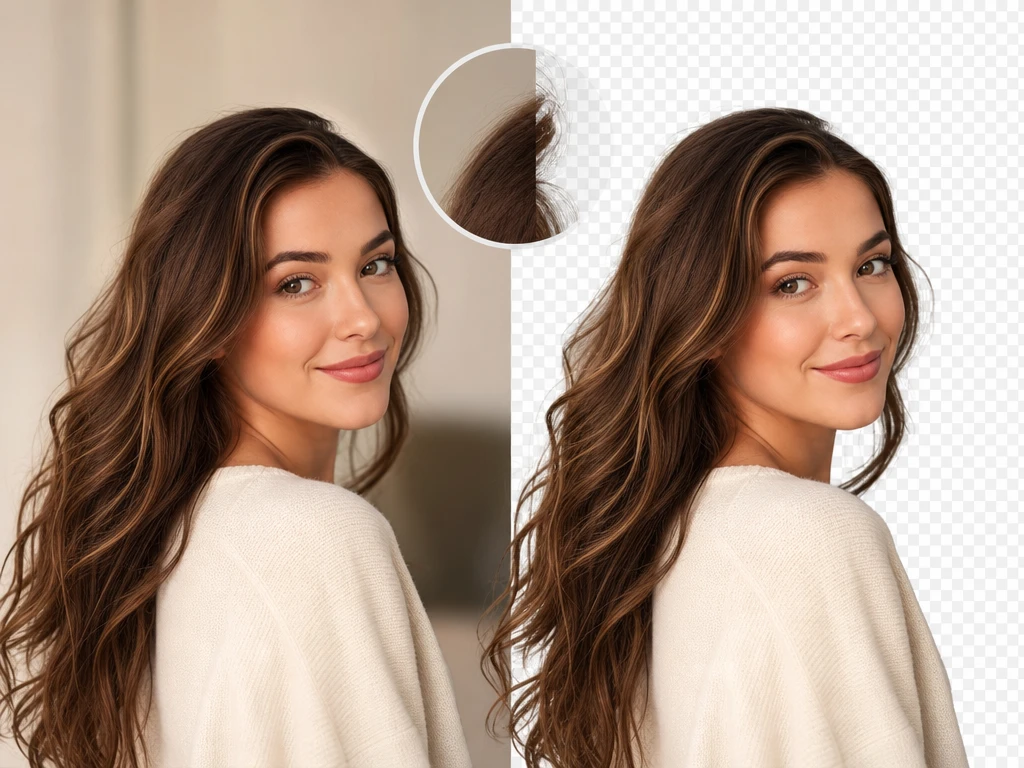
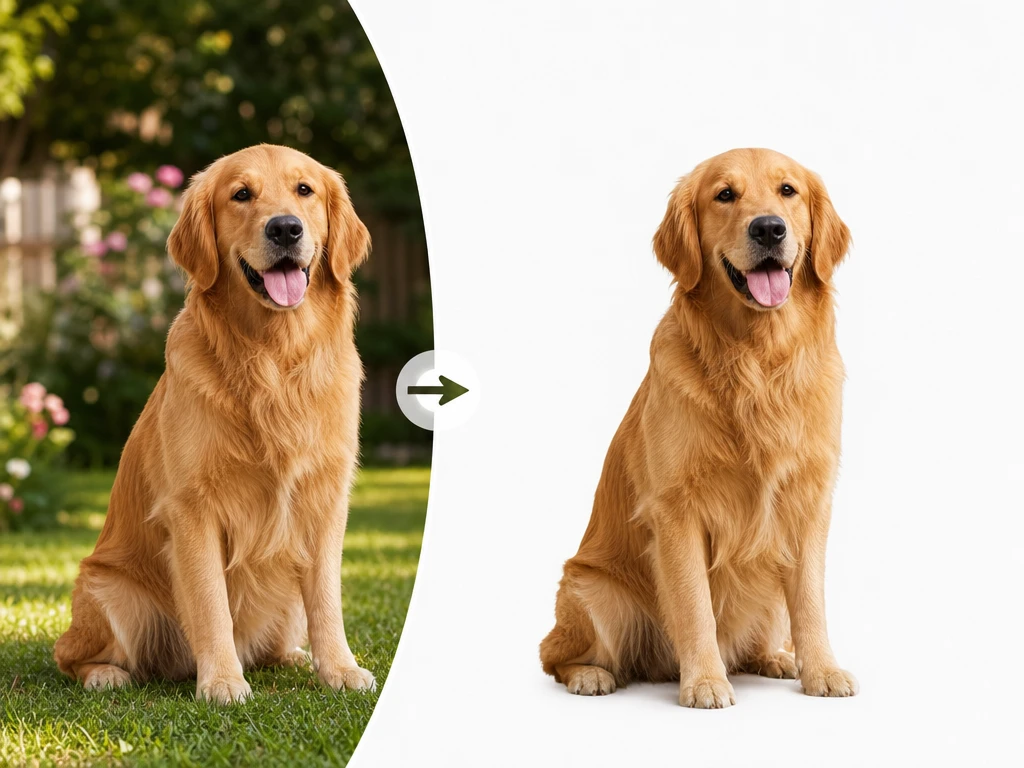
Portrait edge cleanup with hair detail after background eraser preview

Edge Cleanup

Clean product outlines and softer portrait edges matter when you remove background from photo assets for shops, profiles, or social graphics. You check the preview and keep the cutout that fits the source image. The result is a smoother edge, with fine hair or low contrast areas still worth reviewing closely.

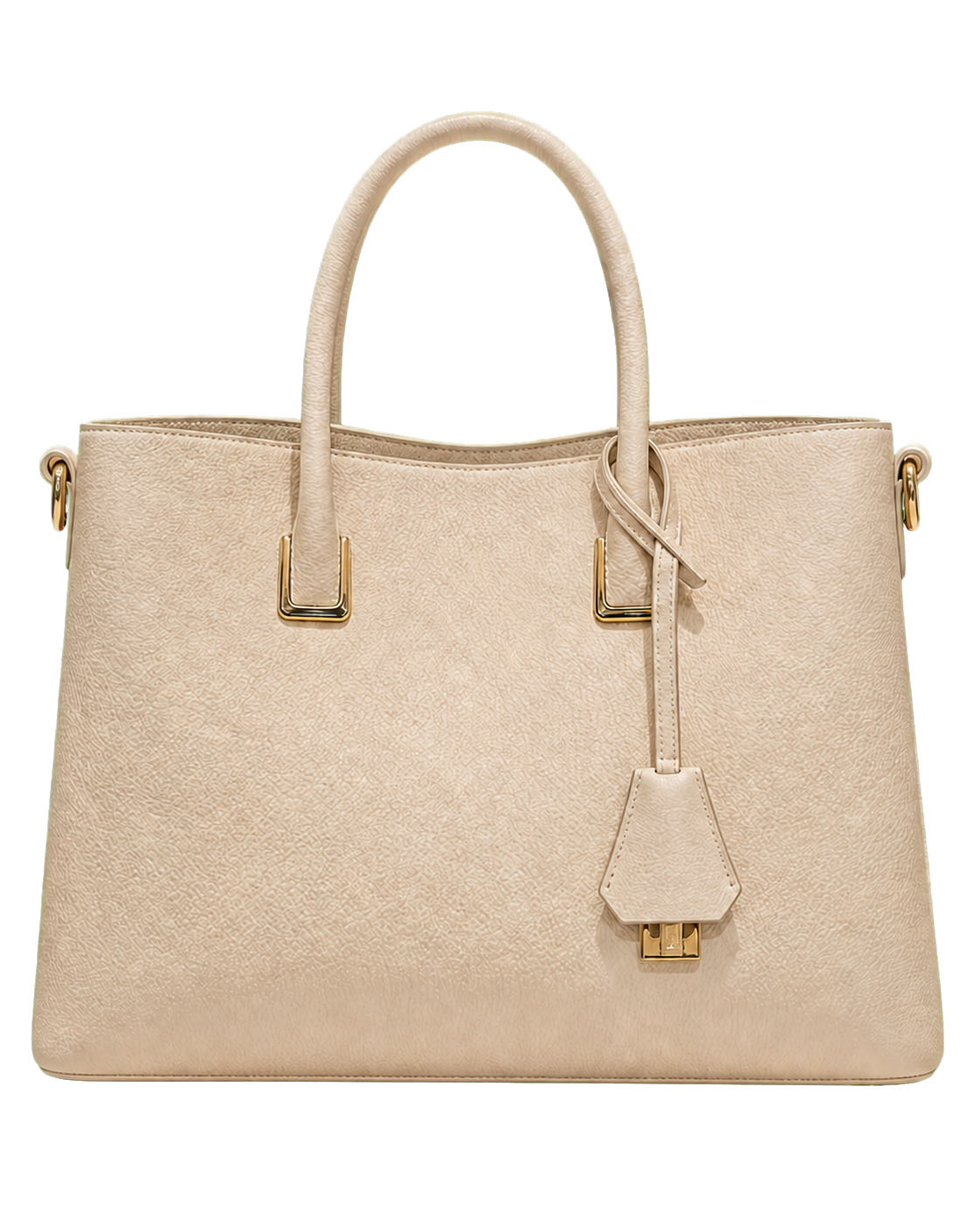
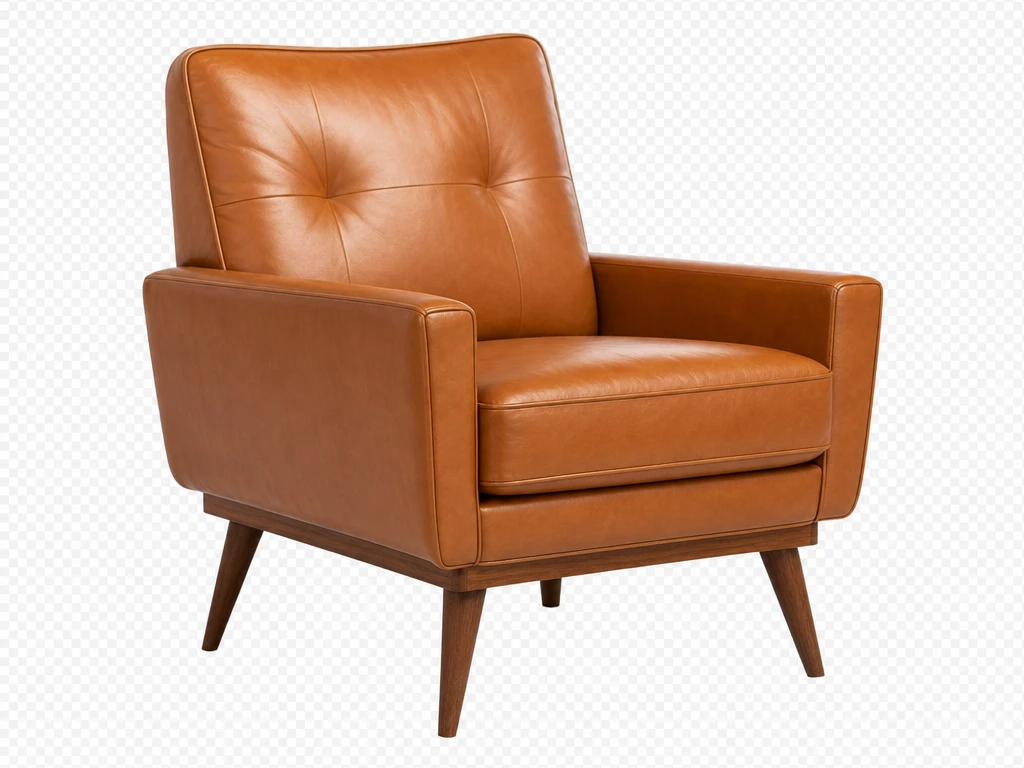
Transparent PNG export preview for logo and presentation cutout

Transparent PNG

PictureMaker can make background transparent for design files, logos, stickers, and presentation images that need to sit on another layout. Choose transparent PNG when the cutout needs an alpha channel instead of a flat backdrop. The output stays useful for follow up design work, provided the source subject is visible enough to separate.

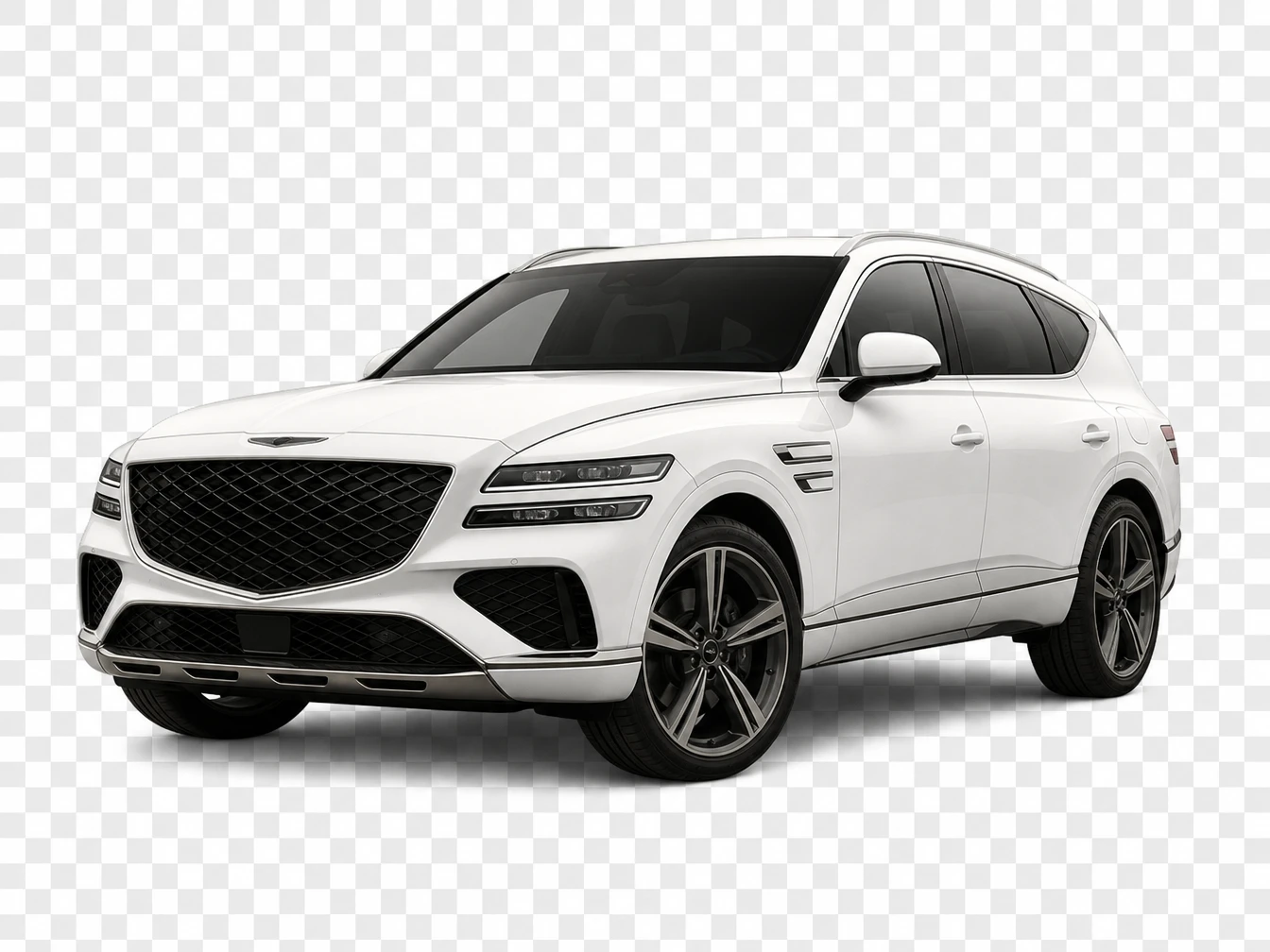
Ecommerce product photo on white background after background remover edit

White Background

A clean white background helps product photos look consistent across store listings and simple catalog layouts. Select the solid background option after the background remover prepares the cutout. The final image is suited to ecommerce use, while platform rules should still guide your crop and export settings.

Where background remover Fits

Use the background remover where a clean subject matters more than the original setting. It supports practical creator jobs without adding a heavy editing timeline.

01

Product Listings

Use a white background for product images that need a cleaner store presentation. PictureMaker helps remove bg clutter so the item shape, color, and outline stay easier to judge.

02

Social Graphics

When a banner, post, poster, or thumbnail needs a reusable person or product cutout, the background remover turns the source photo into a design asset. Place the transparent background output into the next layout and keep the focus on the subject.

03

Profile Photos

Remove background from image files used for LinkedIn photos, resume portraits, or simple professional headshots. A solid color or transparent PNG gives the portrait a cleaner frame without changing the person in the photo.

04

Presentation Assets

Logos, stickers, and lesson visuals often need clear edges before they sit on a slide. The background remover helps isolate the graphic so the final page feels less crowded.

Creators Use background remover

Shop owner product photo with clean white background preview

Shop Owners

Consistent Product Photos

Small sellers can prepare product visuals without sending every photo to a retoucher. PictureMaker helps turn a source image into a cleaner listing asset with white background or transparent PNG export options.

Background Remover From Source To Export

Move from photo upload to preview to export inside one browser workspace. PictureMaker keeps the creative decision visible before you download the final image.

  1. 1

    Add a JPG, JPEG, or PNG source image, then PictureMaker reads the subject area so the background remover can prepare a cutout preview. The first output shows what will stay and what will leave the frame.

  2. 2

    Check the edge quality around products, hair, logos, or small details, then decide whether the preview fits your final use. After that, choose transparent background or a solid white background based on the layout where the image will appear.

  3. 3

    Save a transparent PNG for design work or a JPG with a solid background for clean product and profile use. The output is ready for the next edit, post, store listing, or slide.

If your photo has the right subject but the wrong setting, see how PictureMaker handles the cutout, preview, and export in one workspace.

Try The background remover

If your photo has the right subject but the wrong setting, see how PictureMaker handles the cutout, preview, and export in one workspace.

Get Started

background remover Questions

What does the PictureMaker background remover do?

The PictureMaker background remover identifies the subject in your image, removes the surrounding background, and prepares a cleaner preview. It works best with clear product, portrait, logo, or object photos, so you spend less time on manual selection.

Can I remove background from image files online?

Yes, PictureMaker lets you remove background from image files in the browser after login. Upload a supported photo format, review the background remover preview, and export the result for your next design or listing.

Can the background remover make background transparent?

Yes, the background remover can create a transparent PNG when you need the subject to sit on another design. Choose that export when the final image will go into a poster, thumbnail, presentation, or layout.

Does PictureMaker support white background output?

PictureMaker supports a solid white background option for clean product photos and simple profile images. This is useful when the original setting distracts from the subject or does not match the final channel.

Is this a background remover free option?

PictureMaker may offer access through a starter plan or trial flow, but all PictureMaker brands require login. Check the current plan details inside the product before you export production work with the background remover.

Which images work best with an ai background remover?

Clear photos with visible subject edges give the ai background remover better material to read. Fine hair, glass, shadows, or low contrast areas may need closer preview review, but the benefit is a faster path to a usable cutout.