“Remove the person walking in the background and fill the area naturally with the surrounding environment”
Edit instruction
3
Result
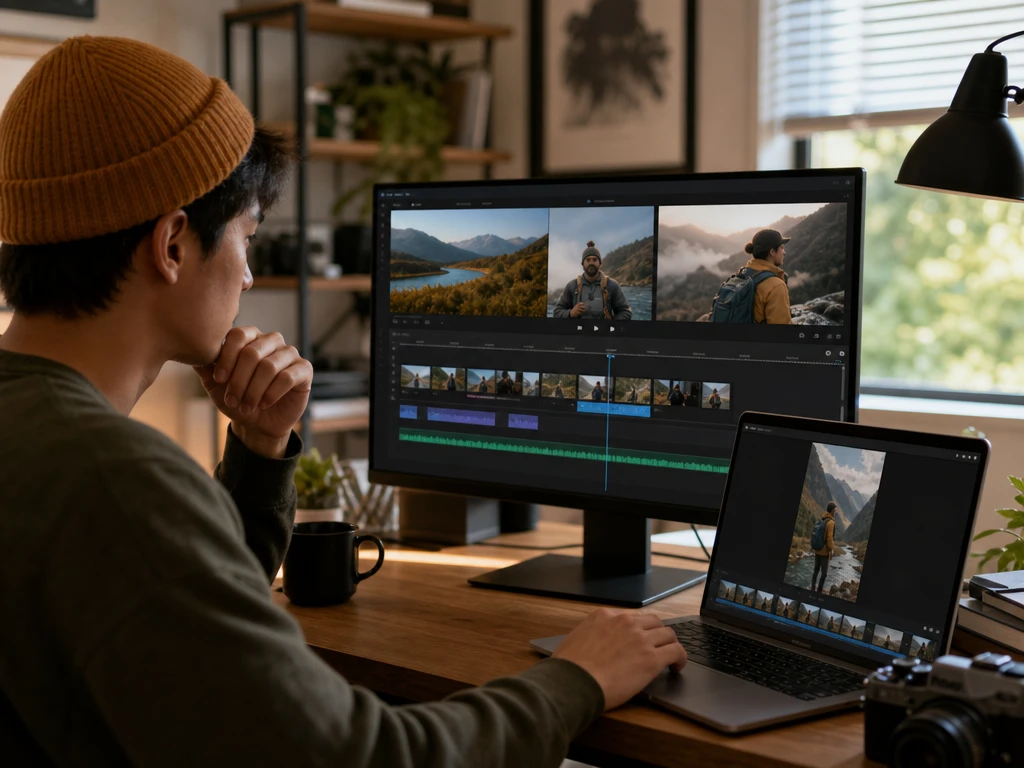
Browser video workspace
Shape each clip with an ai video editor
Turn a source clip, script, or prompt into a cleaner video draft, then keep control of trims, captions, voiceover, aspect ratio, and export settings before you publish.
PictureMaker keeps the edit tied to the creator decision in front of you, from rough idea to preview to finished output.
1
Add a prompt, script, local MP4 or MOV clip, or audio file, then choose the edit direction so PictureMaker can prepare a draft around your source material.
2
When the first preview appears, check trims, caption timing, voiceover fit, and frame shape, then adjust the parts that do not match the scene or platform.
3
Choose landscape, vertical, or square output after that, so the ai video editor can export a standard HD video for the channel you plan to use.
ai video editor Control Points
Each tool keeps the visible result close to the source clip while cutting down the timeline work that slows first edits.
Text Edits
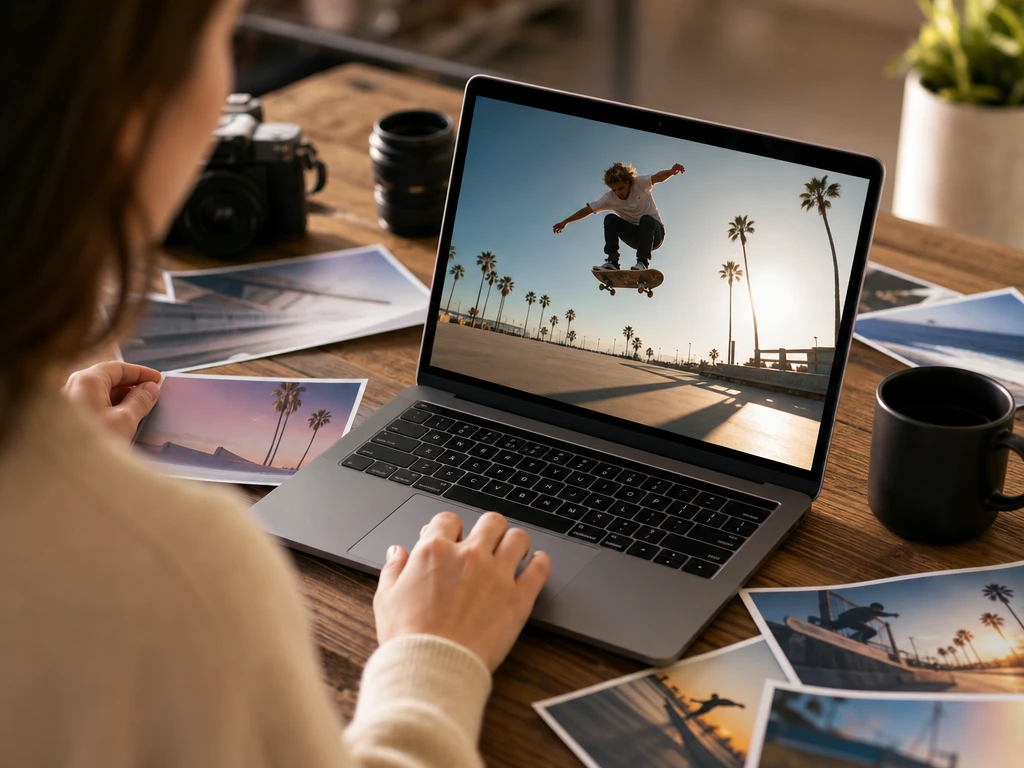
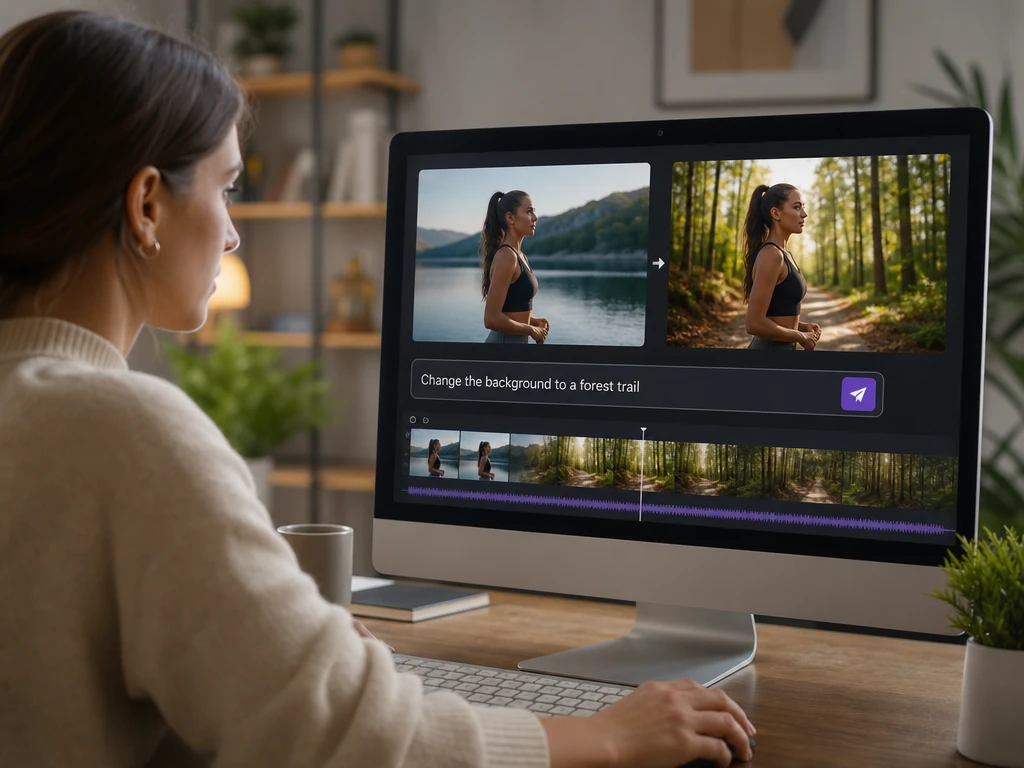
PictureMaker ai video editor changes video visuals from plain language prompts when you need to replace a background or add an element to a scene. Type the instruction and review the preview before you keep it. The ai video editor output stays easiest to judge when your prompt names one clear visual change.
Pause Trimming
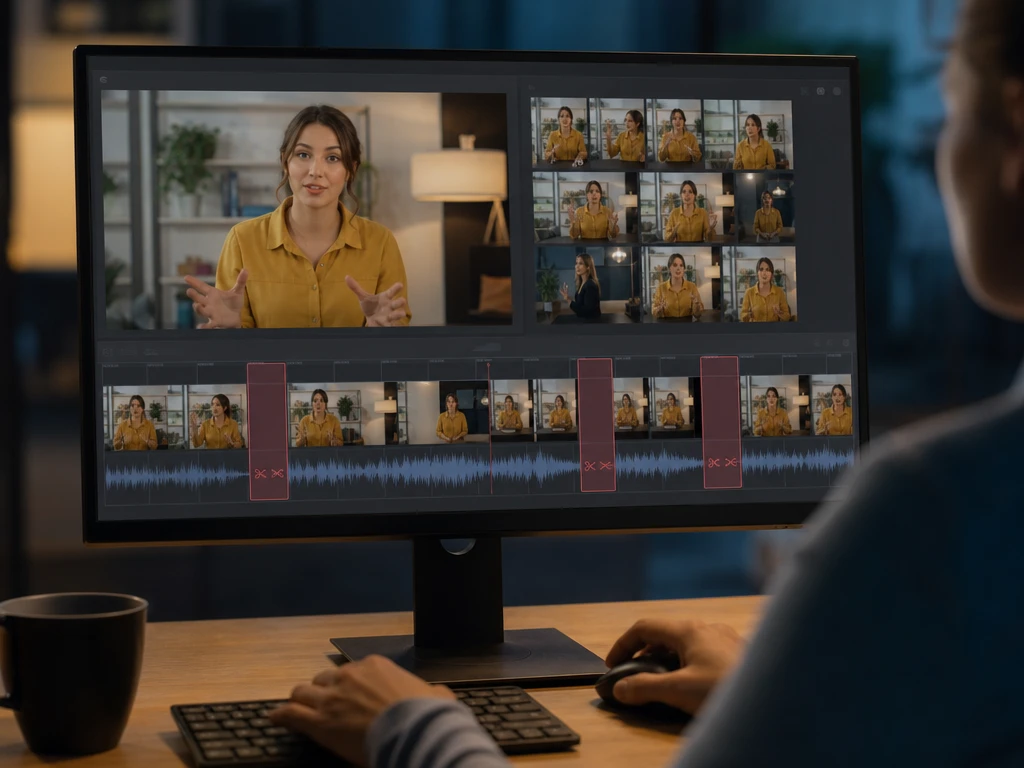
PictureMaker ai video editor finds silent pauses in your source clip when a first cut needs tighter pacing. Review the suggested cuts, keep the beats that matter, and remove dead space. The ai video editor timeline feels cleaner when the audio track has clear speech and quiet gaps.
Voice And Captions
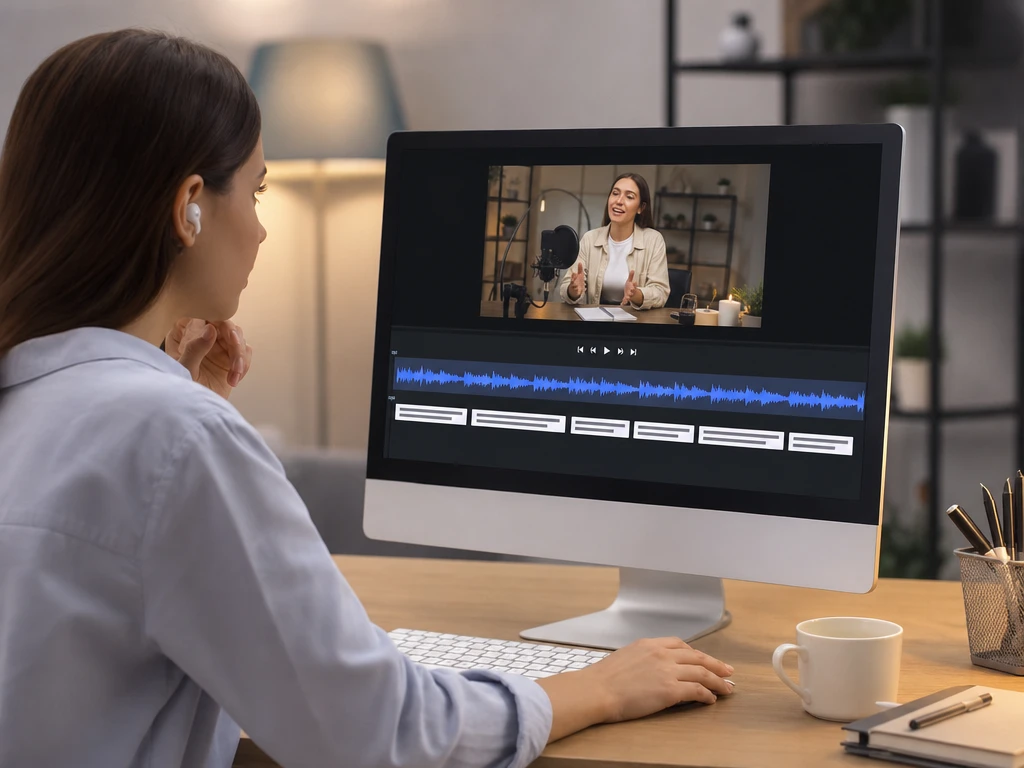
PictureMaker ai video editor creates AI voiceover, captions, and background noise cleanup when a lesson, ad, or short clip needs clearer sound. Add text or an audio file, then check the track and caption preview together. Results work best when the script is final before you export.
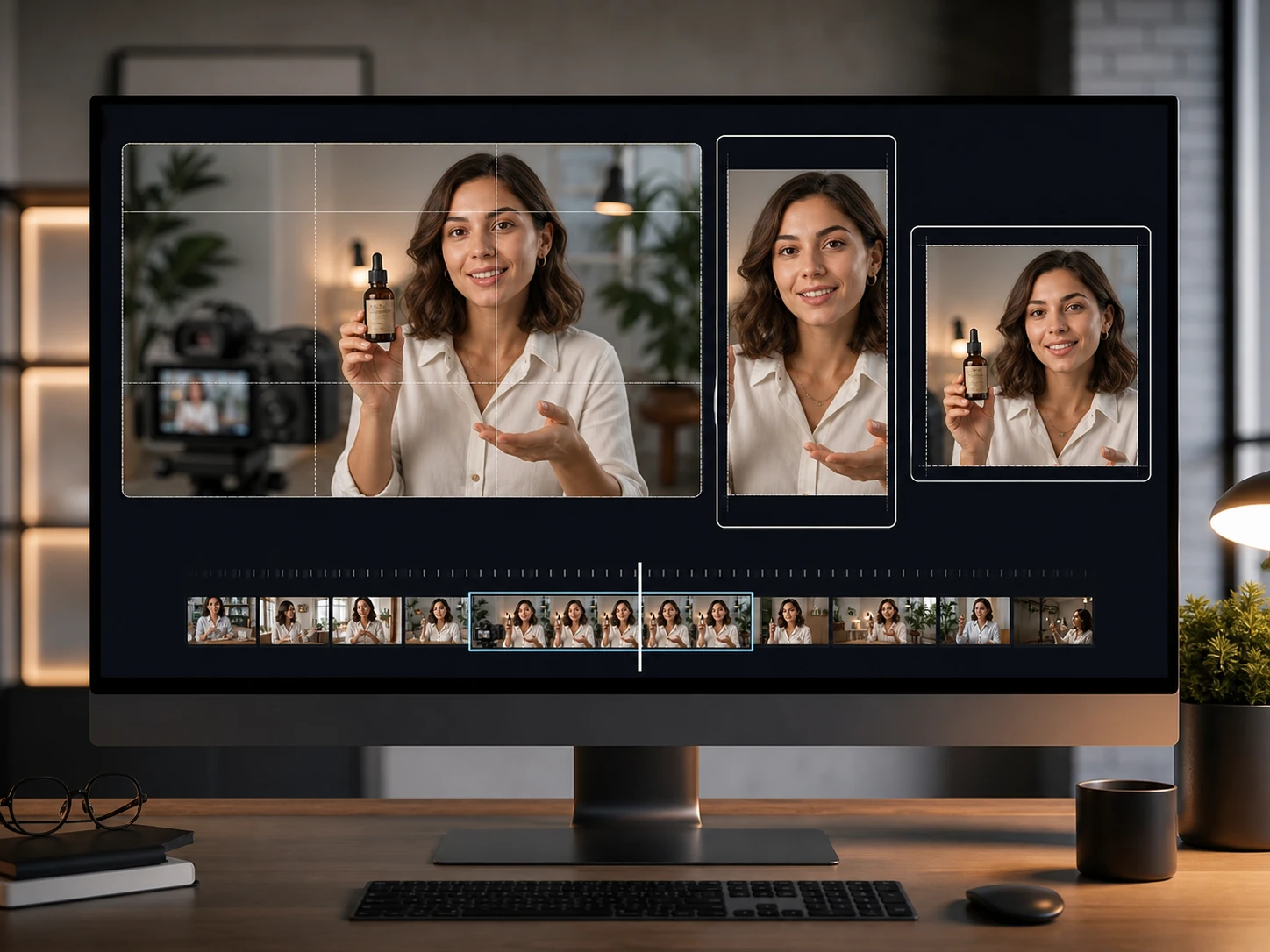
Format Resize
PictureMaker reframes video for landscape, vertical, or square delivery when one clip needs versions for social channels. Pick the aspect ratio and inspect the preview so faces, products, and captions stay inside the frame. Busy scenes may need a manual check before export.
Who Uses PictureMaker For Video
Creators
Short Form Creators
A creator can cut long footage into tighter social clips, fill a missing section with prompt based video direction, and preview captions before export. The ai video editor supports faster posting without hiding the timeline choices that affect pacing.
Practical ai video editor Tools
PictureMaker works as ai video editing software in the browser, with prompt editing, trimming, audio cleanup, and social format export in one workspace.
01
Prompt Based Edits
Cleaner backgrounds or added scene elements come from text instructions when a manual visual edit would take too long. Write the change, preview the result, and keep the version that fits the source clip. This ai video editor flow works best with direct, specific prompts.
02
Script To Draft
PictureMaker can expand a simple idea or script into a video draft with related material, which helps when you know the message but not the full sequence. You still review the structure before export. This supports ai video editing without turning the concept into a blank timeline.
03
Audio Cleanup
Clearer speech, captions, and generated voiceover help a clip carry the point across. Add text or audio, then compare the track against the preview before finishing. The ai powered video editor gives the best result when the voice content matches the final script.
04
Social Formats
Landscape, vertical, and square outputs let one source clip fit common publishing placements. Choose the frame shape, then check the preview for faces, product detail, and caption position. This helps creators edit video with ai while keeping the final crop intentional.
Try The ai video editor
See how PictureMaker handles your first source clip, prompt, or script, then decide which trims, captions, voiceover, and export format belong in the final output.
PictureMaker helps you edit video from prompts, scripts, uploaded clips, and audio files. It can trim silent pauses, adjust visuals from text, create captions, add AI voiceover, reduce background noise, resize formats, and export standard HD video.
Can I use PictureMaker as an ai video maker?
Yes, PictureMaker can start from a simple idea or script and build a video draft with related material. You still review the preview and export settings, which keeps PictureMaker useful for planned content rather than random output.
Is PictureMaker a free ai video editor?
PictureMaker may offer a starter plan or quick test depending on the current product setup. A login is required, and the useful part is seeing whether PictureMaker fits your clip, script, and export needs before a larger project.
Can I edit video with ai from a text prompt?
Text prompts can guide visual edits such as changing a background or adding an element to a scene. The condition is prompt clarity, because PictureMaker works better when you name the specific change you want to preview.
Does the ai video editor free version include exports?
Export access depends on the current plan details shown after login. The ai video editor supports standard HD export and common aspect ratios, so check the plan screen before using it for a final client or channel upload.
Is this the best ai video editor for social clips?
The best ai video editor for your workflow is the one that matches your source footage, pacing needs, caption style, and publishing format. PictureMaker is a strong fit when you need prompt edits, pause trimming, audio help, and vertical or square output in one browser workspace.
How is an ai video editor app different from traditional editing software?
Traditional editors often ask you to manage every timeline action by hand. PictureMaker uses video editing ai to suggest cuts, captions, voiceover, and format changes, then lets you approve the preview so the final clip still reflects your judgment.
What files can I bring into the ai video editor?
You can start with text prompts, video scripts, common MP4 or MOV video files, and audio files. That range lets the ai video editor support product clips, social posts, tutorials, and creator footage without forcing every project to begin the same way.