PictureMaker
Drop a video here or choose from historyClick or drag to upload / choose from

Extend source clips

ai video extender for cleaner ai clip endings

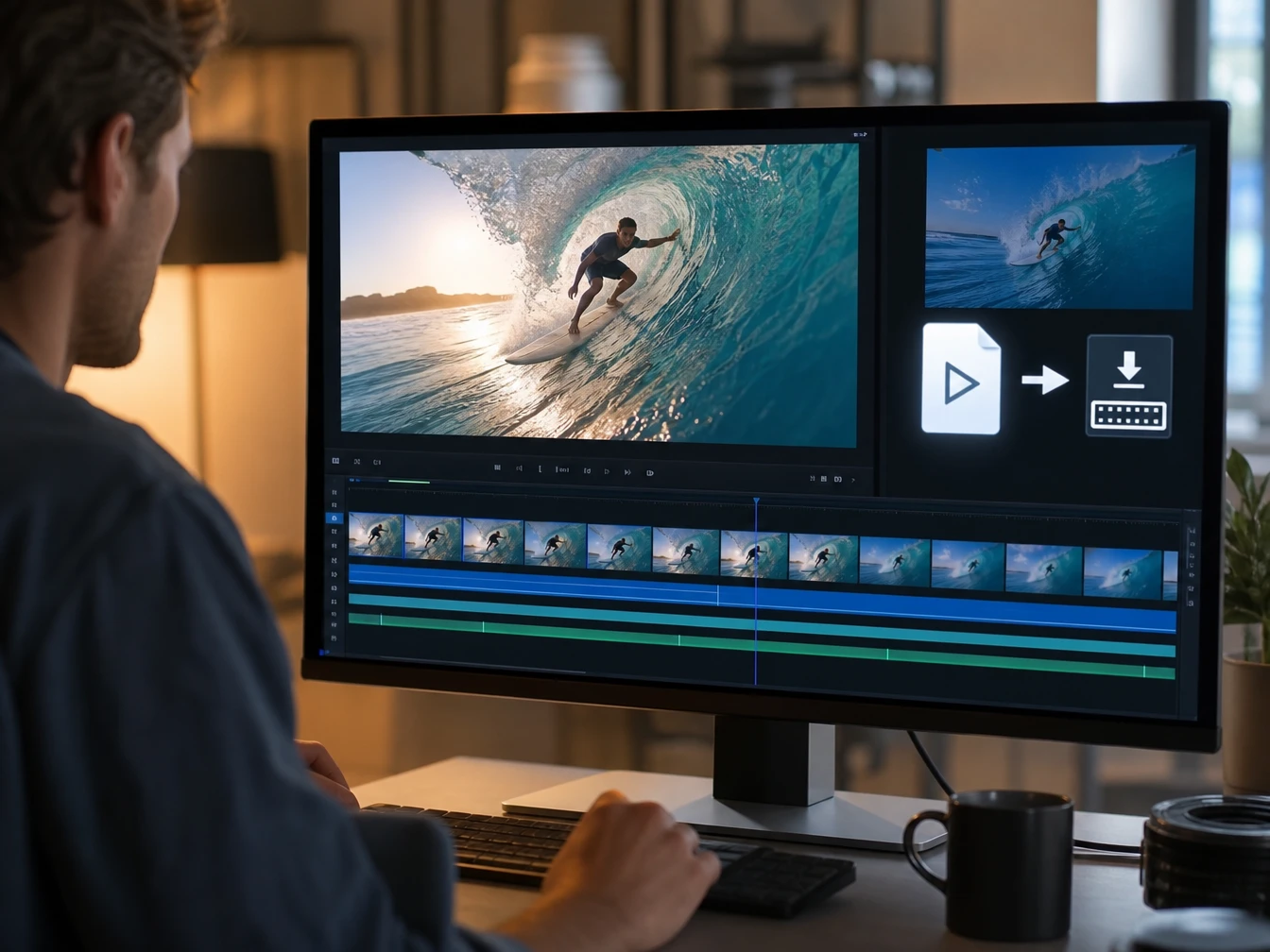
PictureMaker helps you extend video length from a short source clip, guide the next motion with a prompt, preview the added frames, and export a longer clip for your timeline.

Start Now
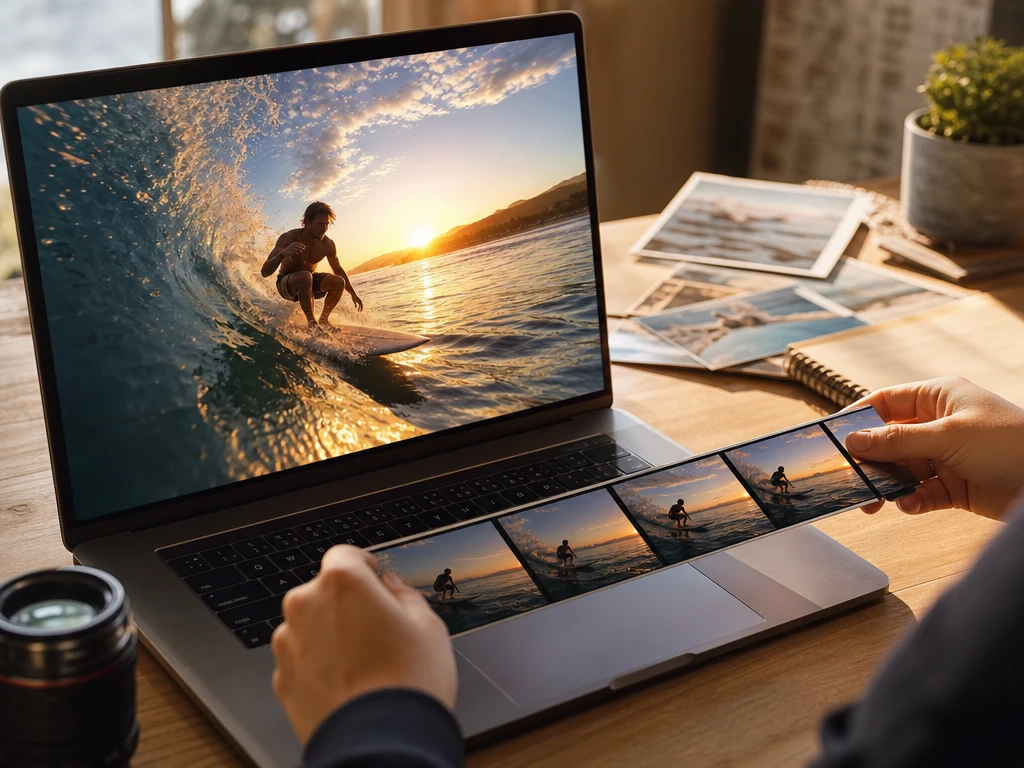
Timeline preview with source clip, added frames, prompt notes, and export settings

Where ai video extender helps edits

Use the ai video extender when a clip ends before the moment has room to land, or when your edit needs a few more usable seconds before export.

01

Repair Cutoffs

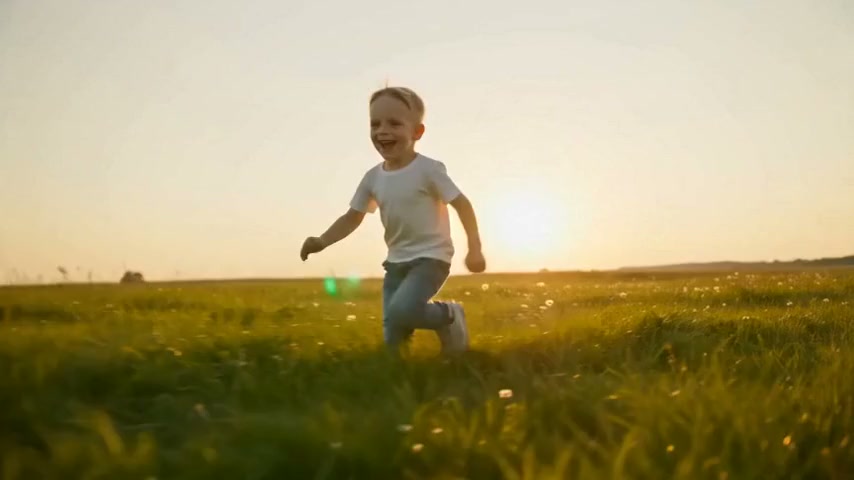
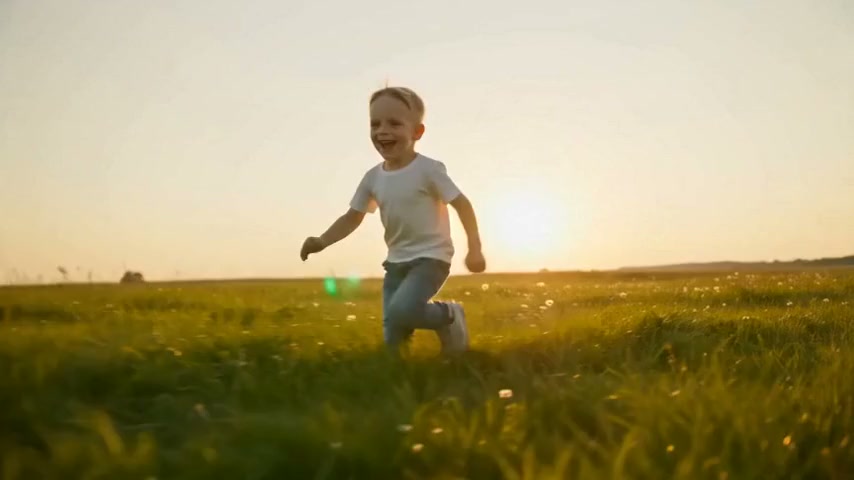
When a reaction, gesture, or line stops too early, PictureMaker uses the source clip to generate continuation frames that make the ending feel more complete. Add a clear prompt for the action or camera move, then review the preview before you export.

02

Add Brand Hold

The ai video extender can create extra quiet motion after a product shot, so a logo, caption, or call to action has space on screen. Keep the prompt simple and describe the hold you want, such as a slow pull back or steady product frame.

03

Smooth Edit Gaps

Editors can use ai video extender support to add buffer frames between two nearby clips before a match cut or cross fade. Clear lighting, stable motion, and a readable subject give the ai video extender a better reference for continuity.

04

Adjust Social Rhythm

PictureMaker helps make video longer for a reaction beat, highlight pause, or sports follow through without sending the whole scene back to production. The result works best when the original clip is clear and the motion path is not heavily blurred.

Who uses ai video extender for edits

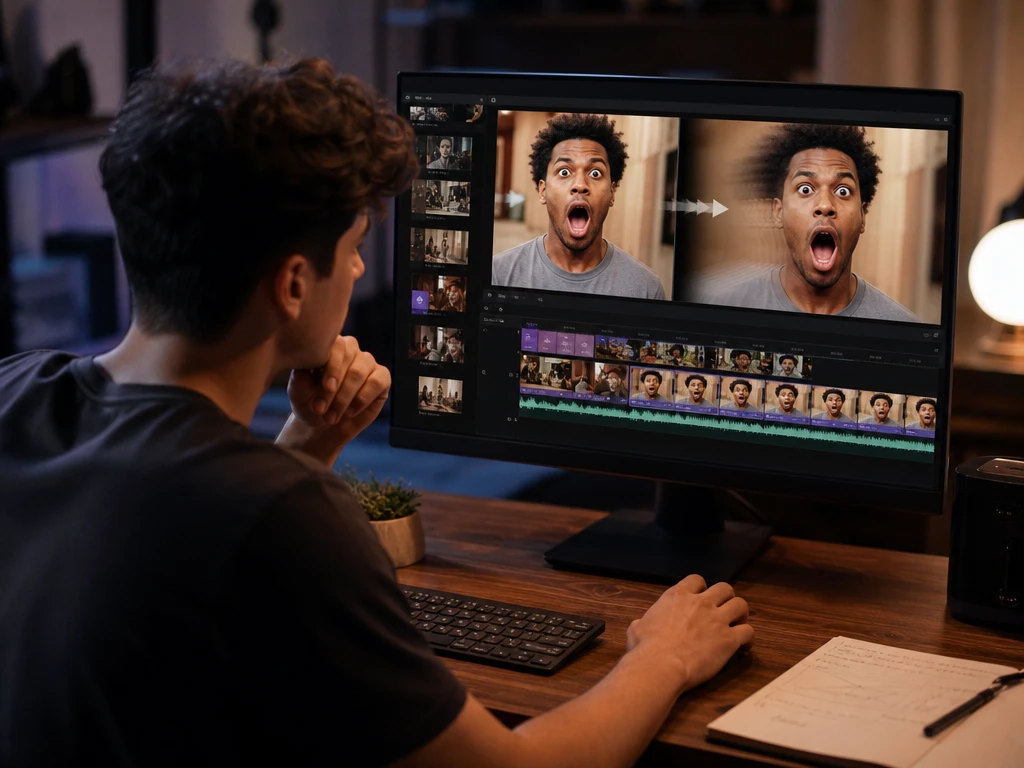
Creator editing a reaction clip with prompt notes and added frames in a timeline

Creators

Short Form Creators

Social creators use the ai video extender to hold a face reaction, stretch a visual punchline, or give a highlight clip enough room to breathe. The prompt sets the intended motion, then the preview shows whether the added frames fit the pace.

Control the extended frames

The ai video extender focuses on what changes in the clip, not on model settings you do not need to manage during a quick edit.

Prompt panel guiding camera pull back from a source clip into preview frames

Prompt Direction

PictureMaker follows your text prompt when you need the next frames to continue an action, hold a product, or guide camera motion. You describe the scene direction instead of rebuilding the shot in a separate tool. The output stays closer to your creative intent when the prompt matches visible motion in the source clip.

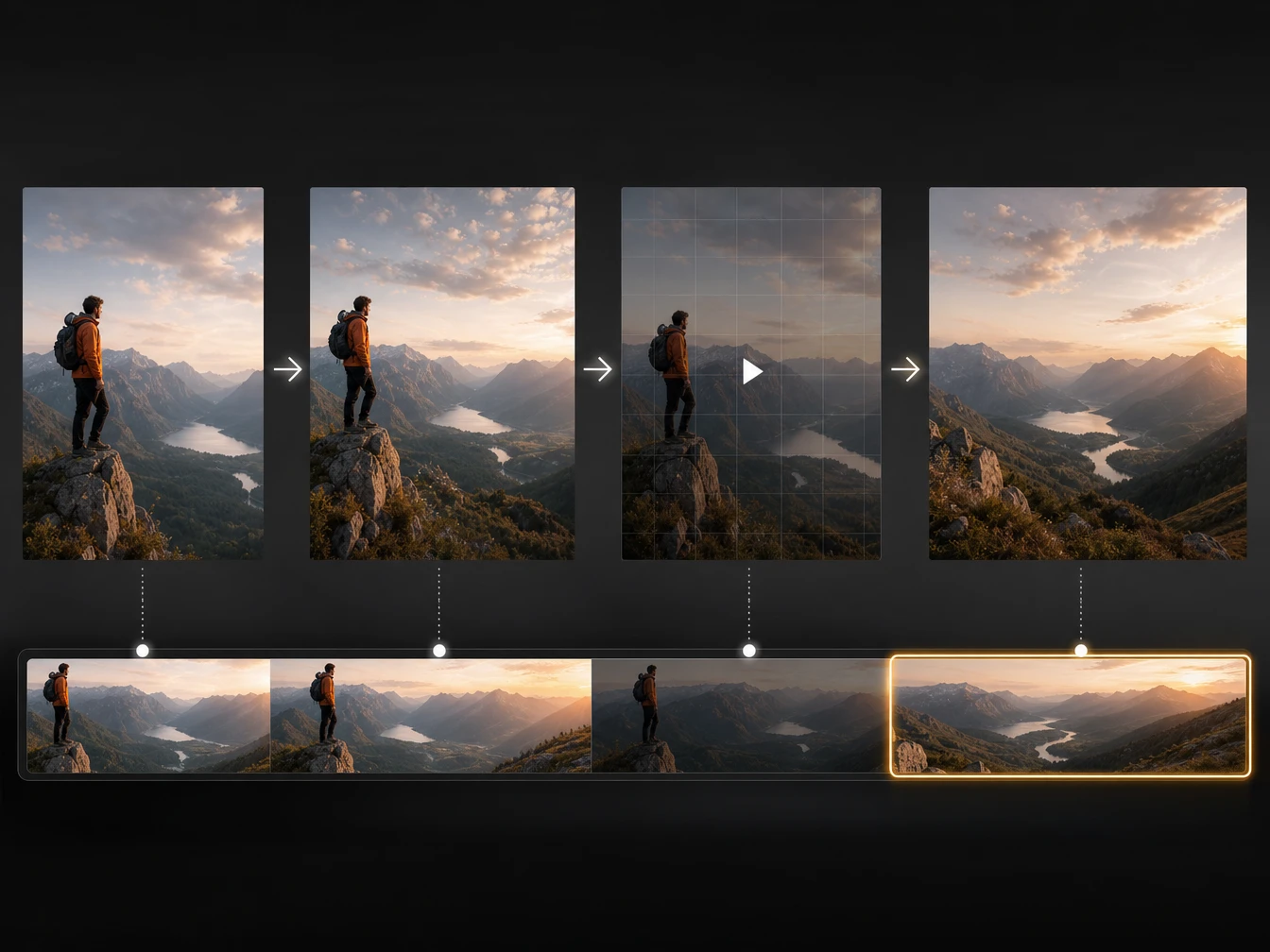
Source clip motion path continuing into added frames with matching light and color

Motion Continuity

The ai video extender reads motion, lighting, color, and style from the source clip when it creates the continuation. You do not need to set every frame by hand, but you should choose footage with a stable subject path. The output looks more natural when the original movement is readable.

Timeline showing first extension, second extension, preview check, and export output

Chain Extension

PictureMaker lets you extend an already extended clip again when one pass does not give enough timeline space. Review each preview before starting the next pass, so the scene direction stays under your control. This helps extend video length in stages, but it is not meant for unlimited length.

Export settings for extended MP4 clip with preview window and timeline destination

Export Ready Clip

PictureMaker exports the longer video file after you approve the preview and settings. You can download the result or bring it into your editing timeline for the next cut. The video length extender works best with common short video formats such as MP4, MOV, and WebM.

Build a longer usable clip

A practical video extend flow keeps the source, creative decision, preview, and export connected.

01

Upload Source

Start with a clear short clip in a common format, then PictureMaker reads the visible motion and scene style so the ai video extender has a grounded reference for the next frames.

02

Write Direction

Add a prompt for the action, reaction, or camera move after the cutoff, so the ai video extender does not guess beyond the story beat you need.

03

Preview Frames

PictureMaker ai video extender shows the extended section after generation, then you judge pacing, motion, and visual fit before the clip moves into final export.

04

Export Timeline

Choose the approved output, then download the extended video or import it into your timeline so the longer clip can support captions, cuts, or brand space.


See how PictureMaker handles a short source clip, a clear prompt, and an export ready preview when you need an ai video extender online for a real edit.

Try ai video extender

See how PictureMaker handles a short source clip, a clear prompt, and an export ready preview when you need an ai video extender online for a real edit.

Start Now

ai video extender questions for ai edits

Can the ai video extender fix a clip that ends too early?

Yes, the ai video extender can help complete a cut off gesture, reaction, or spoken moment when the source clip gives clear visual direction. Stable light and readable motion help the added frames feel more usable in the edit.

What source clips work best with the ai video extender?

Clear short clips in common formats such as MP4, MOV, and WebM give the ai video extender stronger reference detail. Heavy blur or strong camera shake can make the continuation less predictable.

Can I guide what happens after the original video ends?

Yes, a prompt can guide the next action, expression, or camera movement. The ai video extender works closer to your intent when the prompt describes something already supported by the source clip.

Is this the same as slow motion?

Slow motion stretches existing frames, while the ai video extender creates new continuation frames from the source clip and your prompt. That helps when you need new ending space rather than a slower version of the same action.

Can I extend the same clip more than once?

PictureMaker supports staged extension, so you can review one result and extend again if the scene still needs more space. The ai video extender is not designed for unlimited length, so each pass should serve a clear edit decision.

How does PictureMaker help with brand end cards?

The ai video extender can add extra hold time after a product shot or scene ending, which gives captions, logo placement, or a CTA more room. A steady product frame usually gives the cleanest preview for this use.