PictureMaker
Choose who talks
We'll sync the lips to the audio you add below.
Upload the audio to sync withClick or drag to upload / choose from
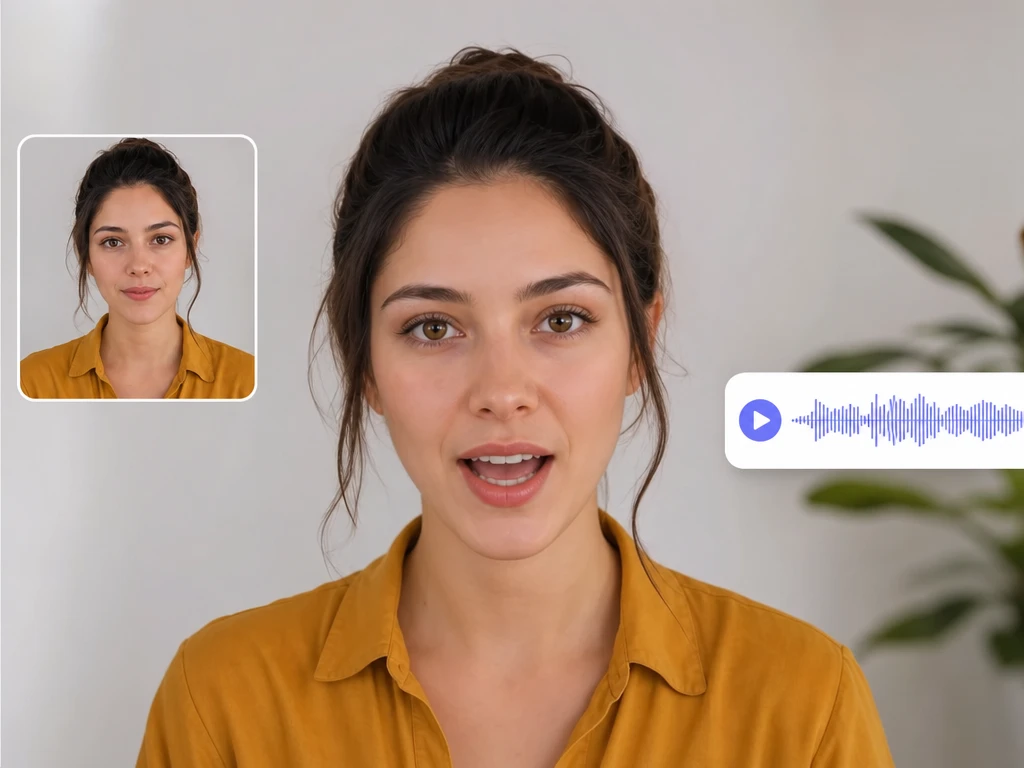
Presenter clip and audio track preview for controlled lip sync video creation

AI lip sync studio

lip sync video that keeps the voice in frame

PictureMaker helps you line up a source photo or clip with a new audio track, so a presenter, character, or avatar speaks with mouth movement that follows the voice.

Start Now

Make lip sync edits feel recorded

Keep the visual face and the new voice working together, especially when a reshoot would slow the whole project.

01

Face Source

PictureMaker starts from a video or static image with a clear face, including portrait, character, or pet material. Upload the source, then pair it with the voice you want the face to perform. The lip sync output looks cleaner when the mouth, jaw, and eyes are visible in the frame.

02

Audio Input

When your script changes after filming, add a local audio file, record a new voice, or use text speech to drive the mouth movement. You choose the track that carries the final line. The lip sync video follows that audio, with the best result coming from clear speech and steady pacing.

03

Mouth Matching

PictureMaker matches visible mouth motion to the spoken audio for ai lip sync projects that need a more natural read than plain dubbing. Review the preview before you export. The result keeps the face speaking the revised line, while unusual angles or covered mouths may need a cleaner source.

04

Video Output

PictureMaker exports a video file with synchronized lip movement after the source and voice are processed together. Select the version that matches your script and final delivery need. The output is built for talking clips, avatars, localized explainers, and lip sync animation from still images.

Where lip sync saves reshoots

Use the tool when the face is already right, but the line, language, or pacing needs a new take.

01

Social Creators

Creators can turn a YouTube or TikTok source clip into a localized lip sync video for another audience. The goal is to keep the speaker present on screen while the voice changes language or wording.

02

Marketing Teams

Small teams can test new product messages without filming every talking head again. A lip sync app helps keep the same presenter or character while the spoken offer changes for each market.

03

Course Producers

Educators and training teams can update lesson narration while keeping the instructor visible. This is useful when a policy line, product term, or example changes but the original footage still works.

04

Avatar Projects

Digital host creators can use make photo talk workflows to build a talking avatar ai clip from one image and one voice track. The result suits short explainers, virtual podcast segments, and character based updates.


Build a lip sync video

Move from source to preview to export with the creative decision staying on the voice and face match.

  1. 1

    Start with a video file or a static photo that shows the face clearly, then PictureMaker reads the visual source so it can prepare mouth movement for lip syncing ai output.

  2. 2

    If the spoken line needs a new language, upload audio, record a track, or enter text for speech, so the face follows the voice you want in the final scene.

  3. 3

    Check the preview timing after that, then export the lip sync video when the mouth movement and audio track feel aligned enough for the intended audience.

Sharper lip sync from each source

The same tool can handle different creator inputs, as long as the face and speech give PictureMaker enough detail to match.

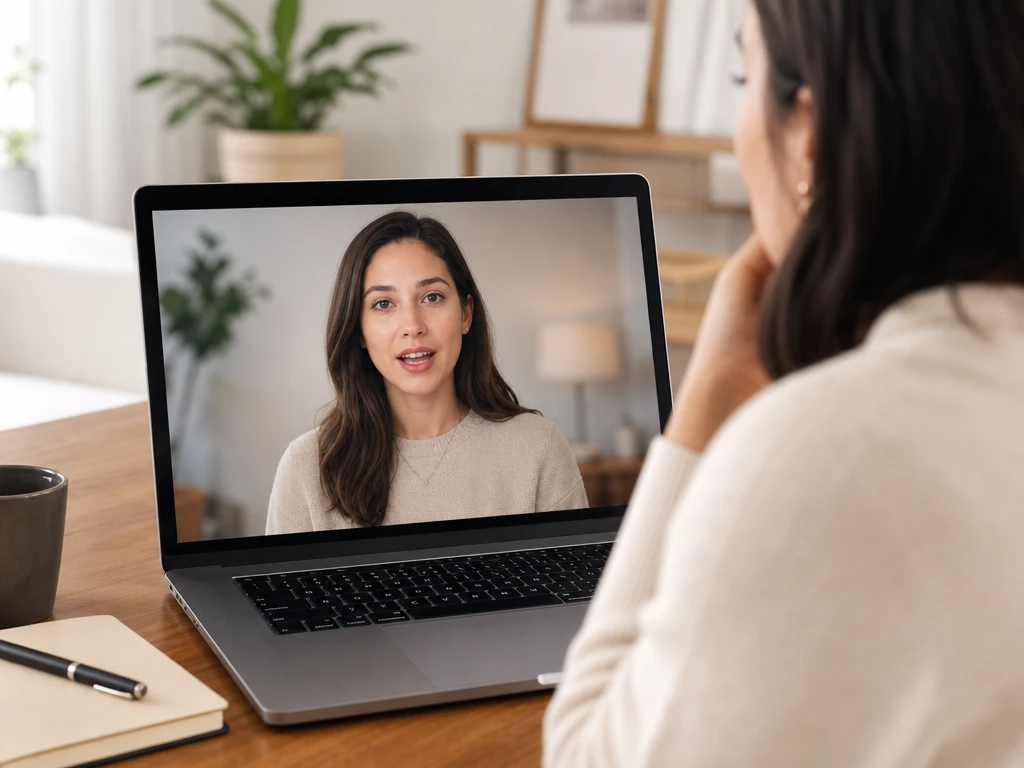
Talking photo source with voice track preview for face animation

Talking Photo

Talking photo ai turns a still portrait, character image, or animal photo into a speaking video when you add a voice track. You provide the image and the audio or text speech. Works best with a front facing source where the mouth area is visible.

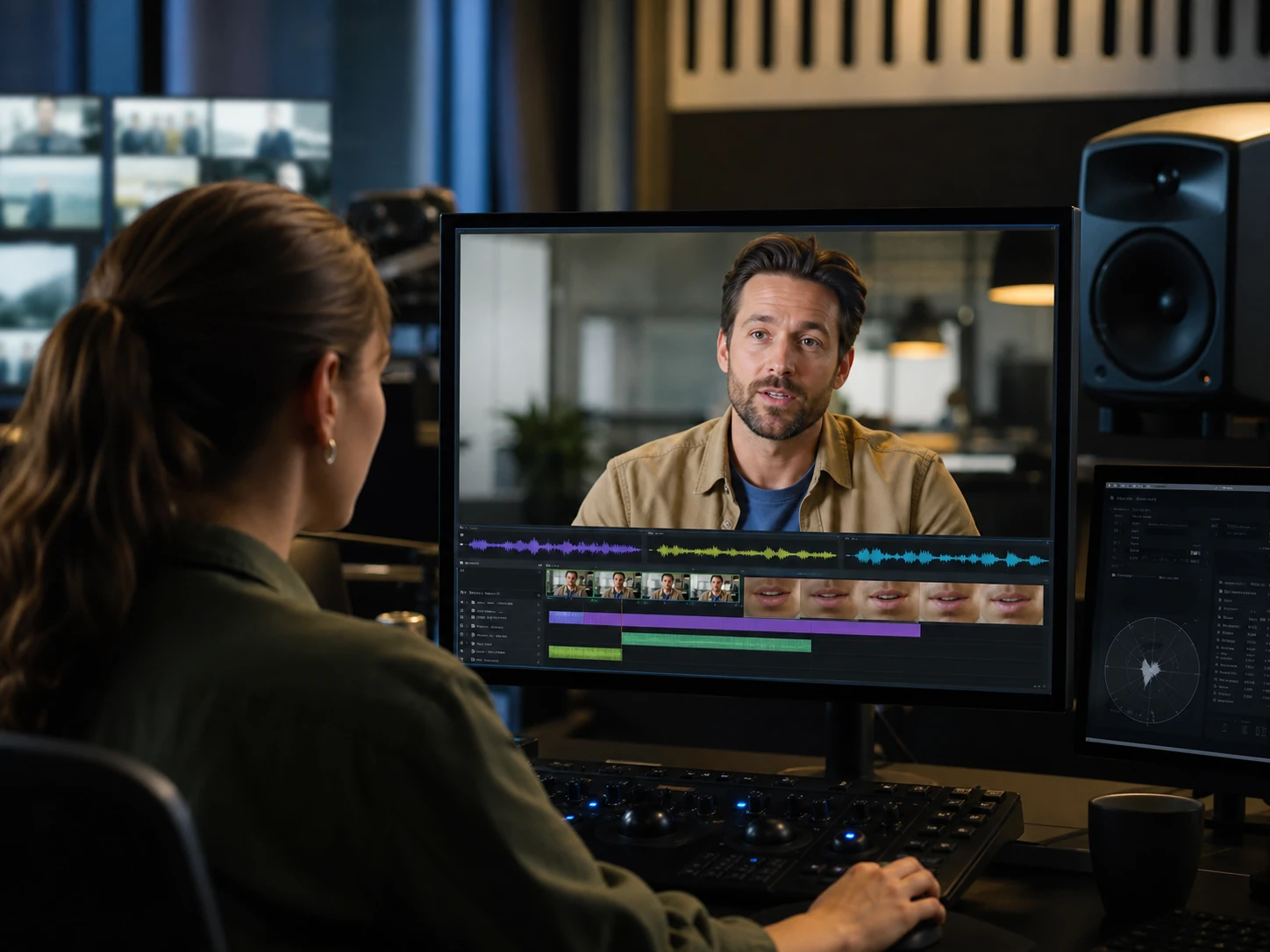
Localized presenter clip with translated voice track and lip timing preview

Localized Speech

AI lip syncing helps a translated voice feel closer to the person on screen when a dubbed track would look disconnected. You choose the replacement audio and review the timing. The output supports localization work when the source clip has a clear speaker and steady framing.

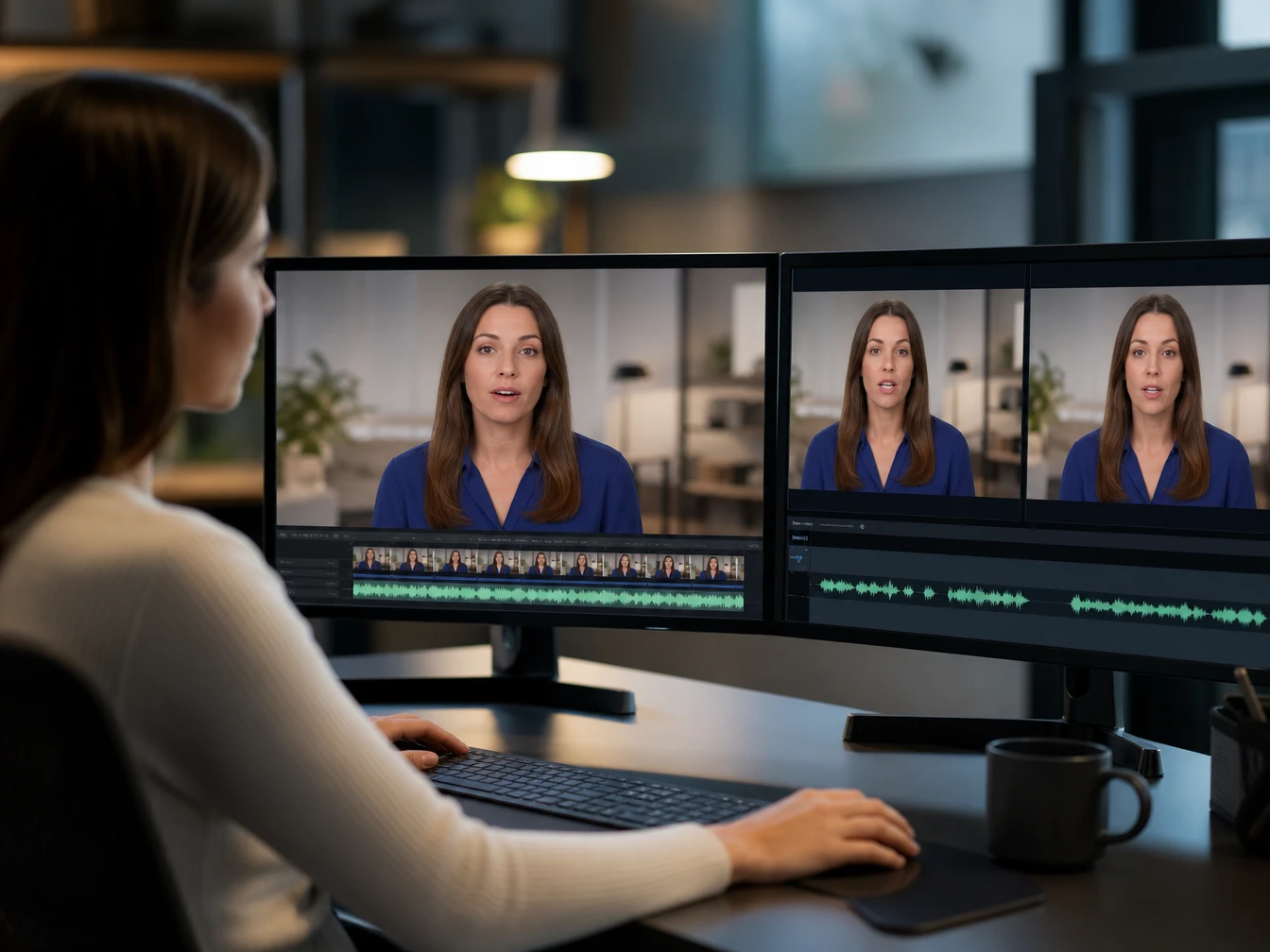
Training video speaker with revised audio track and preview timeline

Script Updates

When one line changes after recording, PictureMaker can rebuild the mouth movement from the revised audio instead of sending the team back to set. Replace the track, then compare the preview against the original clip. This suits short corrections where the face remains usable in the shot.

Avatar face image with voiceover track prepared for lip sync output

Avatar Voice

An ai lip sync generator can create a talking host clip from a clear face image and a voiceover. Provide the source and decide which voice carries the message. The result works for concise avatar updates, while dramatic expressions still depend on the original face image.

See how PictureMaker handles your source face, voice track, and preview before you choose the export that fits the project.

Try lip sync with your clip

See how PictureMaker handles your source face, voice track, and preview before you choose the export that fits the project.

Start Now

lip sync questions before export

What source works best for lip sync?

A clear face in a video or photo gives lip sync the most useful detail. Front facing shots with visible mouth movement usually preview better, while side angles, covered mouths, or heavy motion can reduce the match.

Can I use text instead of audio?

Yes, PictureMaker can use text speech as the voice source for lip sync. Clear wording and natural pacing help the mouth movement read more like a recorded line.

Does it work for localization?

PictureMaker supports lip sync video for translated speech, so a speaker can appear to deliver the new language on screen. The result depends on the source face, the translated voice timing, and how closely the new line fits the scene.

Can I make a photo talk?

Yes, a clear portrait, character image, or animal photo can become a speaking video with lip sync. A clean mouth area gives the tool better visual cues for the final talking photo ai result.

Is this only for short videos?

PictureMaker is written here for source clips and photos, not for a confirmed long video limit. Use lip sync on the material you plan to test, then judge the preview before export.

Will lip sync replace a reshoot?

It can replace some reshoots when the face footage still works and only the spoken line changes. Lip sync is most useful for script corrections, localization, and voice updates where the original visual take is worth keeping.

What should I review before exporting?

Check the mouth timing, voice clarity, and face framing in the preview. A lip sync export is stronger when the audio is clean and the source face stays visible through the important words.