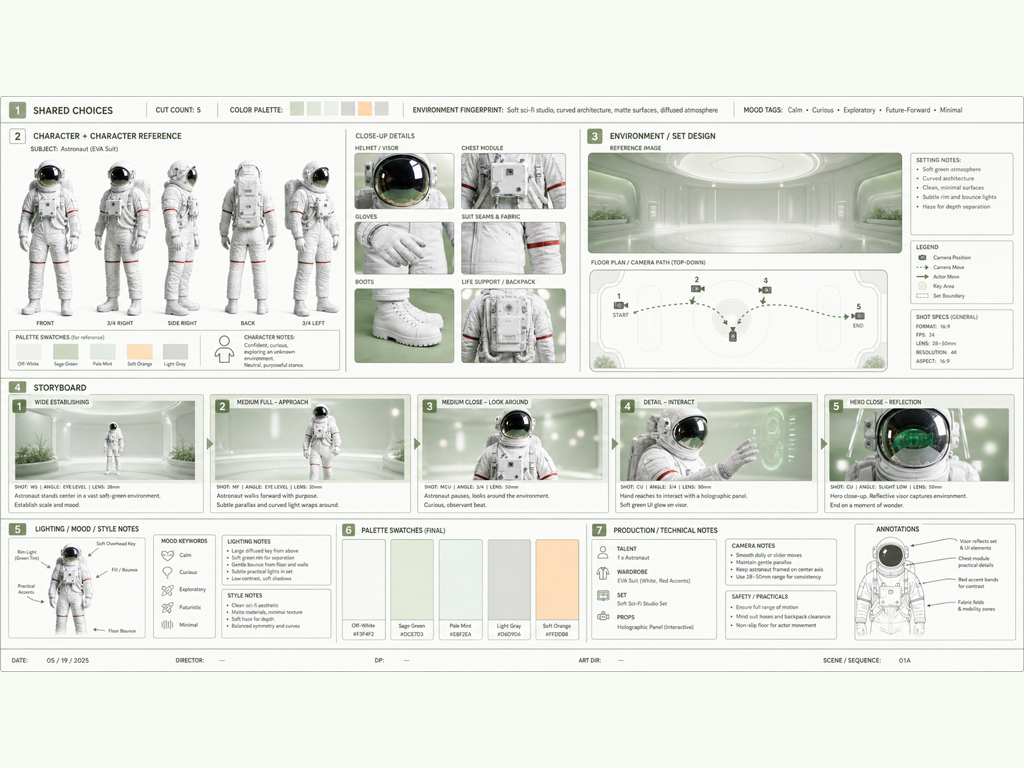
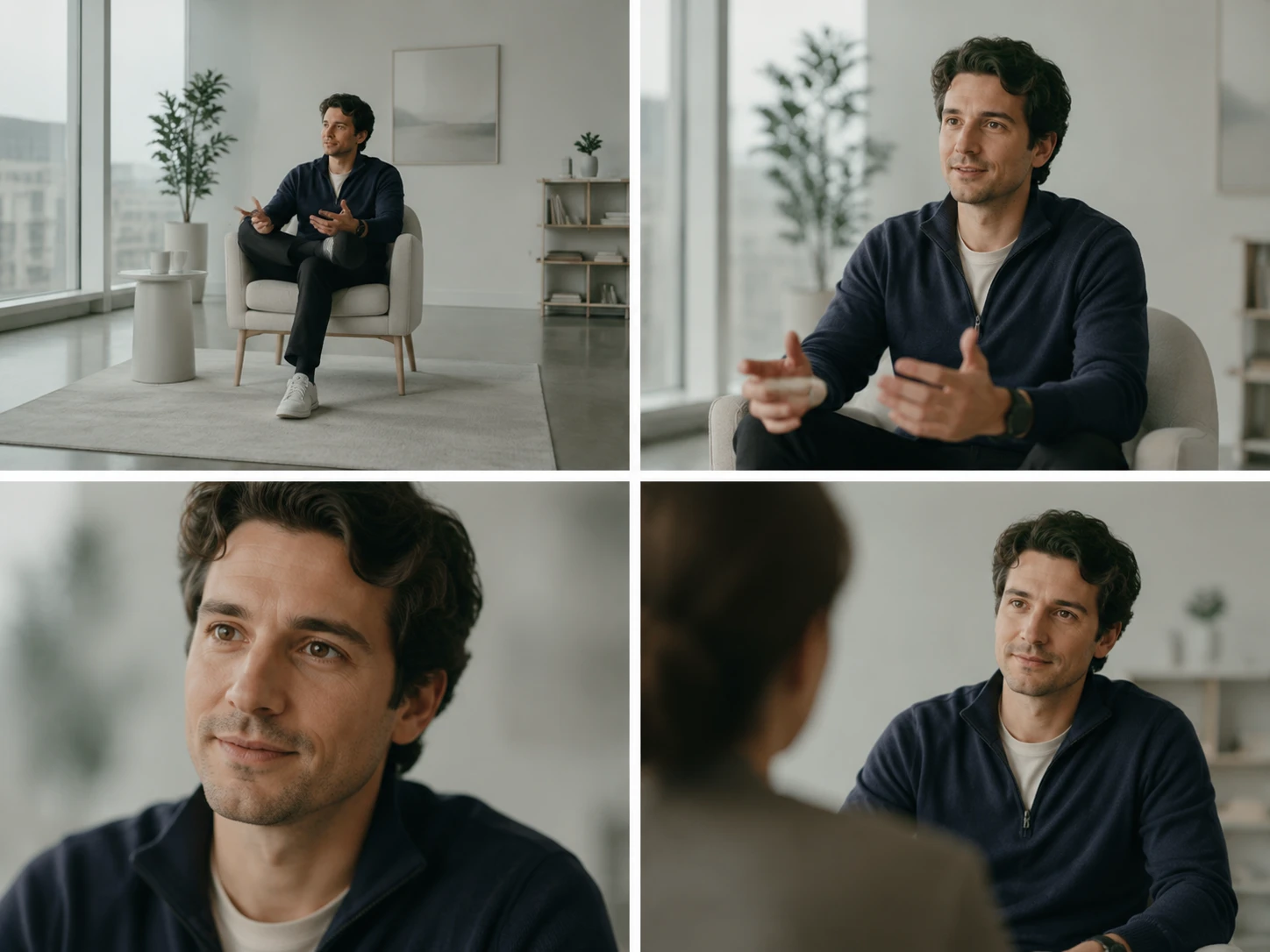
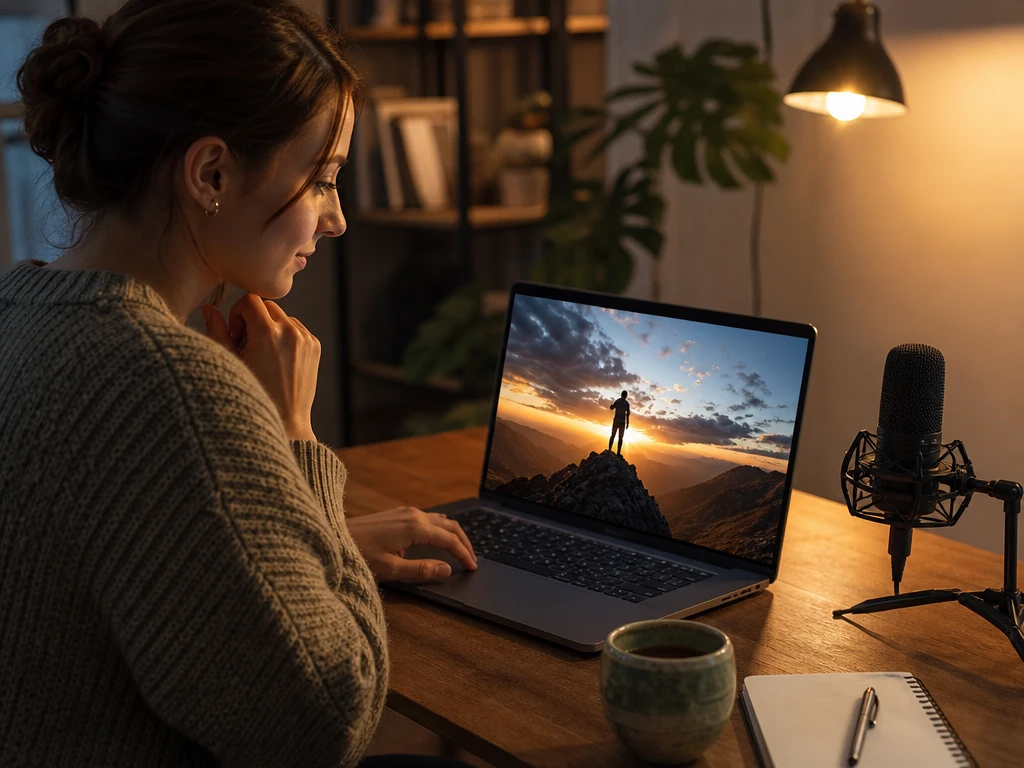
Upload a character photo, describe the scene, and generate a video with consistent identity.
Upload & Describe
Upload a character image and write your scene prompt.
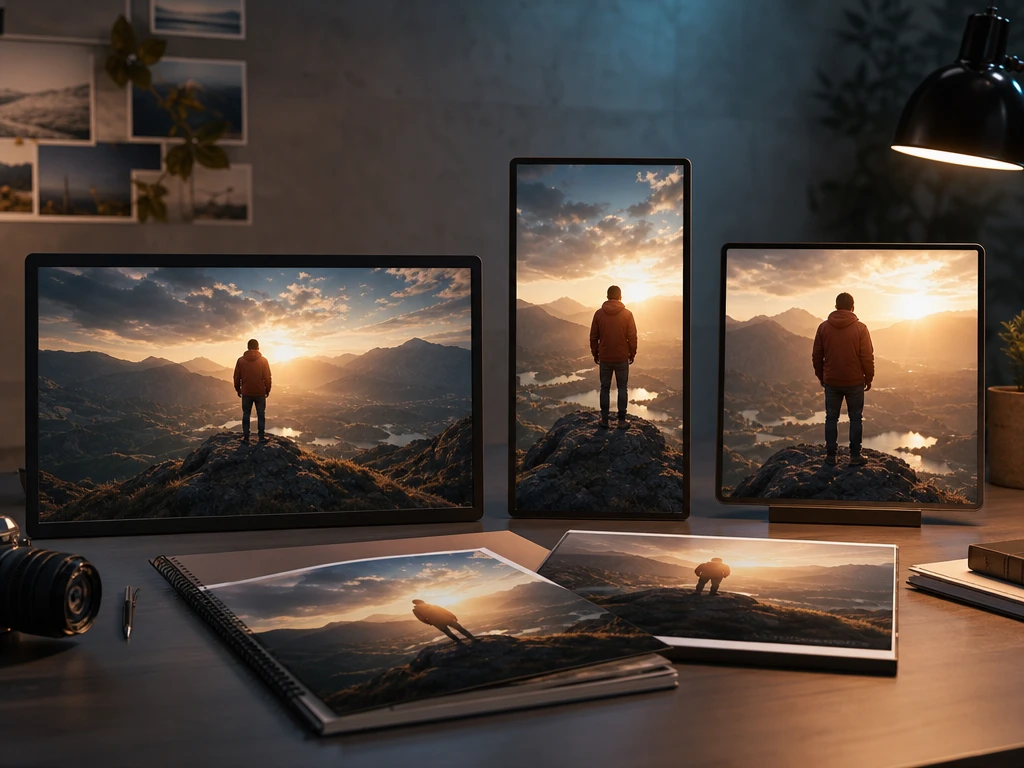
Preview & Refine
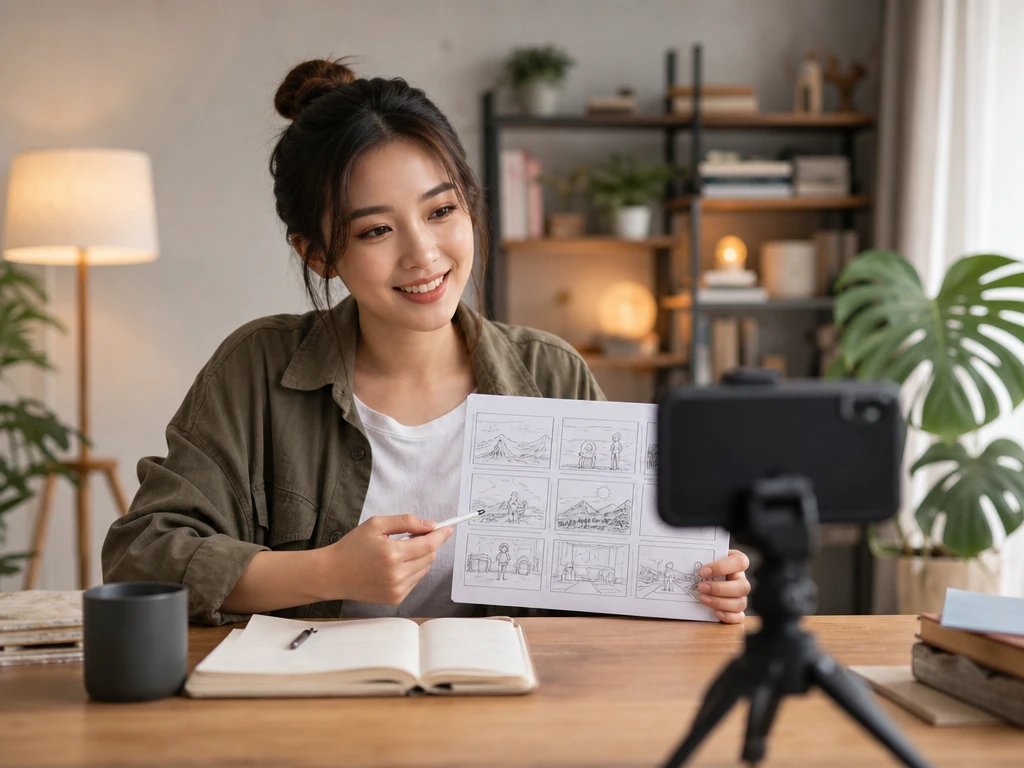
Review AI-generated storyboards and edit each shot.
Generate Video
Turn the approved storyboard into a final Smart Shot video.
Smart Shot Film Tool
ai movie maker for Controlled Short Films
When your idea needs to become a short film, the ai movie maker helps you shape the scenes, voiceover, subtitles, music, and export format while you keep control of the story direction.
Start with a prompt, outline, or script, then use the ai movie maker to turn that source into a complete video with picture, sound, and format choices.
01
Short Drama Clips
If your channel needs frequent story videos, PictureMaker turns a prompt or script into scenes, narration, captions, and music for a faster production pass. The ai movie maker fits creators who need a clear preview before committing to the final output.
02
Novel Storyboards
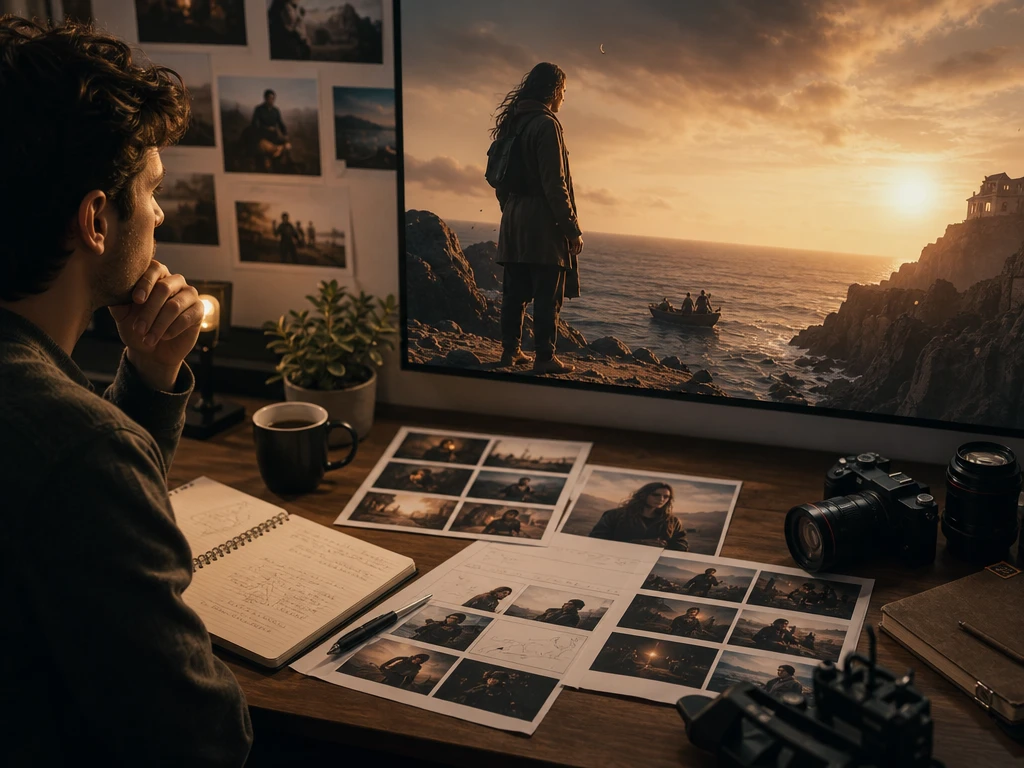
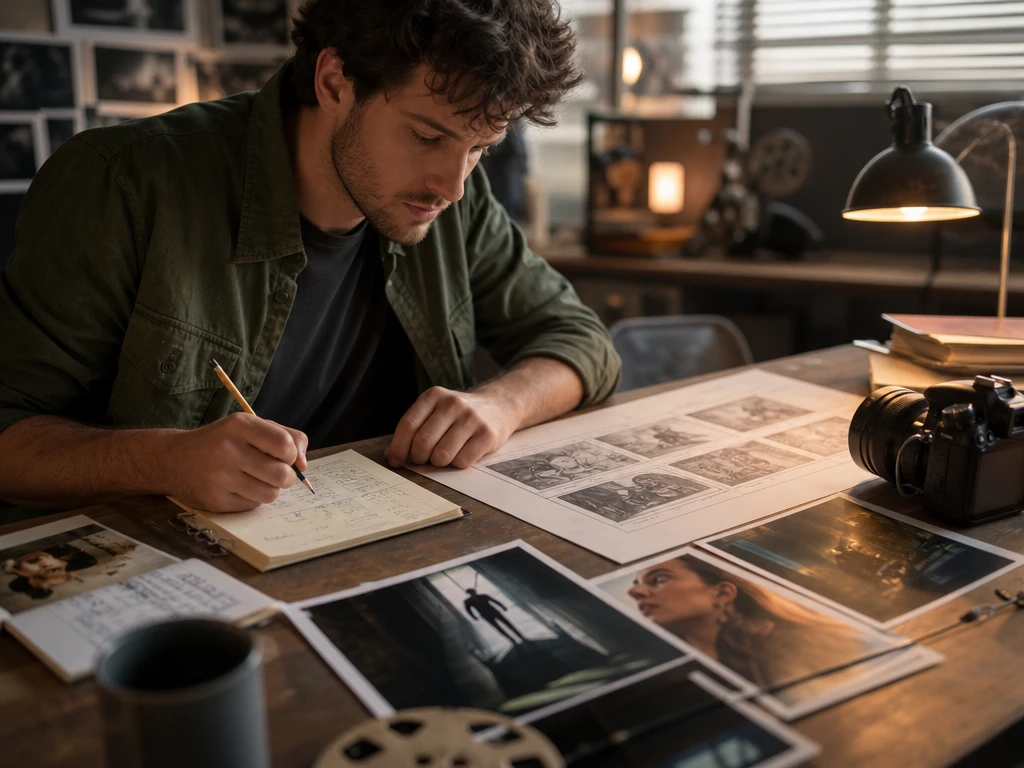
Writers can use PictureMaker as an ai storyboard generator to see how a scene reads on screen before turning it into a finished video. The storyboard ai flow works best when the source includes setting, character action, and mood.
03
Marketing Tests
Product teams can test a cinematic ai video idea from a short concept, then compare vertical, square, and landscape outputs for different channels. The ai movie maker helps keep each version tied to the same message.
04
Lesson Scenes
Educators and explainers can turn a teaching outline into a visual sequence with voiceover, subtitles, and background music. Use the ai movie maker like an ai director that keeps the lesson moving from point to point.
Preview ai movie maker Decisions Early
PictureMaker keeps the production choices visible, so your prompt, style, audio, subtitles, and export ratio all point toward the same finished video.
Prompt to Film
When your source is a prompt, idea, or script, PictureMaker uses ai movie maker to build the film structure with scenes, voiceover, subtitles, and music. You choose the story direction and visual style, then review the preview before export. The output is an HD video file that works best when the source gives clear characters, setting, and desired mood.
Script Scene Builder
PictureMaker turns script beats into scene based boards for an ai storyboard generator workflow when you need to see the film before export. You refine the prompt or ask for a scene replacement with text instructions, then check the updated preview. The ai storyboard reads cleaner when each beat describes one action or visual moment.
Voice and Music
PictureMaker creates voiceover, background music, cinematic sound effects, and dynamic subtitles for the ai movie maker once your story has a clear tone. You select or revise the voice style and emotion with text direction, then preview how the track supports the scene. The finished audio works best when the script gives enough context for pacing and mood.
Format Presets
PictureMaker sets landscape, vertical, or square export formats for ai movie maker output when the same video needs to fit YouTube, TikTok, or Instagram. You choose the target ratio, then PictureMaker prepares the video shape for that placement. The exported file looks more intentional when the prompt keeps the key subject centered enough for each crop.
Creators Needing ai movie maker Control
Social Creators
Keep Episodes Moving
Social creators can use the ai movie maker to turn story ideas into short drama clips or explainer videos with visual scenes, voiceover, subtitles, and music. It supports a steady content rhythm without forcing every cut through traditional editing software.
Try Your First ai movie maker
See how PictureMaker handles a prompt, outline, or script as scenes, voiceover, subtitles, music, and a publishable video format in one browser workspace.
What does the ai movie maker create from my prompt?
The ai movie maker creates a video with generated scenes, voiceover, subtitles, background music, and sound effects. A clearer prompt gives PictureMaker stronger direction, so the preview stays closer to your intended story.
Can PictureMaker work as an ai film maker for scripts?
Yes, PictureMaker can act as an ai film maker when you provide a story outline or complete script. The tool builds a structured short film from that source, which helps you judge pacing before export.
How does the tool handle scripts and outlines?
Use the ai movie maker with a prompt, creative idea, or script, then PictureMaker turns the source into scenes with audio and subtitles. Detailed scene intent helps the output avoid vague visual choices.
Can I choose the visual style of the film?
PictureMaker supports cinematic realistic, 3D animation, and anime inspired visual styles. Choose the style that matches the story tone, so the preview carries the right visual language from the start.
Does it include voiceover, subtitles, and music?
The ai movie maker includes AI voiceover with multiple voice tones and emotions, background music, cinematic sound effects, and dynamic subtitles. Strong script wording helps the voiceover match the intended pacing.
Can it help with storyboard planning?
Start with a script or idea, and PictureMaker can support ai storyboard generator, storyboard ai, and storyboard generator workflows before final output. This helps writers inspect scene order and visual clarity early.
What export formats can I choose?
Your ai movie maker output can use landscape, vertical, or square formats for channels such as YouTube, TikTok, and Instagram. Pick the format around where the audience will watch, so framing choices make sense.
Is this only for social creators?
No, PictureMaker also serves writers, marketers, educators, trainers, and small teams that need a finished video from text. The fit is strongest when the goal is a short film or explainer with image and sound together.
Can I revise a scene after preview?
Adjustments happen through text instructions inside the ai movie maker, such as replacing a shot or changing narration accent. Clear revision notes help PictureMaker update the scene without shifting the whole story direction.